

How do I add keywords to my Google Business page? There is no keyword field. Keywords go into specific profile fields, and the business name is the one place that gets profiles suspended.
Many people still search for “Google My Business keywords”, the old name for what is now Google Business Profile. The answer is the same under both names. Use these seven places, roughly in this order of priority:
- Primary category
- Secondary categories
- Business description
- Services
- Products
- Menu
- Posts
Review replies, and Q&A answers where your profile still shows Q&A, are bonus spots covered below. Products suit retail shops and menus suit food and drink businesses, so skip the fields that do not fit yours.
Knowing where to put keywords is half the job. Our local SEO AI agent helps with the other half, choosing the right terms for each location, and our Google Business Profile optimization guide covers the rest of the profile.

Turn Google Maps SEO into a repeatable workflow. Use Localith to audit profiles, track local heatmaps, prioritize weak locations, and keep every Google Business Profile moving.
Start free trialWhy Google Business Profile keywords affect local rankings
Google says local results are mainly based on three factors: relevance, distance and prominence. The Google help page on local ranking explains each one.
Relevance is how well your profile matches what someone searched for. Distance is how far you are from the searcher. Prominence is how well known your business is.
You cannot change distance by typing. Prominence grows slowly through reviews, ratings and links from other websites.
Relevance is the factor you can improve today. Google says it comes from complete and detailed business info. That is why people search for terms like “Google My Business SEO keywords” in the first place.
Categories tell Google what kind of business you are, and Google names the category among the info that helps your profile show for relevant searches. Services, products and a clear description add detail for customers and for Google. That is why the list above starts where it does.
Many owners try the business name first, because it looks like the most visible field. It is also the riskiest one, and a later section explains why.
Google does not publish a weighting for each field, and it says there is no way to request or pay for a better local ranking. Treat the labels below as a priority guide, not a guarantee.
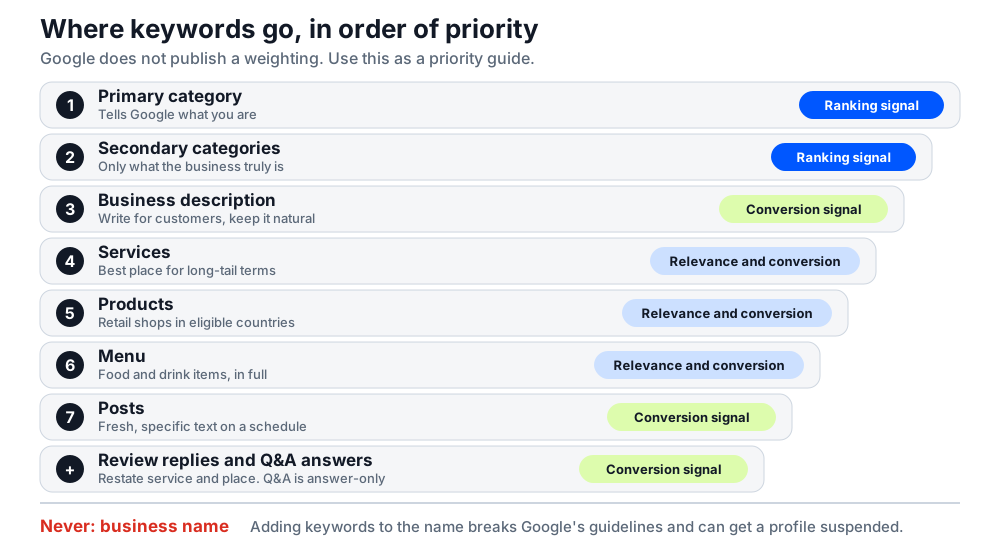
Where to add keywords in your Google Business Profile
Every field below follows the same pattern: why it matters, what kind of signal it is, and a short before and after. The examples are illustrative, so swap in your own services and city.
The three signal labels mean this:
- Ranking signal: Google names it among the info that helps your profile show for relevant searches.
- Relevance and conversion signal: it adds detail that helps customers choose you and may help Google match you to searches, but Google does not name it as a ranking factor.
- Conversion signal: it mainly helps customers act once they find you.
Write for customers first. Keywords should read like normal sentences, because a field stuffed with search terms gets ignored by readers and can break Google’s rules.
A quick note on where you edit. Most profile editing now happens directly in Google Search and Maps, not in a separate dashboard.
Search for your business name while signed in to the account that manages the profile. Then use the edit options on your profile to change the fields below. Older guides that show a retired dashboard will not match what you see.
Google reviews your changes before they go live, so they can take a little while to show.
1. Primary category: your clearest keyword signal
Signal type: ranking signal.
Your primary category tells Google what kind of business you are, which makes it the clearest relevance signal on the profile. Pick the most specific category that describes your core business, not the broadest one.
When you choose a specific category, Google implicitly includes the more general ones, so you do not need to add them.
- Before: Restaurant
- After: Italian restaurant
2. Secondary categories
Signal type: ranking signal.
Google lets you add up to 9 more categories, but its guidelines say to use as few categories as possible to describe your core business.
Do not use categories as keywords or to list services and amenities. Each one should finish the sentence “This business is a…”, not “This business has a…”.
- Before: Dentist only
- After: Dentist as the primary category, plus Cosmetic dentist only if cosmetic work is a core part of the business
3. Business description: where to add keywords in plain text
Signal type: conversion signal.
Google says to use the description for useful information about your services and products, and your mission and history. It does not list the description among its local ranking factors, so write it for customers first and keep keywords natural.
The description appears in the “From the business” section of your profile and allows up to 750 characters. Lead with your main service and your city.
Google does not allow links, promotions or prices in the description. It also rejects low-quality text such as gibberish or gimmicky characters, so keep keyword lists out.
- Before: Best plumber Austin, cheap plumber, emergency plumber, water heater, drain cleaning
- After: Austin Plumbing Co. repairs and replaces water heaters, clears drains and handles emergency plumbing calls across Austin, Round Rock and Cedar Park.
4. Services: the best place for long-tail keywords
Signal type: relevance and conversion signal.
Each service gets a name, and the services editor also takes a description and a price. Google lists it as limited availability, so it may not show for every business.
This is the most under-used keyword space on most profiles.
It is also where long-tail terms belong, such as “emergency water heater repair”. List the full set of services you really offer, not just the popular ones.
- Before: Plumbing
- After: Emergency water heater repair, with a description that names the problems you fix and the areas you cover
5. Products
Signal type: relevance and conversion signal.
Google offers products to retail businesses in eligible countries (the US, Canada, the UK and Ireland), with limited availability. Add them with the Product Editor, or connect a point of sale system to the Local Inventory app. Google says in-store products might show in local search results.
Give each product a name and a short description that uses the words customers actually say. Regulated items such as alcohol, tobacco or unapproved supplements are not allowed, and a policy violation can remove the whole catalog.
- Before: Bike
- After: Electric commuter bike, step-through frame, with a description mentioning test rides at your Brooklyn shop
6. Menu
Signal type: relevance and conversion signal.
Restaurants, cafes and bars can list their full set of food and drink items in the menu editor, which Google lists as limited availability and for food and drink businesses only. Google says a menu should be complete, not a short list of popular items, and its URL cannot link straight to a third-party ordering or delivery service.
Write item names and descriptions in the words customers use. Service businesses such as barbers or spas can list their services the same way, which is the services field above.
- Before: Pizza
- After: Wood-fired margherita pizza, with a description mentioning fresh mozzarella and basil
7. Posts
Signal type: conversion signal.
Posts let you publish fresh, keyword-relevant text on a schedule. Offers, events and updates give customers a reason to act.
Keep each one specific to a service and a place, and publish on a steady schedule instead of in bursts. Our guide to Google Business Profile posts shows how to publish and schedule them.
- Before: “Great deals this week!”
- After: “Book an emergency water heater repair in Round Rock this week. Same-day slots available.”
Bonus: review replies and Q&A answers
Signal type: conversion signal.
Google does not let businesses ask for specific content in reviews, and you must never script reviews. Your replies are different, because you wrote them. Google says helpful replies can help your business stand out.
Restate the service and the place naturally, such as “Thanks for choosing us for your water heater repair in Round Rock”. Our guide on how to respond to Google reviews covers tone and structure.
Google says Q&A is available only for select business categories and regions. Owners and managers answer the questions customers ask, and in the US pilot attribute questions take a Yes, No or Skip answer.
So treat Q&A as answer-only: reply to real questions and do not write your own question-and-answer pairs.
- Customer question: Do you repair tankless water heaters in Round Rock?
- Your answer: Yes. We repair and replace tankless and tank water heaters across Round Rock and Austin.
Never add keywords to your business name: Google’s name guidelines
This is the one place keywords hurt you, and it is the first place most people try.
Google’s guidelines for representing your business say your name should be your real-world business name, as used consistently on your signage and stationery. Its list of things a name must not include covers marketing taglines, service or product information and location information.
Google also says adding unnecessary information to your name “could result in the suspension of your Business Profile”.
Google says guideline problems can lead to changes to your information or, in some cases, removal of your business information from Google. Other people can also report a name they think is stuffed.
If that happens, our guide to a suspended Google Business Profile explains what to do next.
| Name on your sign | Name on the profile | Verdict |
|---|---|---|
| Joe’s Plumbing | Joe’s Plumbing | Safe |
| Joe’s Plumbing | Joe’s Plumbing Best Plumber Austin | Violation |
| Austin Plumbing Co. | Austin Plumbing Co. | Safe |
There is a legitimate exception. If the word is part of your real-world name and you use it consistently on your signage, website and stationery, such as “Austin Plumbing Co.”, you are simply using your real name.
Google also asks for real-world proof, such as signage, before special characters or legal terms like LLC go in a name.
The rule is about adding words your business does not use. Google says to put details like address, service area, hours and category in their own sections.
Here is where each word you were tempted to add to the name belongs:
- The service (“plumber”, “emergency dentist”): your category, if one fits, and your services list
- The city or neighborhood (“Austin”, “Round Rock”): your description and your services text
- The tagline or promotion (“best”, “cheap”, “24/7 service”): your posts, if the offer is real
How to choose Google Business Profile keywords for each location
Choosing keywords is a research step, not a guess. The manual method is in our guide to local keyword research. The three steps below turn that research into text for one profile.
Start from your category’s top keywords
Begin with the keywords people use for your business category. In Localith, the Keyword Optimization report lists the top keywords for your category with their search volume.
It also highlights high performing keywords where you rank low. Those are your biggest opportunities, because demand exists and your profile is not yet capturing it.

The examples below show how a category and a customer phrase combine into a keyword. They are illustrations, so replace them with terms from your own research.
| Business | Category | Example keyword | Where it goes |
|---|---|---|---|
| Dentist | Dentist | emergency dentist Austin | Services, description |
| HVAC company | HVAC contractor | furnace repair Denver | Services, posts |
| Restaurant | Italian restaurant | gluten free pizza Brooklyn | Menu, description |
| Law firm | Divorce lawyer | divorce lawyer Tampa | Description, services |
Add the local modifier customers use
Add the city or neighborhood that customers actually say. “Water heater repair Round Rock” is more useful than a generic service name.
Skip “near me”. Distance is already one of Google’s three ranking factors, so you do not need the phrase in your text.
Check the search terms already finding you
Open the Performance tab for your profile and look at the search terms that already show your listing. They tell you which words customers use, in their own language.
Use those terms in your description and services first. Then add new ones from the research above.
Keep a short list per location, with one main service term and one or two supporting terms. That list becomes the brief for your description, services and posts, so every field points in the same direction.
See which keywords your category searches use and where your profile ranks low.
Explore the local SEO agent →How to add keywords to 10, 50 or 500 Google Business Profiles
The method is the same for many locations. The work is the volume, and the temptation is to paste one template everywhere.
Write text for each location
Give every location its own description and services text with its own local modifiers. A neighborhood name, a city and the services that location really offers are enough.
Identical text across 40 profiles is a missed signal, not a penalty. Each profile has a chance to match local searches that a copy would miss.
A good rule: if you could swap the city name and nobody would notice, the text is too generic. Mention a street, a district or a service that only that location offers.
The exception is the business name and the main category. Google asks chains to keep both consistent across locations, so vary the text, not the name.
Let the AI SEO agent draft the changes
Localith’s AI SEO agent proposes description rewrites with target keywords and recommends missing or more specific categories. You review each proposal, edit it or dismiss it before anything is published.
The optimization report also identifies keywords that are missing from your current description. That gives you a clear to-do list per location.
Use the drafts as a starting point. Read each one aloud, remove anything that sounds like a list of search terms, and keep the text accurate to what the location really does.
Descriptions mainly help customers choose you, so judge a rewrite on clarity first. Category changes are the ones to review most carefully.
Roll changes out with bulk updates
Once the text is approved, push it live without opening each profile. Localith’s bulk updates let you change a description, a category or a list of services across selected locations.
In Bulk edits you select the locations, choose the info type and enter the new value. The three screens below show the category, description and services steps.


For descriptions that differ per location, upload a CSV with one row per profile. Bulk updates push to live listings, so check the text first.
Lock the fields after rollout
Google users can suggest edits, and an unwanted suggestion can undo careful work. Our guide to suggested edits explains how to stop them.
With Localith’s Protector turned on, the values you saved become the source of truth. It declines unauthorized and suggested edits and reverts changes it finds during scans.
Update descriptions and categories across many profiles from one place.
See listings management →How to check if your Google Business Profile keywords are working
Rewriting text only matters if you can see the result. Use two views.
Localith’s Local Search Grid shows where you rank for a keyword across a map. You can track up to 5 keywords in a report, see your rank at each grid point and watch your average rank over time.

The second view is Google’s own data. The Performance tab lists the search terms that showed your profile, plus calls and direction requests. Our guide to Google Business Profile performance walks through it.
When you review a grid report, look for three things:
- Pins that turn from red to green after a change, which shows a keyword is gaining ground
- Neighborhoods where you are strong and where you are missing entirely
- Keywords that never move, which usually need a closer look at your categories and services, and at distance and prominence
Be realistic about timing. Google does not publish a timeline for edits to affect results, and nobody can promise a number or a position.
Keywords are one part of the picture. For the rest, read how to rank higher on Google Maps.
Conclusion: Add keywords where Google actually reads them
Google Business Profile has no keyword box. Put your keywords in your categories, description, services, products or menu and posts, and restate them in your review replies and Q&A answers.
Leave your business name alone. Write separate text for each location, then measure the result.
Localith helps you find the right keywords, draft the changes, roll them out in bulk and track the ranking. Ready to try it on your own locations?
See plan details on the Localith pricing page.