

There are three ways to find out how your Google Business Profile is actually doing: dig through Google’s native Performance tab one listing at a time, open Localith’s dashboard for every location at once, or just ask Claude or ChatGPT to tell you. All three pull from the same Google data. The difference is how much of your afternoon it costs you.
Most business owners pick option zero: they never check at all. If you manage more than one location, checking performance natively means opening each profile, one by one, waiting for numbers that lag by days, and getting no analysis on what any of it means.
Multiply that tedium across ten locations, or fifty, and “I’ll check it later” becomes the permanent state of your reporting. Meanwhile a competitor down the street is answering their reviews faster, posting more consistently, and quietly pulling ahead in Maps rankings.
This guide covers all three routes, in order of how much friction they remove: what Google gives you for free, what Localith’s Google Business Profile analytics add on top, and how its MCP connection lets Claude or ChatGPT do the reading for you.

Turn Google review activity into reports your team can act on. Use Localith to compare locations, export review reports, track response activity, and surface the patterns behind rating changes.
Start free trialWhat does “Google Business Profile performance” actually mean?
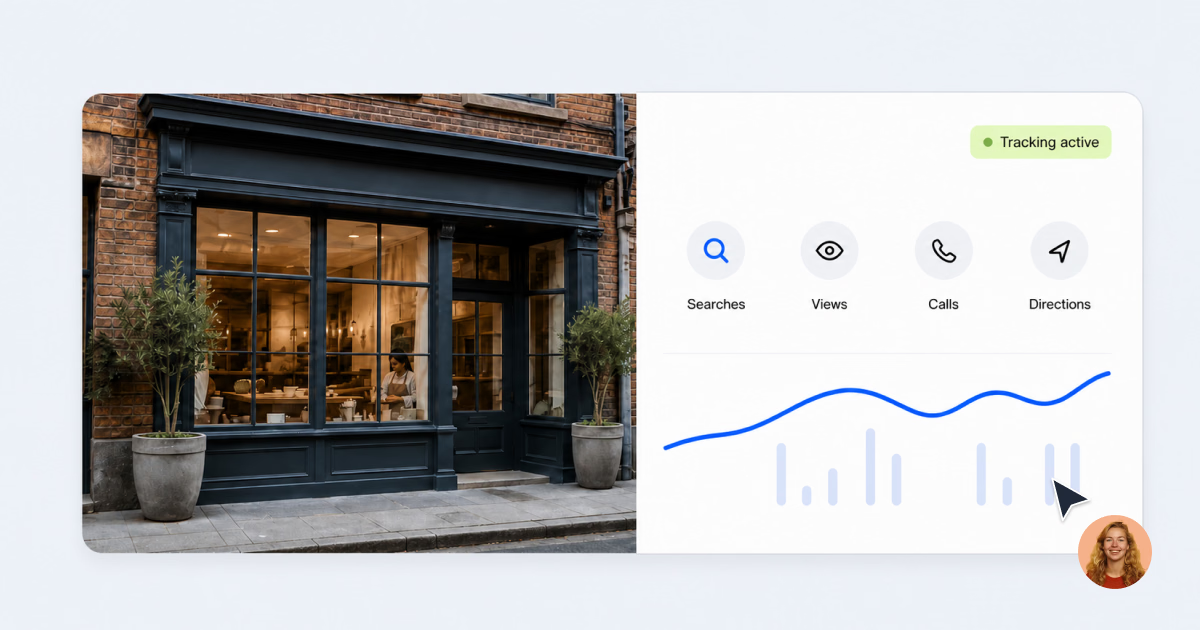
Google Business Profile performance is the set of metrics Google shows for how customers find and interact with your listing on Search and Maps: search impressions, profile views, calls, website clicks, direction requests, and more, depending on your business type.
Google didn’t always call it that. Until February 20, 2023, this same data lived under a tab named “Insights.” Google renamed it “Performance,” but plenty of people still search for one or the other, which is why you’ll see both terms used interchangeably in this piece and in Google’s own support pages.
The metrics themselves matter more than the label. What Google is really telling you is whether people who search for a business like yours actually find you, and whether they take an action once they do: a call, a click, a set of directions typed into a phone.
Method 1: Check it natively in Google
This is the free option everyone starts with, and for a single location, it’s genuinely fine.
What the native Performance tab shows you
Google groups the data into three sections:
- Interactions: calls, bookings, direction requests, website clicks, product views, and menu clicks.
- Views: “people who viewed your Business Profile,” split into four buckets, Search or Maps crossed with mobile or desktop. Google counts each person once per day, so repeat visits on the same day don’t inflate the number.
- Searches, updated at the start of each month and sometimes taking up to five days to appear: the queries that surfaced your profile, plus a breakdown of specific search terms. Very low-volume queries get suppressed below a “<15” floor, so you won’t see the long tail.
Those search terms are also a cue, not just a report. Running real local keyword research tells you whether the queries finding you today are the ones actually worth chasing.
How to access it, step by step
If you haven’t set up your Google Business Profile yet, that’s step zero. Everything below assumes you’re already signed in and verified.
- Sign in at business.google.com, Google’s main management dashboard.
- Select the location you want to check.
- Open the Performance tab.
- Set your date range. Google gives you roughly the trailing six months to work with.
There’s no confirmation step and nothing to save. The numbers just load once you land on the tab. That simplicity is the appeal, and also the ceiling: it’s built for glancing at one listing, not for running an actual review process.

That’s it for one location. There’s no native button that shows two profiles side by side. The closest thing Google offers is a bulk spreadsheet export across profiles, and even that gives you raw numbers, not a comparison view.
Where native reporting falls short
Google’s numbers are real. They’re just harder to act on than they look:
- The lookback is short. You get roughly six months of history, and year-over-year comparisons only render once a month is fully complete.
- Call tracking undercounts. Google only logs clicks on the call button, not the calls themselves. Independent research from local SEO agency SterlingSky estimates this captures somewhere between 30% and 50% of the calls a business actually receives.
- The same visitor can get counted more than once. Someone who checks your profile on Search from their phone, then again on Maps from a laptop, shows up in two separate view buckets, inflating totals if you’re not careful about how you read them.
- There’s no built-in comparison. No side-by-side date ranges, no cross-location dashboard beyond a raw export, and real portfolio-level analysis pushes you toward Google’s allowlist-gated Performance API.
- Some data just isn’t there anymore. Photo-level insights were removed entirely, direction requests don’t come with customer location data, and voice search isn’t tracked at all.
None of this makes native reporting wrong. It makes it slow, siloed, and analysis-free, which is exactly the gap the next two methods close.
Method 2: Check it across every location in Localith
Localith pulls the same Google data, minus the one-listing-at-a-time bottleneck. If you’re turning this into a repeatable process instead of a one-off check, our Google Business Profile management best practices guide covers the operating cadence for teams doing this every week.
Performance Dashboard
Localith’s dashboard puts Search and Maps performance for every connected location on one screen, instead of forcing you to reopen the native tab for each one.
- See website clicks, direction requests, phone calls, and search or map impressions across your whole portfolio in a single view.
- Filter by location, location group, or date range without waiting on Google’s six-month cap.
- Spot the location dragging your averages down before a client or manager asks about it.

This is the view to open first if you’re managing more than a couple of listings.
Reviews
Performance and reviews are two sides of the same coin, but native Google keeps them in separate places. Localith’s review analytics sit next to your performance numbers instead of behind a different tab.
- Total review volume, average rating, and rating distribution at a glance.
- Response time and response rate, so you can see whether your AI Review Reply Agent or your team is actually keeping up.
- Sentiment on recent reviews, surfaced automatically instead of read one by one.

Checking performance without checking reviews is half the picture, which is why the two live together here.
Reports
Localith’s Reports section gives you three report types to choose from: GBP performance, Reviews metrics, and Export reviews. Each one exports as either a PDF for a leadership-ready summary, or a CSV if you want to build your own analysis on top.

Which one you reach for depends on who’s asking. GBP performance and Reviews metrics are built for a quick internal check, while Export reviews exists purely to get raw data out for someone else’s spreadsheet. You can also schedule reports to run on their own and land in your inbox, which is how most teams stop forgetting to look.
If you need the deeper agency workflow for turning these into client-ready deliverables, our local SEO reporting guide covers that end to end, alongside listings management for acting on what you find.

Run every Google Business Profile from one operating dashboard. Localith centralizes listings, reviews, posts, and analytics so your team can manage every location without jumping profile to profile.
Start free trialMethod 3: Just ask AI with the Localith MCP connector
This is where checking your performance stops being a task you do and becomes a question you ask. Localith connects to Claude and ChatGPT through an MCP integration, which gives either tool read-only access to your connected locations, metrics, and reviews. You can read the full setup in our Claude MCP connector docs.
Ready-made report prompts
Rather than making you invent the question, Localith publishes a library of Google Business Profile report prompts you can run against your own data. Each one shows the full prompt text, a Copy prompt button, and Open in Claude and Open in ChatGPT links that launch the tool with the prompt already loaded.

Six reports are published today, filterable by use case and by the data they draw on:
- Google Business Profile performance report pulls impressions, website clicks, calls, and direction requests for every location for last month and the month before, as one table with the month-over-month change. It flags any location where impressions rose but calls or clicks fell, and explains what that pattern usually means. If the Maps numbers look thin, our Google Maps SEO guide covers the ranking factors behind them.
- Google Business Profile review report summarizes what customers are actually writing about across every location, with positive and negative themes and the keywords behind them.
- Negative Google review monitoring workflow finds every 1 and 2-star review from the past week and ranks them by how much damage they do if left sitting.
- GBP location review comparison report ranks every location against the others on rating, volume, and complaint share, then looks at what the best one is doing differently.
- GBP listing data audit workflow turns missing phone numbers, hours, websites, and categories into a ranked fix-list instead of a spreadsheet crawl.
- Multi-location GBP client report writes the whole month up for a marketing director who has never logged into Localith, with the jargon stripped out.
Beyond the library: write your own query
Six prompts won’t cover every question you have. For anything else, you can still write your own against the same Localith connection:
Compare performance across my connected locations and tell me which ones improved and which ones need attention this month. Don't guess at causes. Separate confirmed data from recommendations.Claude or ChatGPT will pull the real numbers first, then reason about them, rather than the other way around.
What Claude and ChatGPT can’t do here
Worth stating plainly: this connection is read-only. Claude and ChatGPT can analyze, summarize, and compare your Google Business Profile performance, but they cannot edit a listing or reply to a review through it. If a report surfaces something that needs fixing, you make that change back in Localith or Google directly. And if your team is on ChatGPT instead of Claude, the same custom connector approach works there too, on plans that support it.
AI Agents and where Essie fits
Report prompts answer questions when you ask them. Localith’s AI Agents, paired with Automations, act without you asking at all. A good example already running today is the performance tracker agent, which notifies you the moment a location’s performance drops. Pair that with the AI SEO Agent and reviews stop being the only thing that runs on autopilot.
Essie, Localith’s in-app AI Assistant, is a different piece. It is currently strongest on reviews, where it can walk you through auto-responder setup and sentiment questions. Full performance Q&A inside Essie is on the roadmap; today, the MCP and report-prompt route already covers that ground.
Native vs. Localith vs. AI, side by side
All three methods draw from the same underlying Google Business Profile data. Nobody’s numbers are more “real” than anyone else’s. What changes is how much work sits between you and an answer, and whether you get analysis along with the raw figures.
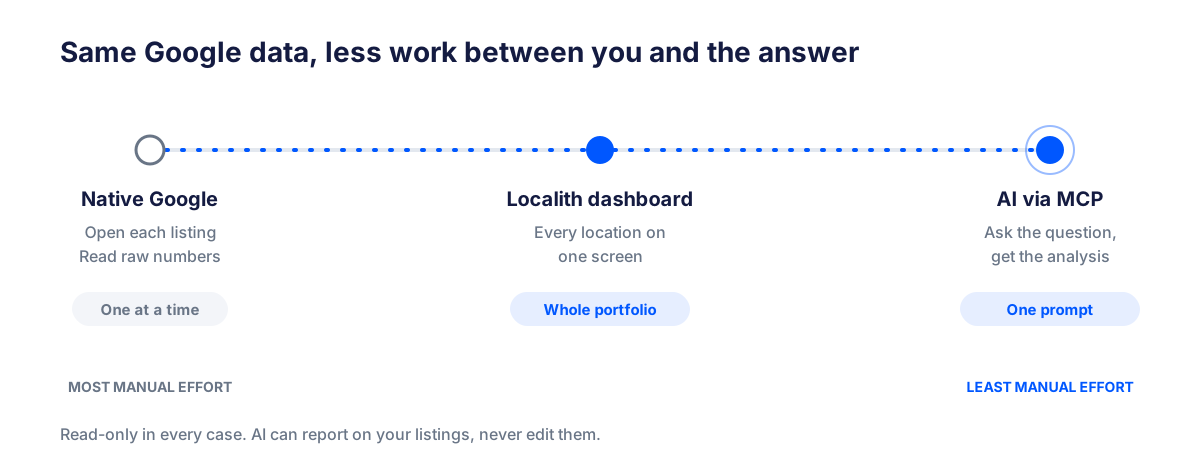
| Native Google | Localith Dashboard | AI via MCP | |
|---|---|---|---|
| Multi-location view | No, one listing at a time | Yes, built in | Yes, in one query |
| Historical range | ~6 months | Beyond Google’s cap | As far back as your data goes |
| Analysis included | None, raw numbers only | Dashboards and health scores | Written summaries and comparisons |
| Setup effort | None, but slow to use | Connect your locations once | Connect once, then one click |
Conclusion: start with the method that matches how many locations you run
If you run one location, native Google is fine. Just put a monthly check on your calendar instead of never opening it. If you’re managing more than a handful, start with Localith’s dashboard, then move to the report prompts the first time you catch yourself typing the same request twice.
Once you know where you stand, the next move is fixing what the numbers turned up. Start with a proper Google Business Profile audit to catch what’s incomplete or inaccurate, then our Google Business Profile optimization guide picks up exactly there for the fixes themselves.
Ready to see your own numbers instead of reading about someone else’s? Localith’s plans start with a free trial, or if you’re still comparing tools, see our roundup of the best Google Business Profile management tools.