

The Google Business Profile dashboard is where business owners manage how their company appears on Google Search and Google Maps. It is also one of the most confusing parts of local SEO, mostly because Google has changed the experience several times. Many people still look for the old Google My Business dashboard, while Google now pushes most single-location edits into the search results page itself.
If you manage one business, the native dashboard can be enough for quick profile edits, review replies, photos, posts, and basic performance checks. If you manage multiple Google Business Profiles, it becomes much harder to keep every location accurate, protected, and active from the native interface alone. Most multi-location teams pair it with a dedicated GBP multi-location dashboard for the cross-location work.
This guide explains what the Google Business Profile dashboard is, what each feature does, how to access it, and where Localith gives agencies, franchises, and multi-location brands a more practical way to manage GBP work at scale.

Run every Google Business Profile from one operating dashboard. Localith centralizes listings, reviews, posts, and analytics so your team can manage every location without jumping profile to profile.
Start free trialWhat is the Google Business Profile dashboard?
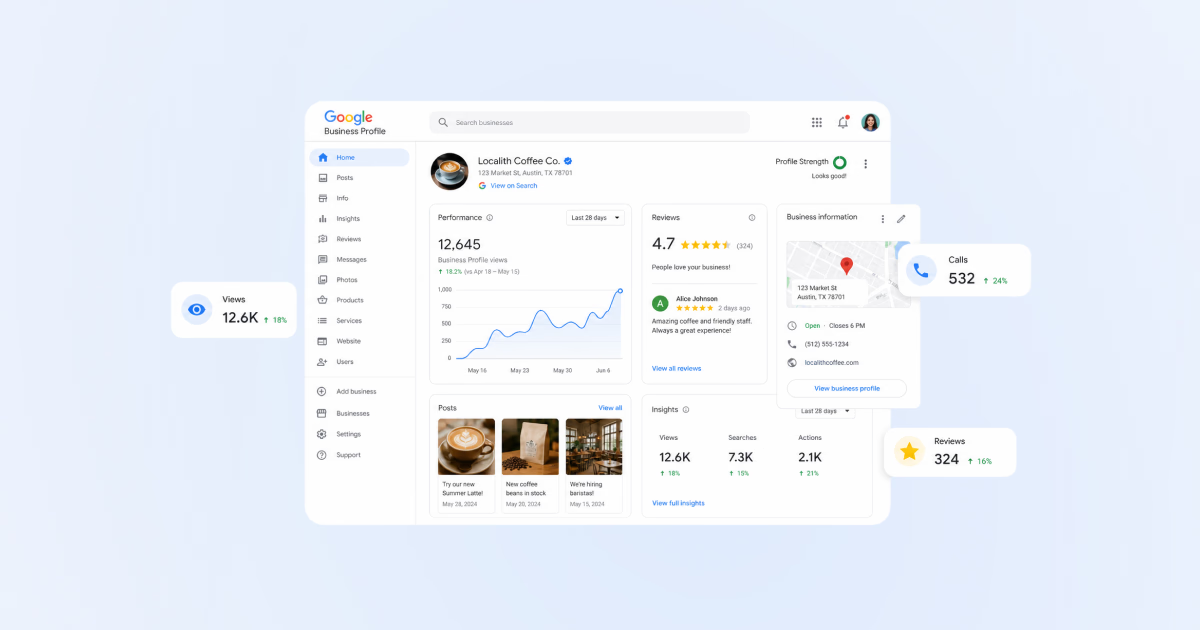
The Google Business Profile dashboard is the management interface for your Google Business Profile, where you update business information, respond to reviews, add photos, publish posts, manage services or products, check performance, and control parts of how your listing appears across Google Search and Google Maps.
If you are still in the setup stage, see our guide on how to set up Google Business Profile before diving into the dashboard features below.
Today, this dashboard usually appears directly inside Google Search when you are signed in with the Google account that owns or manages the profile. This is often called the New Merchant Experience, or NMX. Instead of opening a separate Google My Business dashboard for every small edit, you search for your business name and manage the profile from the result page.
The older Google My Business dashboard and the current Google Business Profile Manager are not exactly the same thing. Google Business Profile Manager still exists, especially for viewing and organizing multiple profiles, but many day-to-day edits now happen in the in-SERP dashboard. That is why users often search for phrases like google my business dashboard, gmb dashboard, google business profile manager dashboard, or where did my Google Business Profile dashboard go.
For a single location, the new dashboard is convenient. For teams managing many locations, the experience can feel fragmented because you often need to switch between profiles, repeat updates manually, and collect performance data location by location. That is where a dedicated GBP dashboard like Localith becomes useful.

Key features of the in-SERP Google Business Profile dashboard
The exact buttons you see in the Google Business Profile dashboard can vary depending on your business category, location, verification status, and account permissions. A restaurant may see menu or booking options, while a service business may see services, messages, or appointment links.
Still, most profiles include the following core features.
1. Edit profile
The Edit profile section is where you update your main business details. This usually includes your business name, business category, description, opening date, phone number, website, address or service area, opening hours, special hours, attributes, and other profile fields.
This is one of the most important sections in the dashboard because inaccurate details can hurt both customer trust and local visibility. If your category, hours, services, or contact details are wrong, customers may see the wrong expectation before they ever visit your website.

2. Read reviews
The Read reviews section lets you view and respond to customer reviews. For local SEO and conversion, this is one of the highest-value parts of the Google Business Profile dashboard. If you are not sure where this section sits in Search, Maps, or Business Profile Manager, our guide on viewing your Google reviews walks through each desktop and mobile path.
A healthy review workflow should include monitoring new reviews, replying quickly, escalating sensitive feedback, and keeping the tone consistent across all locations. The native dashboard works for occasional replies, but it becomes slow when a team needs to manage hundreds or thousands of reviews across multiple profiles. Our guide on how to respond to Google reviews covers the patterns most teams reuse.

3. Photos
The Photos section lets you upload and manage images connected to your profile. Photos help customers understand the real business before they call, request directions, book, or visit.
Use this section to keep your listing fresh with exterior photos, interior photos, team photos, product images, service examples, menu photos, and location-specific visuals. For multi-location brands, the challenge is making sure every location has current, accurate images instead of one polished flagship profile and many neglected listings.

4. Performance
The Performance section shows how people find and interact with your profile. Depending on the profile and available data, you may see search views, Maps views, calls, website clicks, direction requests, bookings, messages, and other actions.
This is useful for understanding whether your Google Business Profile is generating visibility and customer intent. The native performance view is helpful for one profile, but local SEO teams usually need aggregated reporting, location comparisons, and exportable insights. That is one reason many teams use cross-location GBP analytics outside of Google’s native interface.

5. Advertise
The Advertise button connects your profile to Google Ads. It is designed for businesses that want to promote their listing, drive more calls, or increase visits through paid campaigns.
This feature is useful, but it should not replace the basics: accurate profile data, strong categories, complete services, good photos, active posts, and a reliable review workflow. Paid visibility works best when the underlying profile is already trustworthy.
6. Edit products
Product-based businesses can use Edit products to add product names, images, descriptions, prices, categories, and links. This helps searchers understand what you sell before they click through to your website.
Even if products are not your main SEO lever, they can improve profile completeness and make the listing more useful. The key is to keep product details current and avoid using this section as a one-time setup task that never gets touched again.

7. Edit services
Service businesses can use Edit services to list what they offer. This section is especially important because service wording often mirrors the way customers search locally.
Use clear service names, avoid stuffing keywords, and make sure the list matches the real services available at that specific location. If you manage multiple locations, do not assume every branch should have the same service list. Localith is useful here because teams can organize and update service information across locations more systematically.

8. Bookings
The Bookings section lets eligible businesses connect booking or appointment tools to their profile. For restaurants, salons, healthcare providers, home services, and appointment-led businesses, this can shorten the path from search to conversion.
If bookings are available for your category, make sure the connected booking link is correct and tested. A broken or outdated booking flow can waste high-intent traffic from Google Search and Maps.

9. Q&A
The Q&A section allows people to ask questions directly on your Google Business Profile. Business owners and managers can answer them, but other users can sometimes contribute too, which makes monitoring important.
Treat Q&A as a public FAQ for your listing. Add clear answers for common questions about parking, pricing, availability, appointments, service areas, accessibility, returns, menu options, or anything customers repeatedly ask before converting.
10. Add update
Add update is where you create Google posts. Posts can highlight announcements, offers, events, new services, seasonal information, or timely reminders.
Posts are easy to ignore, but they give your profile a fresher appearance and can support campaigns across multiple locations. The native dashboard is fine for one-off updates. For multi-location Google Posts publishing, a calendar and scheduling workflow in Localith is far easier to manage.

11. Ask for reviews
Ask for reviews generates a review link you can share with customers. This is useful for email follow-ups, SMS requests, receipts, QR codes, and post-service workflows. If you need the customer-side posting flow, our guide to leaving a Google review walks through the exact desktop and mobile steps.
The review link is only one part of the process. A stronger review strategy also includes timing, templates, team training, reply standards, and monitoring. Localith helps by bringing review management and AI-assisted replies into a more organized workflow.

Variations for other types of businesses
Your Google Business Profile dashboard may include additional or slightly different features depending on your business type. For example, restaurants may see menu and ordering options, hotels may see booking-related information, healthcare providers may see appointment options, and service-area businesses may see service area controls instead of a public storefront address.
This variation is normal. The safest way to manage a profile is to review the dashboard as the actual business category and customer journey require, rather than assuming every location needs the same fields.
How to access the new GBP dashboard
There are three official ways to reach your Google Business Profile dashboard. Start with whichever matches the situation, then fall back to the others if the panel does not show.
Option 1: From Google Search
- Sign in to the Google account that owns or manages the profile.
- Open Google Search and type your exact business name (add the city if you have multiple locations or a common name).
- The management panel appears near the top of the results with buttons like Edit profile, Read reviews, Photos, Performance, and Add update.
Option 2: From Google Maps
- Sign in to the same Google account.
- Open Google Maps, search for your business, and select the listing.
- Use the management actions on the listing to update info, reply to reviews, or add posts.
Option 3: From Business Profile Manager
For agencies and people managing more than one location, Google still offers a list view at business.google.com. Sign in with the manager account, choose the profile, and you will land on the same dashboard. The official overview is on Google’s Business Profile site.
If the dashboard does not show
Most access problems come from the wrong account or a UI hiccup. Run through these in order:
- Confirm you are signed into the Google account that owns or manages the profile (not a personal account).
- Search the exact business name plus the city.
- Open the profile from Google Maps instead of Search.
- Open an incognito window or clear browser cache, then try again.
- Switch browsers (Chrome, Safari, Firefox) to rule out an extension conflict.
- Open business.google.com and pick the profile from the list.
Reddit threads on the GBP dashboard show that many access issues come from wrong accounts, Google UI changes, missing buttons, or temporary dashboard bugs.
If your profile has disappeared
If the profile is missing from both your dashboard and live Google Search or Maps, treat it as a separate support issue:
- Look for recent emails from Google about your profile (suspension, verification, or policy notices).
- Confirm you are in the correct manager account.
- Collect the profile ID, business name, and address.
- File a request with Google Business Profile Help with the clearest evidence you can attach. The reinstatement form is the right path for a suspended profile.
Manage multiple Google Business Profiles with Localith
The native Google Business Profile dashboard is useful for quick, profile-level edits. Localith is a Google Business Profile management platform built for the next layer of work: managing many Google Business Profiles with consistency, speed, and oversight.
If you manage multiple Google Business Profiles, the problem is not only access. It is repetition. You need to update details across locations, publish posts, reply to reviews, track changes, monitor performance, and keep every listing aligned with the real business. Doing that one profile at a time creates errors and slows the team down. That is why most teams edit Google Business Profiles in bulk. See our deeper guide on how to manage multiple Google Business Profiles for the operational patterns most teams use.
Localith gives multi-location teams a central place to manage GBP operations. You can work across listings, monitor performance, organize updates, use AI for review replies, plan Google posts through a unified publishing workflow, and track profile health. Pair the dashboard with a local rank tracker to see where each location actually appears in Google Maps and reduce the manual switching that makes the native dashboard frustrating at scale.
This is especially useful for agencies, franchises, retail chains, restaurants, clinics, home service brands, and any business where location-level accuracy matters. For agencies in particular, see how it fits a full Google Business Profile management service offering. To test the software with a client team, follow the agency pilot and access checklist. Google remains the source of truth for the profile, but Localith becomes the working dashboard for the team.

Native GBP dashboard vs Localith option
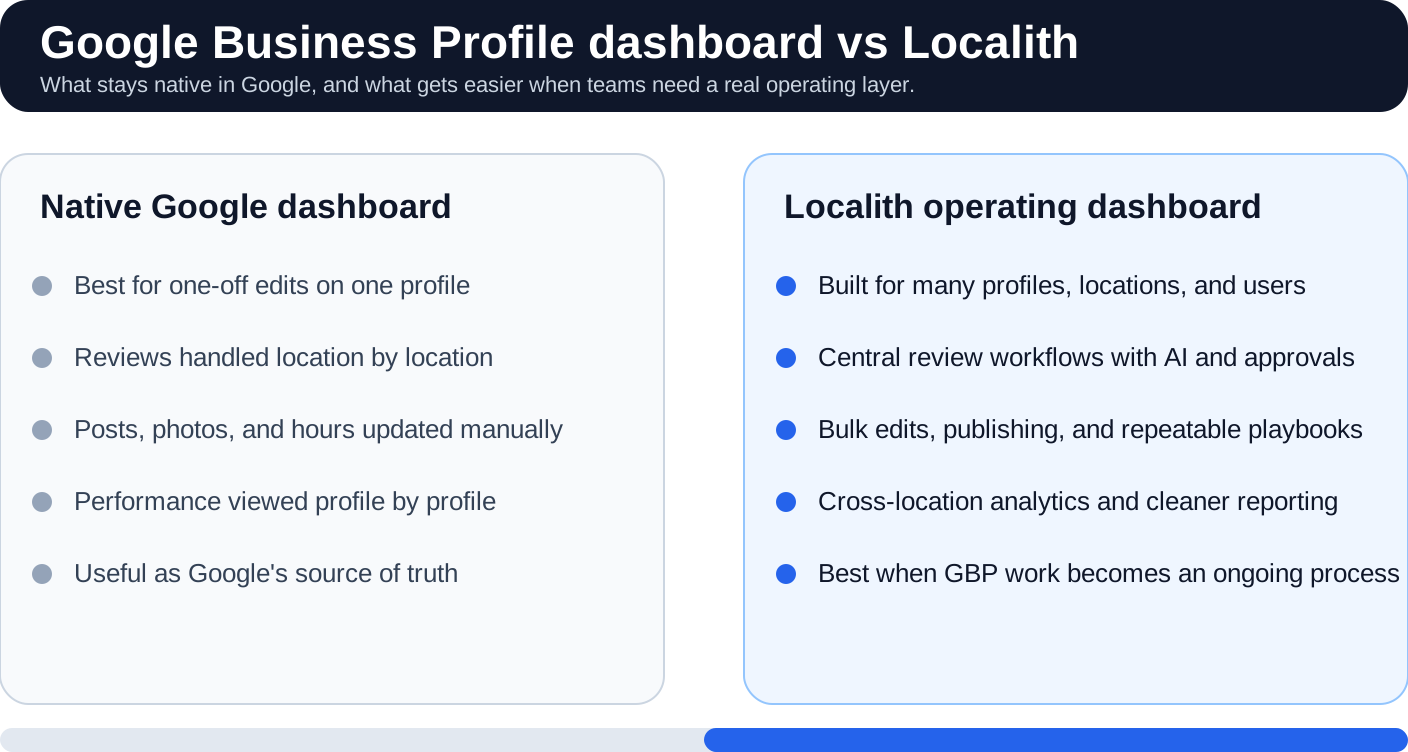
The native Google Business Profile dashboard and Localith are not trying to solve the same job. Google’s dashboard is the official interface for managing a profile inside Google’s ecosystem. Localith is an operations layer for teams that need to manage GBP work across locations, people, and recurring workflows.
| Feature | Native Google Business Profile dashboard | Localith GBP dashboard |
|---|---|---|
| Use case | Quick edits for one profile | Operational management across many profiles |
| Access | Google Search, Google Maps, and Business Profile Manager | Centralized Localith workspace |
| Bulk edits | Limited and often manual | Designed for bulk profile updates |
| Review management | Reply profile by profile | Centralized review workflows with AI assistance |
| Post scheduling | Manual profile-level publishing | Plan and schedule posts across locations |
| Performance analytics | Profile-level performance data | Cross-location reporting and easier comparison |
| Team workflows | Basic profile access controls | Built for agencies and multi-location teams |
| Edit tracking | Limited visibility | Track and respond to listing changes more systematically |
| Best for | Owners managing one location | Agencies, franchises, chains, and location-heavy brands |
Best practices for using Localith’s GBP dashboard
Use the native Google Business Profile dashboard when you need to check how Google is displaying a specific location or make a quick one-off change. Use Localith when you need repeatable processes, team workflows, bulk updates, performance visibility, or review operations across multiple profiles. The patterns below complement our broader guide on Google Business Profile management best practices.
Organize your locations before scaling activity
First, organize your locations before scaling activity. Make sure each listing has the correct business name, primary category, address or service area, phone number, website, hours, and core services. A dashboard is only useful if the underlying location data is clean.
Set a review workflow
Second, set a review workflow. Decide who monitors reviews, who replies, what tone the brand should use, when AI-assisted replies are acceptable, and which reviews need human escalation. Teams running reviews across multiple locations need this discipline most. Localith’s AI review reply workflows are most effective when they support clear human standards.
Use performance data to guide action
Third, use performance data to guide action. Do not only look at views. Compare calls, website clicks, direction requests, review growth, post activity, and location health. The goal is not dashboard watching; the goal is better decisions.
Schedule Google posts with a real content rhythm
Fourth, schedule Google posts with a real content rhythm. Plan offers, events, seasonal updates, location-specific announcements, and evergreen posts in advance using a Google Posts scheduler. This keeps profiles active without asking the team to remember every location manually.

Watch for unwanted edits and inconsistencies
Fifth, watch for unwanted edits and inconsistencies. GBP data can change because of user suggestions, Google updates, internal mistakes, or outdated information. Localith’s tracking and health-focused workflows help teams catch issues before customers rely on bad information.

Audit GBP regularly
Finally, audit every Google Business Profile on a recurring schedule. An audit is a structured check that compares each profile against what good looks like: complete fields, current photos, accurate services, and replied reviews. It flags what is missing, outdated, or inconsistent before a customer notices.
A monthly review is usually enough for stable locations. Active campaigns or large location groups may need weekly checks. At minimum, look for:
- missing or blurry photos
- outdated services, hours, or descriptions
- unanswered reviews
- weak or low-completeness profiles
- locations underperforming on calls, clicks, or direction requests
- inconsistencies between Google, the website, and local landing pages
For multi-location teams, doing this profile by profile is slow and easy to skip. Localith’s Profile Audit runs an AI-powered scan across every connected GBP and produces one scored report, with High / Medium / Low impact actions ranked so the team knows what to fix first. It catches missing fields, weak descriptions, wrong categories, and review gaps in one pass instead of spreadsheet-tracking each location.

Conclusion: Use Google for quick edits, and Localith for serious GBP management
The Google Business Profile dashboard is still the official place to manage how your business appears on Google Search and Maps. It is useful, free, and convenient for quick edits, review replies, photos, posts, and performance checks.
But if you manage multiple locations, the native dashboard quickly becomes a lot of clicking, switching, checking, and repeating. That is where Localith gives your team a better operating system for Google Business Profile work. If you are still comparing options, our roundup of the best Google Business Profile management tools covers what to look for.
The practical advice is simple: use Google’s dashboard when you need to inspect or adjust a single profile, and use Localith when GBP management becomes a recurring business process. You will move faster, catch more issues, and keep every location closer to what customers actually need to see. For an AI-driven workflow on top of this, see how to use Claude MCP for GBP locations.
If you are ready to manage every profile from one place, start a free trial of Localith.

Manage Google reviews for all your locations from one dashboard. Centralize replies, automate with AI, and track review trends across every branch.
Start free trial