

Managing Google Business Profile multiple locations is very different from updating a single listing. Once you have several branches, clinics, restaurants, stores, or service areas, every small change becomes a multi-profile GBP management workflow: updating hours, replying to reviews, publishing posts, adding photos, checking performance, and keeping every location accurate without repeating the same task one profile at a time.
Google gives you the native place to create and manage profiles. That matters because Google remains the source of truth for how your business appears on Search and Maps. But native management becomes harder when the work needs to happen across 5, 20, or 200 locations.
That is where Localith fits. Localith gives multi-location teams and agencies one operating layer for listings management, reviews, publishing, analytics, and citations, so the work does not turn into tab-switching and spreadsheets.
This guide shows each major workflow in the same order: what you can do natively in Google, where the native option becomes limited, and how to do the same work in Localith.

Run every Google Business Profile from one operating dashboard. Localith centralizes listings, reviews, posts, and analytics so your team can manage every location without jumping profile to profile.
Start free trialWhat Is Google Business Profile Multi-Location Management?
Google Business Profile multi-location management is the process of creating, organizing, updating, monitoring, and reporting on more than one Google Business Profile for the same brand or business group.
Many people still search for “Google My Business multiple locations,” but Google My Business is the old name. The current product is Google Business Profile.
For a single business, profile management might mean editing hours, replying to a few reviews, and adding a post. For a multi-location business, the work becomes more operational:
- every location needs accurate name, address, phone, website, hours, categories, and attributes
- reviews arrive across many profiles and need consistent response rules
- holiday hours and service changes need to be updated in bulk
- Google Posts and photos need to stay fresh without becoming copy-paste work
- reports need to show both total performance and location-level differences
- local citations outside Google need to match the source data
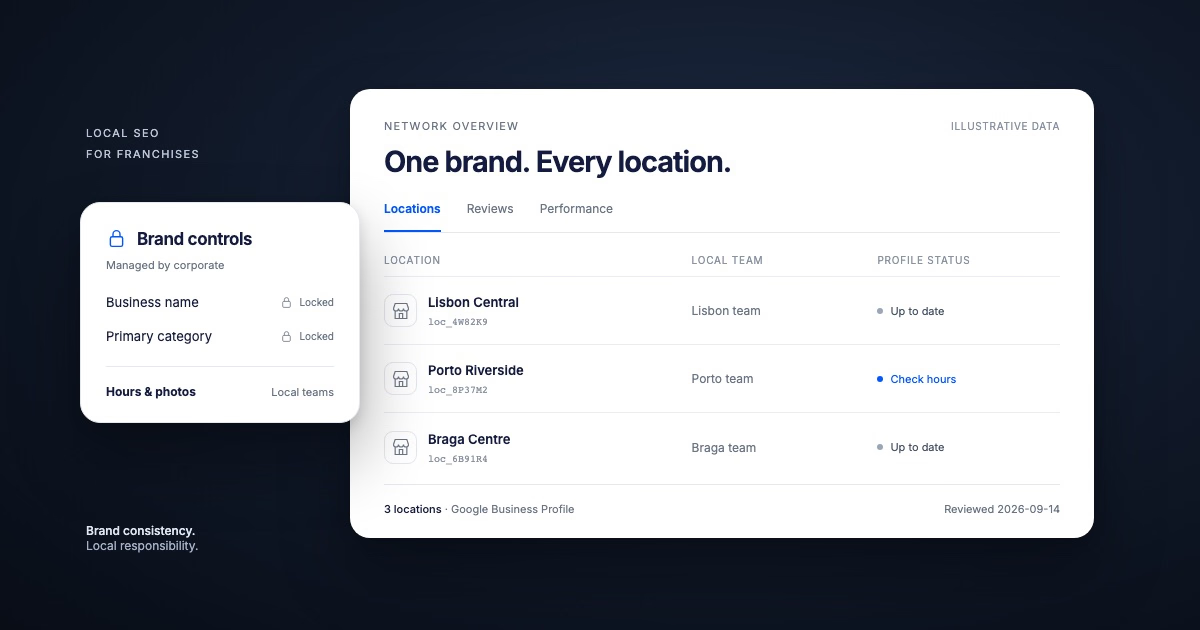
That is the difference between basic profile management and multi-profile GBP management. The goal is not just to have multiple listings. The goal is to run them from one controlled workflow.
Google Business Profile Multiple Locations: Why Multi-Profile GBP Management Needs a Different Workflow
The native Google workflow is useful when you are setting up or editing a small number of profiles. Google says you can manage multiple profiles through Business Profile Manager, and business groups help teams share access to groups of locations. For the single-profile side of that native experience, see our guide to the Google Business Profile dashboard.
That solves the access problem. It does not solve the full operations problem. The strategic case for treating GBP as a system instead of a stack of listings is in why multi-location GBP management matters.
When a business has multiple locations, every task has two sides:
| Task | Location-level need | Brand-level need |
|---|---|---|
| Profile setup | Correct address, phone, hours, categories | Clean account structure and ownership |
| Reviews | Local context and customer details | Consistent tone, escalation, and response speed |
| Bulk edits | Correct field per location | Avoid repeated manual changes |
| Posts/photos | Local relevance | Shared campaign execution |
| Reporting | Individual location performance | Cross-location comparison |
| Citations | Accurate NAP per directory | Consistency across the whole footprint |
If your team handles those tasks directly in Google, the process often works until the number of locations grows. Then the issue is no longer “Can we make the change?” It is “Can we make the change consistently, quickly, and safely across every location?” The same scaling problem applies to keywords: build a multi-location keyword research system so each branch tracks the right queries instead of inheriting national averages.
How to Set Up Multiple Google Profiles for the Same Business
Native Google Option
If your business has multiple eligible physical locations, each location should usually have its own Google Business Profile. In Google Business Profile Manager, you can create a business group, add locations, transfer locations into that group, and give users access. Our guide to Google Business Profile groups covers how that structure works and how it differs from Google Ads location groups.
Google also provides a bulk upload spreadsheet for businesses that need to add or verify multiple locations. In the native workflow, you generally:
- Sign in to Business Profile Manager.
- Create or choose the right business group.
- Add a single location, or use the bulk import option.
- Enter the business name, address, phone, website, hours, and other required details.
- Follow Google’s verification prompts.
- Assign owners or managers if other team members need access.
This is the right starting point because the profiles need to exist and be verified in Google before any third-party workflow can manage them properly. If you would rather not give direct GBP control to every teammate, there are safer ways to add users to Google Business Profile through a per-listing access layer.
Native Limitations
The native setup process can become messy when the business already has existing profiles, old owners, duplicates, inconsistent naming, or locations at the same address.
Google’s duplicate profile guidance warns that you can have only one Business Profile for each business, and multiple profiles for the same business can confuse customers or violate policy. That means a multi-location setup needs careful judgment: a restaurant chain with 15 separate storefronts is different from one business trying to create several profiles for the same address. Restaurants in particular have category, menu, and attribute requirements that benefit from a dedicated Google Business Profile for restaurants checklist.
Native setup also focuses on creating and organizing profiles. It does not give you a complete system for what happens next: bulk updates, campaign publishing, review response workflows, reporting, and citation monitoring.
How Localith Solves This
Localith starts after the profiles are eligible, connected, or ready to be managed. The goal is to bring the active location set into one workspace, then manage ongoing work from there.
Steps in Localith:
- Open Localith and connect the Google account that has access to the profiles.
- Import the Google Business Profiles you want to manage.
- Review the multi-location dashboard to confirm the locations are connected.
- Use filters, groups, or tags to organize locations by brand, region, client, or market.
- Review key listing details for each location before running larger workflows.
- For new or migrated accounts, use the dashboard to identify missing data, inactive profiles, or locations that need cleanup.

This gives your team a working layer for the location portfolio. Google remains the profile source. Localith becomes the daily management system.
Example: A Dental Group Opening Three New Clinics
A dental group opens clinics in Austin, Dallas, and Houston. Natively, the team creates or claims each eligible profile in Google and completes verification. That handles the official setup.
In Localith, the marketing manager then imports all three profiles, tags them as Texas expansion, checks each profile’s data from the dashboard, and prepares the same launch workflow for reviews, posts, photos, and reporting. Instead of treating the three profiles as separate projects, the team manages them as one location group with local details.
How to Manage Google Reviews Across Multiple Locations
Native Google Option
In Google Business Profile, verified businesses can read and reply to reviews on their profiles. For one location, that is simple: open the profile, find the review, write a reply, and publish it.
For multiple locations, the native option still works, but the workflow becomes location-by-location. A manager needs to monitor new reviews, decide which location they belong to, write a reply, and make sure complaints are handled with the right level of care.
Native Limitations
Native review management gets harder as review volume grows. Common multi-location problems include:
- no shared queue for every location’s reviews
- inconsistent reply tone between local managers
- slow responses when HQ does not know which reviews need attention
- no clear approval workflow for negative reviews
- difficulty comparing review performance by location
This is a real pain point in local SEO communities. Multi-location restaurant operators and agencies often ask how to manage reviews across many branches without losing control of speed, tone, and escalation.
How Localith Solves This
Localith’s AI Review Reply Agent is built for teams that need faster review handling without giving up control.
Steps in Localith:
- Connect the Google Business Profiles you want to manage.
- Open the review response area in Localith.
- Go to Automations and create a new review workflow.
- Choose the Google accounts and locations the automation should cover.
- Define review conditions, such as rating, sentiment, or keywords.
- Choose a default message workflow or AI Agent workflow.
- Set approval rules so sensitive reviews stay in manual review.
- Monitor results and adjust tone, rules, or location coverage over time.

The important point is control. Routine positive reviews can move faster, while complaints, refunds, legal issues, or sensitive customer situations can still require human approval. If review quality, spam, or branded search trust is the bigger issue, use a broader Google reputation management workflow alongside daily review replies.
Example: A Restaurant Chain Tracking Review Issues by Branch
A restaurant chain with 12 locations receives dozens of reviews each week. In Google, each profile has its own reviews, so the regional manager has to check every profile separately.
In Localith, the team connects all locations, creates review rules for routine 4- and 5-star reviews, and routes 1- and 2-star reviews to approval. If the downtown location starts receiving complaints about slow service, the manager sees the pattern sooner and can respond with a local operational fix instead of only a public reply.
How to Bulk Edit Multiple Google Business Profiles
Native Google Option
Google supports bulk profile data through Business Profile Manager and spreadsheet workflows. This can help when you need to upload or update structured business information across many locations.
Native bulk workflows can be useful for fields like store codes, addresses, phone numbers, hours, and other structured details. They are especially helpful during initial setup or when a business has enough locations to justify a spreadsheet bulk-edit pass.
Native Limitations
Native bulk editing can still be heavy for ongoing operations. The main limitations are:
- teams must prepare spreadsheets carefully
- mistakes can affect live listings
- it can be hard to review changes in context
- one-off updates may not justify a full spreadsheet workflow
- non-technical team members may avoid the process
For multi-location teams, the issue is not only whether bulk editing exists. It is whether the team can safely update the right fields for the right locations without creating more QA work. The complete guide to bulk GBP updates walks through the field-by-field rules and the safest order of operations.
How Localith Solves This
Localith supports bulk profile updates for teams that need both simple bulk edits and CSV-based multi-field updates.
Steps in Localith:
- Open the listings management area.
- Select the locations you want to update.
- Choose the bulk edit path:
- single-info bulk edit for one field across selected locations
- multi-info CSV edit for multiple fields or different values per location
- For a single-field change, choose the field, enter the new value, review selected locations, and confirm.
- For CSV edits, choose what to update, download current data, edit the spreadsheet, then upload the completed file.
- Review the changes before pushing updates live.

This makes bulk editing more practical for real operations. A team can make a simple shared update without building a full spreadsheet, but still use CSV when each location needs different values.
Example: A Retail Brand Updating Holiday Hours Across 40 Stores
A retail brand needs to update Christmas Eve hours for 40 stores. In Google, the team could work through native profile management or prepare a bulk spreadsheet.
In Localith, the operations lead selects the 40 affected stores, chooses the hours field, applies the holiday schedule, and reviews the selected locations before confirming. If five stores have different mall hours, the team can handle those separately with a CSV edit instead of forcing one schedule onto every store. For the full rollout checklist, see our guide to updating holiday hours across multiple locations.
How to Publish Google Posts and Photos Across Multiple Locations
Native Google Option
Google Business Profile lets businesses publish updates, offers, events, and photos. For one location, that workflow is straightforward: create the post, add media, choose the CTA, and publish.
For multiple locations, Google has been adding more native scheduling and multi-location publishing capabilities, but availability and workflow details can vary by account and rollout. Native posting is still often easiest when the post is simple and the number of locations is small.
Native Limitations
Multi-location publishing is not just “post the same thing everywhere.” Teams often need:
- location-specific phone numbers
- city names in the post copy
- different landing pages or menus
- different dates, offers, or service details by region
- approval before campaign content goes live
- a view of what is scheduled across all locations
If the team copies the same post everywhere, the content can feel generic. If the team manually personalizes every post, the process becomes slow.
Photos create a similar problem. Adding a few images to one profile is easy. Uploading exterior, interior, product, or campaign photos across dozens of locations requires more coordination.
How Localith Solves This
Localith’s Google Posts publishing workflow lets teams create, preview, publish, and schedule posts for one or many locations. For larger campaigns, the bulk post publishing workflow helps one post template adapt to each location with Smart Parameters.
If your team already plans content in spreadsheets, you can also build an AI-assisted Google Posts workflow by using Claude for drafts, Google Sheets for approval, n8n for routing, and Localith for publishing.
Steps for posts in Localith:
- Open Publishing from the left-side menu.
- Click Create post or New post.
- Select the listings that should receive the post.
- Choose the post type: update, offer, or event.
- Write the post description.
- Add Smart Parameters such as
{{city}},{{phone}},{{website}},{{name}}, or{{street}}. - Upload an image if needed.
- Review the live preview.
- Publish now, schedule for later, or save as draft.

Steps for photos in Localith:
- Open Publishing.
- Click Photos in the posts sub-menu.
- Click Upload photos.
- Add JPEG or PNG images.
- Choose the locations that should receive the photos.
- Select the photo category, such as exterior, interior, product, at-work, or additional.
- Review and publish.
Smart Parameters are the key difference for multi-location work. A post like “Visit us at {{street}} in {{city}} or call {{phone}} for today’s offer” can publish across many locations while still using the correct local details.
Example: A Fitness Franchise Publishing a New Membership Offer
A fitness franchise wants to promote a spring membership offer across 30 studios. The offer is national, but every post should mention the correct city, phone number, and studio page.
In Localith, the marketing team writes one post template, inserts Smart Parameters for city, phone, and website, selects the 30 studios, previews the post, and schedules it. They also upload the campaign image to all selected profiles. The result is one campaign workflow with location-specific output. Campaign consistency is only half the job: the ranking side of running a network is covered in franchise local SEO.
How to Report on GBP Location Performance
Native Google Option
Google Business Profile provides performance data for profile activity, such as how customers find and interact with a business on Search and Maps. For one profile, native performance data is useful for checking views, calls, direction requests, website clicks, and other customer actions.
For multiple locations, teams can review profile data in Google and use exports or dashboards where available. That manual approach is still the norm: recent survey data on multi-location operators shows 52% aggregate this reporting by hand every month.
Native Limitations
The native reporting challenge is comparison. Multi-location teams rarely need one isolated metric. They need answers like:
- Which locations are gaining visibility?
- Which locations are losing calls or direction requests?
- Which locations have weak review response coverage?
- Did a campaign improve performance across the whole region?
- Which locations need attention next month?
Native reporting can require extra exports, spreadsheet cleanup, screenshots, and manual summaries before it becomes useful for owners, clients, or regional managers.
How Localith Solves This
Localith’s GBP analytics and report export workflows are built for account-wide and location-level reporting. Teams can view performance from one dashboard, compare locations, and export reports.
Steps in Localith:
- Open Analytics or Performance.
- Select the account, location set, or reporting scope.
- Review headline metrics such as Search views, Map views, calls, direction requests, website clicks, published posts, and review activity.
- Compare the selected date range with a previous period.
- Identify high-performing and low-performing locations.
- Open Reports when you need a shareable export.
- Choose the report type, such as GBP Performance Report, Review Metrics Report, or Export Reviews Report.
- Select PDF or CSV.
- Choose the date range and listings.
- Download the report.

If your team uses Claude, Localith can also connect to Claude through MCP for read-only reporting workflows. Claude can retrieve approved location, review, and performance data through Localith and help summarize trends, outliers, and next actions. That is useful for turning raw multi-location data into a clearer client or leadership narrative.
For a full framework on what to include and how to structure those exports, see our guide to local SEO reporting for agencies.
Example: An Agency Sending One Monthly Report for 18 Client Locations
An agency manages 18 profiles for a regional healthcare client. The client does not want 18 screenshots. They want to know which clinics improved, which clinics need review-response help, and which locations saw fewer direction requests.
In Localith, the account manager selects the client locations, exports a GBP Performance Report, checks review metrics, and uses Claude via the Localith connector to draft a plain-language summary. The final report explains the trend, the weak spots, and the next actions without building everything from scratch.
How to Manage Local Citations Across Multiple Locations
Native Google Option
Google Business Profile helps you manage how your business appears on Google Search and Maps. It does not manage every other directory where customers may find your business.
For citations outside Google, teams usually need to check platforms like Apple Maps, Yelp, Bing Places, and industry-specific directories separately. They may also use spreadsheets to track name, address, phone, website, and hours across platforms.
Native Limitations
Citation management gets harder with every location. If one store moves, changes phone numbers, or updates hours, the Google profile may be correct while other directories still show old information.
Common multi-location citation problems include:
- inconsistent address formatting
- old phone numbers
- wrong hours
- missing listings
- mismatched business names
- duplicate or incorrect directory matches
Google is important, but customers and search engines also see business data outside Google. If those sources conflict, the business can lose trust and create customer confusion.
How Localith Solves This
Localith’s AI SEO Agent includes local citation checks that compare major directories against the Google profile baseline.
Steps in Localith:
- Open SEO Management.
- Select the location you want to check.
- Click Local citations.
- Review the baseline information pulled from Google.
- Check the directory table for status labels.
- Prioritize Mismatch and Not found entries.
- If Localith matched the wrong business, use the correction option to update the directory URL mapping.
- For directories marked Not found, visit the directory directly to create or claim the listing.
- After external updates are made, allow time for the next scan to reflect changes.
Localith does not directly edit every third-party directory. It gives the team a clear diagnostic workflow so they know what is wrong, where it is wrong, and what to fix first.
Example: A Home Services Brand Fixing NAP Inconsistencies Across Cities
A plumbing company has 10 local branches. The Denver branch changed its phone number, and the Phoenix branch moved to a new office. Google is updated, but Yelp and Bing still show old information.
In Localith, the marketing lead checks local citations for each affected branch. The tool flags mismatched phone and address data, so the team updates the external directories directly and tracks the cleanup. Instead of randomly searching each platform, they work from a prioritized mismatch list.
Best Practices for Managing Multiple Google Business Profiles
The more locations you manage, the more important the operating system becomes. These Google Business Profile management best practices keep multi-profile GBP management controlled:
-
Use Google as the source of truth. Create, verify, and represent locations according to Google’s rules. Do not create duplicate profiles for the same business just to cover more keywords or services.
-
Keep ownership clean. Use business groups, shared access, and role-based permissions instead of personal logins and password sharing.
-
Group locations in a way your team actually works. Organize by brand, region, franchisee, client, or service line so bulk edits and reports match real responsibilities.
-
Document what should be local and what should be shared. Hours, phone numbers, URLs, photos, and offers may vary by location. Brand voice, review policy, and campaign strategy should stay consistent.
-
Use bulk edits carefully. Bulk workflows save time, but they can also push mistakes live quickly. Review selected locations and fields before confirming changes.
-
Personalize posts with Smart Parameters. The goal is not to publish identical content everywhere. The goal is to publish one coordinated campaign that still feels local.
-
Route sensitive reviews to humans. AI and automation help with speed, but negative reviews, complaints, legal issues, refunds, and health or safety concerns should have approval rules.
-
Report by location and by group. Account-wide totals are useful, but they can hide weak locations. Compare branches, regions, and campaigns so the next action is clear. A local rank tracker on top of reporting shows whether visibility is actually moving in each market, not just whether activity happened.
-
Check citations after major changes. A move, rebrand, phone change, or hours change should trigger citation review outside Google.
-
Choose software built for multi-location work. Generic dashboards and manual spreadsheets break down quickly. Multi-location teams need one system for listings, reviews, publishing, reporting, and multi-location SEO action. Agencies productizing this work can package it into Google Business Profile management services. Teams that need direct programmatic access should review the Google Business Profile API guide.
Conclusion
Managing one Google Business Profile is a task. Managing many profiles is an operating system.
The native Google tools are still necessary. They help you create profiles, verify locations, organize business groups, and keep Google as the source of truth. But when the work becomes repeated across locations, native management alone can become slow and inconsistent.
Localith is built for that next layer of work: bulk edits, review workflows, Google Posts and photo publishing, Smart Parameters, GBP performance reporting, Claude-assisted analysis, and citation checks from one place. To run that layer consistently, see how to use a local SEO AI agent across every location.
If your team is still updating locations one by one, start by reviewing the entry plan, compare options in our guide to the best Google Business Profile management tools, or see how Localith works for Google Business Profile software for agencies, franchises, chains, and multi-location teams.

Turn Google Maps SEO into a repeatable workflow. Use Localith to audit profiles, track local heatmaps, prioritize weak locations, and keep every Google Business Profile moving.
Start free trial