

Google Business Profile supports special hours for holiday exceptions across one or many locations. To set holiday hours on Google Business Profile across multiple locations, approve one location-by-location calendar, test two profiles, apply the right native, bulk, or scheduled workflow, and verify the live profiles before the holiday. Use regular hours only when the normal weekly schedule has permanently changed.
This guide is for multi-location operators, franchise HQ teams, and agencies who get pinged every November about Christmas hours. If you manage one storefront, Google’s native path is usually enough. If you manage an estate, you need a seasonal ops checklist plus coordinated bulk update Google Business Profiles inside a multi-location Google Business Profile management workflow.
Wrong hours do not just look messy. They create missed visits and support tickets when a pin still shows open, or when a store that is open appears closed.
Why holiday hours fail across multi-location Google Business Profile estates
Holiday hours fail at scale when each location is treated as a one-off edit instead of an approved change set with an owner, a pilot, and a rollback value.
The pattern we see every Q4 is the same. HQ publishes a brand calendar. Regional managers interpret it differently. Store managers open Google one profile at a time. Someone updates regular hours by mistake. Someone else leaves a location on last year’s schedule. By Christmas Eve, nobody is sure which pin is correct.
Treat the update as a change set, not a click marathon. Each row should carry:
- the holiday date
- open hours or closed status
- any local exception
- the approver
- the prior schedule you will restore if something goes wrong
Repeating the same Christmas hours store by store creates more review points than one coordinated pass. This article is the seasonal playbook. The commercial bulk workflow you will hand the team afterward lives on the bulk updates page.
Special hours vs regular hours on Google Business Profile
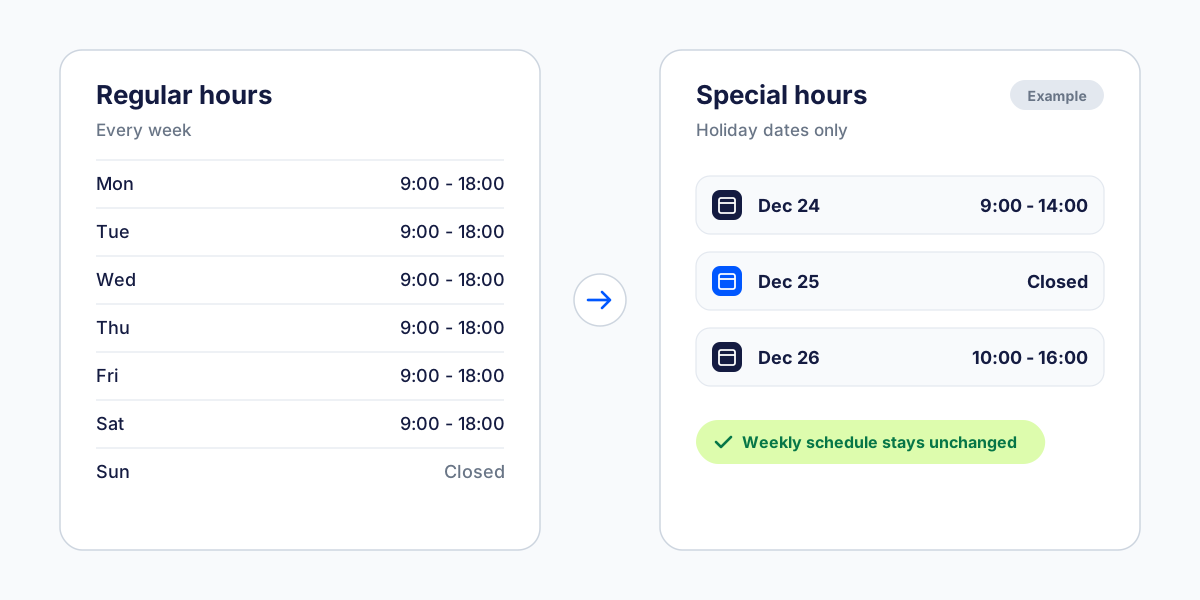
Use special hours for temporary holiday exceptions. Keep regular hours for the recurring weekly schedule. Use a temporary closure representation when the location is fully closed for the period Google supports.
Google documents special hours separately from everyday business hours. That split matters for holiday hours Google Business Profile work:
- Special hours cover a named date or short window when the location runs a different schedule than usual.
- Regular hours are the weekly pattern customers should expect after the holiday window ends.
- A full closure for the holiday period should be represented as a temporary exception, not by quietly rewriting the weekly schedule and hoping someone remembers to undo it.
Google can set special hours natively. The multi-location problem is coordination across owners, regions, and exception lists, not a missing Google screen.

Build the Q4 planning calendar before touching GBP
The safest holiday update starts with an approved calendar and owners, not a last-minute spreadsheet upload or store-by-store click marathon.
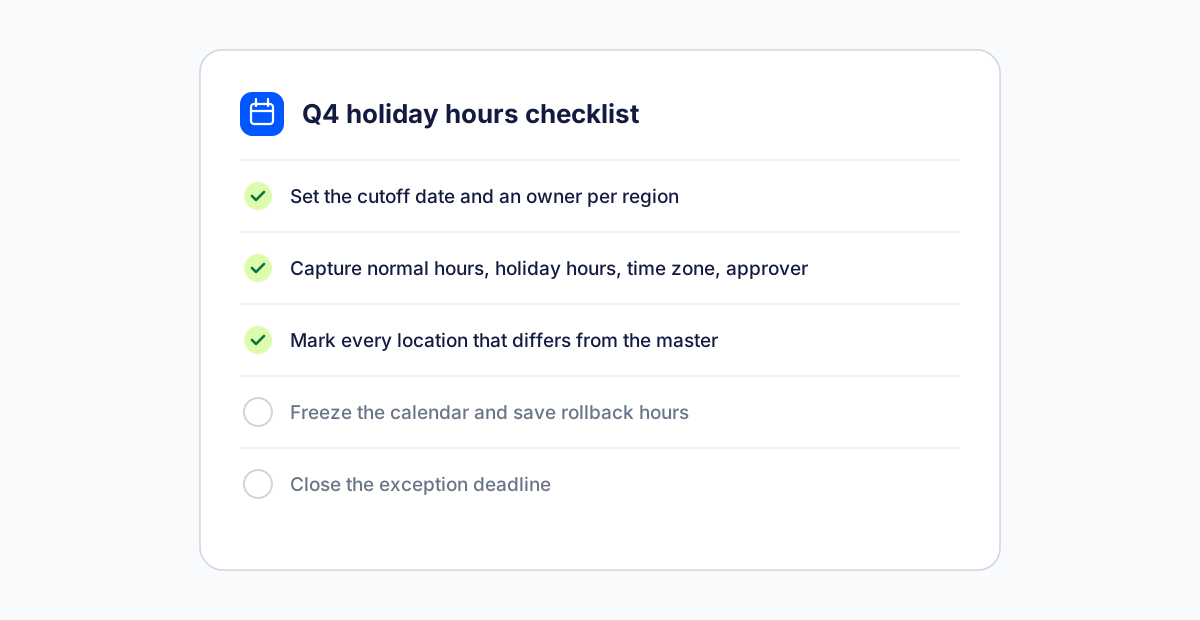
Run this war-room checklist before anyone touches a profile:
- Set the seasonal cutoff date and name an owner for each region or location group.
- Capture the normal schedule, the holiday exception, time zone, closure status, and approver on one shared sheet or system of record.
- Mark every location that differs from the master schedule.
- Freeze the approved version and record the previous hours for rollback before publish.
- Give store managers a clear exception deadline, then stop accepting silent last-minute changes.
Region and franchise exceptions
Franchise or regional groups often need different Christmas Eve or Boxing Day rules. Keep those exceptions visible in the planning calendar so they never get overwritten by a master upload.
Agency multi-client calendars
Agencies should keep a separate approved calendar per client. Do not merge two brands into one holiday sheet just because the go-live date is the same. If you run many client estates, the agency workflow is the better home for ongoing operating process after this seasonal pass.
Native Google limits versus bulk and scheduled workflows
Native Google controls are right for one or a few profiles. Larger estates need a coordinated bulk or scheduled process with explicit QA.
For a single location, open Google’s location manager, set special hours or a temporary closure, and verify the live pin. That path is honest and usually enough when you only have a handful of profiles.
Stop relying on native-only edits when you have:
- dozens of locations
- multiple regions or time zones
- franchisees with local exceptions
- more than one person who can edit hours
When you need to update holiday hours on Google Business Profile across a larger group, choose the workflow by timing and scope:
- Single-location edit for a genuine one-off exception
- Bulk edit for an immediate coordinated change across many listings
- Scheduled edit for a future holiday go-live so nobody has to click on the day itself
Localith’s hours management workflow documents those three paths without replacing Google’s own verification or policy rules. For the commercial product bridge on coordinated estate updates, use bulk Google Business Profile updates.
Copy Hours and CSV pitfalls to check before publishing
Copy Hours can reduce repeated entry for similar locations, while CSV or spreadsheet workflows need strict store-code, empty-cell, and error-review discipline before anyone declares success.
Copy Hours is a useful starting point when several locations share the same holiday pattern. It is not a substitute for exception review. Locations that stay open later, close earlier, or remain open on a holiday still need a human pass.
Before any spreadsheet or CSV publish, check:
- location identifiers and store codes match the profiles you intend to edit
- empty cells are intentional, because blank values can clear fields you meant to leave alone
- upload errors are reviewed before the team moves on
- live profiles are checked after processing, not only the tool or sheet status
Propagation delay happens. A “success” state in the upload UI does not always mean Maps already shows the new hours.
For the general mechanics of estate-wide edits, see how to edit Google Business Profiles in bulk. Keep that guide for the year-round bulk process. This page stays focused on holiday and special-hours ops.
Handle exceptions, verify every change, and keep a rollback plan
Keep an exception list, verify representative profiles on Google Maps or the live profile, and keep the prior schedule ready to restore.
Segment exceptions by region, store, holiday date, and closure type. Then run a two-location sample across different groups or time zones before you expand.
After processing, record what actually happened:
- pending
- accepted
- rejected
- not yet visible on the live profile
Name a rollback owner and store the exact prior hours next to each change set. If your team needs a clearer history of submitted listing edits, pair the seasonal pass with change tracking.
Only after hours are correct should you schedule seasonal posts. Accurate hours first, then publishing for holiday offers or store messages.
Choose the Localith path for immediate or future holiday changes
Use a bulk edit when the approved change should go live now, a scheduled edit for a future holiday, and a single edit for a genuine exception.
In practice:
- Connect the listings you are allowed to manage.
- Confirm the schedule is already approved internally.
- Choose bulk edit for same-day multi-listing hours changes, or scheduled edit when the holiday is still ahead.
- Leave single-location edit for true one-offs that should never touch the master upload.
Scheduled edits are usually the safer default for known holiday dates, because the change can go live on the intended day without relying on someone to remember a manual click. The step-by-step product view stays in the hours management docs. This blog is the seasonal strategy and checklist, not a second copy of those click paths.
Localith does not replace Google verification or policy compliance. It helps multi-location teams apply an approved calendar with less store-by-store drift, then continue under ongoing listings management.

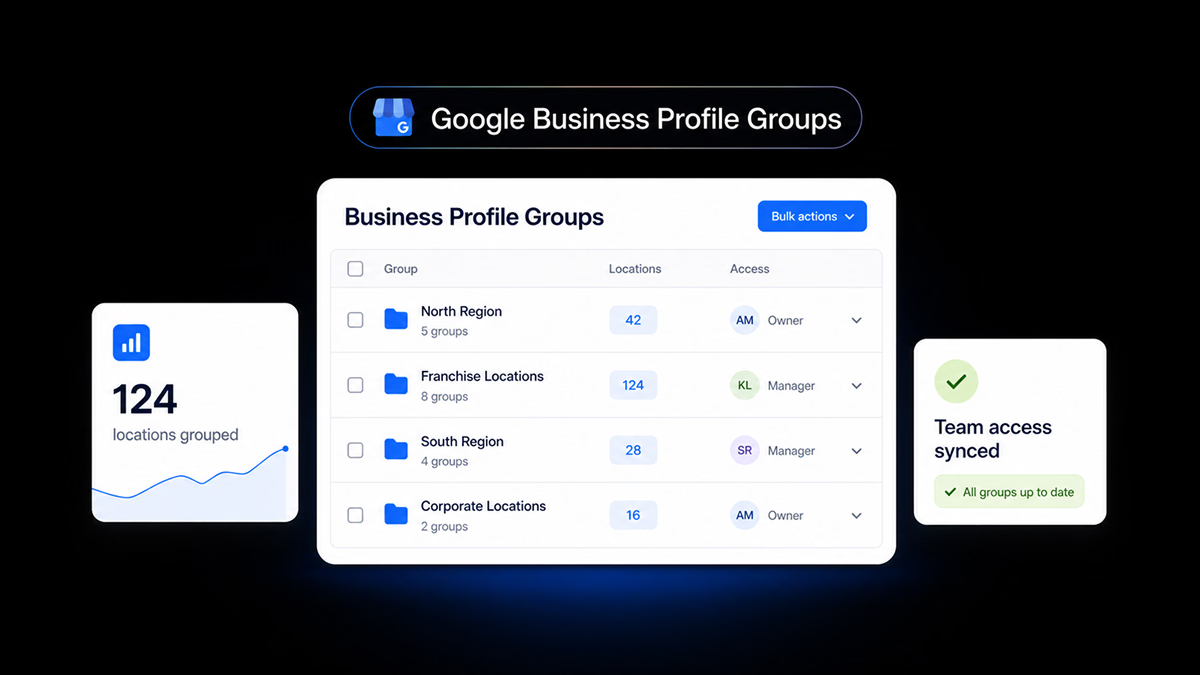
That first screen is the bulk path: pick the locations, set the holiday day and times once, then apply the same values across the selection.
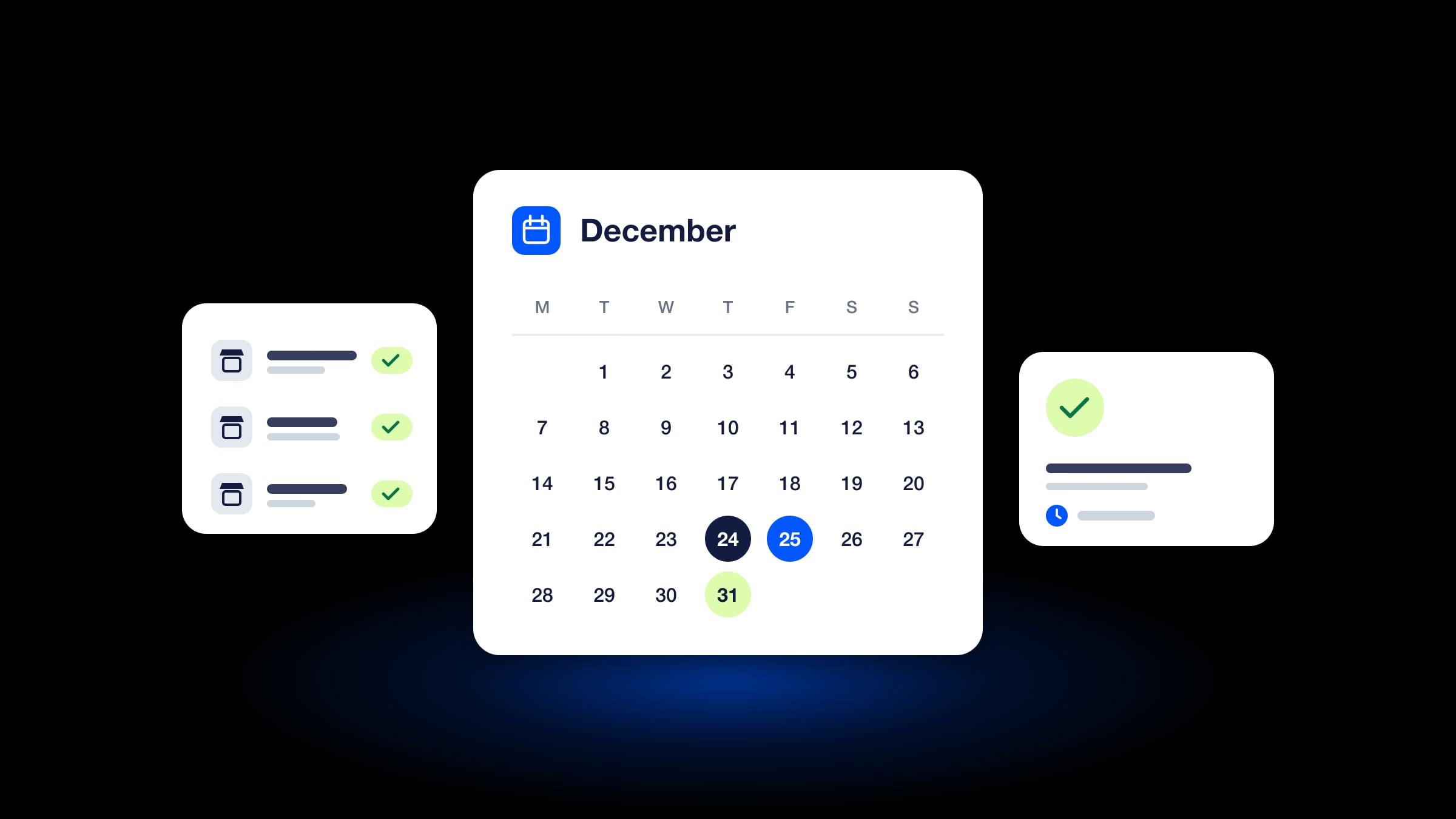
When the holiday is still ahead, switch to a scheduled edit so the change goes live on the intended date without a same-day manual click. The calendar control below is the product view for that step.

Run a two-location trial before the full estate
Prove the workflow on two authorized profiles, verify both live results, then expand only after exception and rollback checks pass.
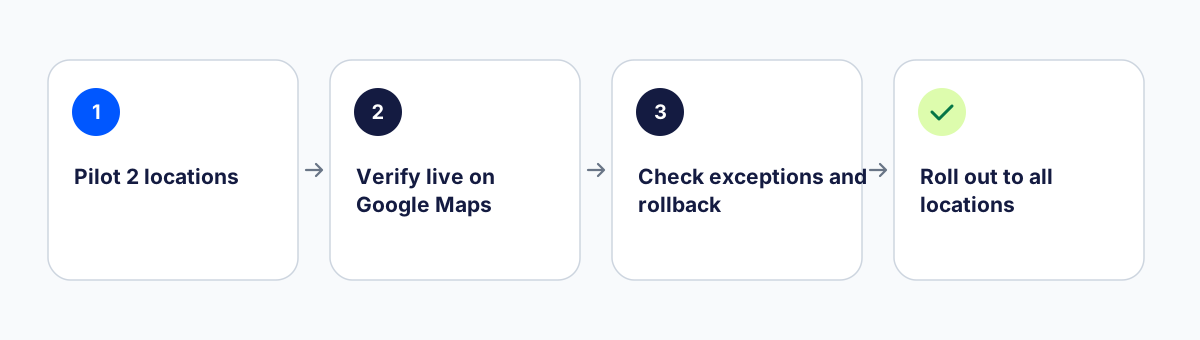
Do this before you touch the whole estate:
- Start a Localith trial and connect two Google Business Profiles you are allowed to edit.
- Pick one holiday date and the special hours or closure your brand already approved.
- Apply the change with a bulk edit or scheduled edit using the hours management workflow.
- Verify both locations on Google Maps or the profile before rolling out to the full group.
- Record the result, confirm the rollback value, and only then expand to the remaining locations.
Plans start from $9/mo for 2 locations, with a 7-day free trial and no credit card required. Extra locations are $6.60 each. AI credits are $0.15 each and are not included in the subscription. The trial starts with 100 credits.
Localith is rated 4.4 on G2, follows ISO 27001, is GDPR-aligned, and hosts data in Belgium only.
Closing checklist and next step
If the two-location test passes, expand with documented ownership and links to the operating workflow, not with an unreviewed one-click rollout.
Before you scale:
- Approved calendar and named owners
- Special hours vs regular hours decision per date
- Native, bulk, or scheduled choice by scope and timing
- Exception list frozen
- Two-location pilot verified live
- Rollback value stored
That is the practical way to handle holiday hours Google Business Profile multiple locations work without opening thirty tabs on Christmas Eve. For the commercial bulk workflow, open bulk updates. For ongoing estate operations, stay in listings management. For plan math, see pricing.