

Google reviews are the best source of customer feedback a local business can get. They show what customers notice, what they repeat, what frustrates them, and which words they naturally use when describing your locations, services, staff, and experience.
The challenge is that Google reviews are not always easy to search.
A single-location business can usually get by with Google Maps and a few manual searches. But for a brand managing dozens, hundreds, or thousands of locations, manually checking reviews one profile at a time quickly becomes slow, inconsistent, and incomplete. If you are still figuring out where reviews live on each profile, our guide on how to see customer reviews on a Google Business Profile walks through the desktop, mobile, and Business Profile Manager paths first. If you need the customer-side flow too, here is how customers leave a Google review step by step.
So, I’ll cover how to search Google reviews by keyword in Google Maps, how Google reviews search by name works in practice, where the native search experience falls short, and how Localith helps multi-location teams search better as part of their multi-location review management workflow.

Manage Google reviews for all your locations from one dashboard. Centralize replies, automate with AI, and track review trends across every branch.
Start free trialHow to search Google reviews by keyword in Google Maps?
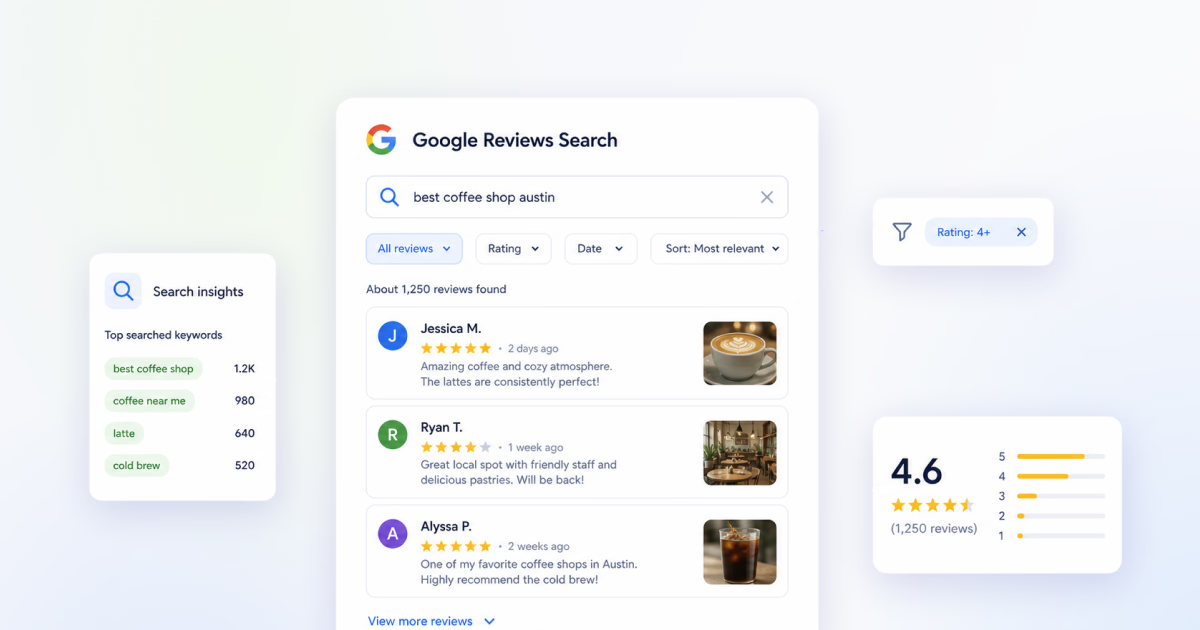
The simplest way to search Google reviews is through the reviews section on a Google Maps business profile. This free method is useful when you only need to manage Google reviews for a few locations, or when you want to search Google reviews by keyword.
Here’s how to achieve that on both desktop and mobile:
How to search Google reviews by keyword on desktop Google Maps?
Desktop Google Maps is usually the easiest place to start because the larger screen makes it easier to open a profile, scan reviews, and test several keywords:
- Open Google Maps in your desktop browser.
- Search for the business or location you want to inspect.

- Open the business profile and select the reviews section.
- Look for the review search field or magnifying glass icon.
- Enter a keyword such as “parking,” “delivery,” “staff,” “clean,” “expensive,” “wait time,” or a specific service name.
- Review the matching results and repeat the search with related terms.

If Google does not show a visible review search field, you can sometimes use the browser’s find command after loading enough reviews on the page. This is less reliable because it only searches the text currently loaded in the browser, not the full review history.
How to search Google reviews by keyword on the Google Maps app?
You can also search Google reviews on mobile through the Google Maps app. This is helpful for quick checks while reviewing one location, although it is still too manual for teams that need to search reviews across many business profiles.
- Open the Google Maps app on your phone.
- Search for the business name or location.
- Tap the business profile and open the reviews section.
- Look for the search icon or review search field.
- Type the keyword, phrase, service, or person name you want to check.
- Scan the matching reviews and try related terms if the first search is too narrow.

Limits of native Google review search
Google Maps review search is helpful, but it is not built for structured review management. It is especially limited for teams that need to monitor multiple locations, compare trends, or report on recurring customer issues.
- Search availability can vary by device, account, location, and interface.
- You usually need to search one Google Business Profile at a time.
- There is no native cross-location keyword search for multi-location brands.
- Filtering by topic, sentiment, date range, rating, location, or response status is limited.
- Manual searches are hard to save, repeat, or turn into reports.
- Browser find only searches reviews already loaded on the page.
- There is no easy way to group keywords into themes or track changes over time.
For a small business, those limitations may be acceptable. For a multi-location team, they create blind spots. You may know that customers are mentioning “wait time” or “parking,” but you cannot easily see which locations are affected, how sentiment differs, or whether the issue is getting better or worse.
If your challenge extends beyond search into ratings, trust signals, and overall brand perception, pair this with a broader Google reputation management process.
How to streamline your Google reviews search via Localith?
Localith gives multi-location teams a centralized way to search, filter, analyze, and respond to Google reviews across locations. Instead of opening each profile manually, teams can work from one review management dashboard and use filters to find the reviews that matter.
After creating your Localith account, this is the workflow to follow:
- Connect your Google Business Profiles to Localith.
- Open the ‘Responses’ page and select the ‘All reviews’ tab to see every review fetched from every connected location.
- Use the search field at the top of the list to find every review that mentions a keyword, phrase, or person’s name across all your locations.
- Combine the search with the available filters to narrow results further.

The ‘All reviews’ tab gives you three filters plus four tabs that work alongside keyword search:
- Sort: Newest first. Switch to oldest first when you want to track how an issue first appeared, or stay on newest to triage what just came in.
- All locations. Scope the search to one branch or compare patterns across a region.
- Date: All time. Pick a custom date range to isolate a campaign window, a season, or a recent operational change.
- Tabs: ‘All reviews’, ‘Waiting for reply’, ‘Replied’, and ‘AI replies’ segment the same review set by reply status, so a keyword search inside ‘Waiting for reply’ instantly surfaces the unanswered reviews mentioning that topic. If a review keeps landing in ‘Waiting for reply’ because the public reply will not go through, run the Reply button missing on Google reviews diagnostic first.
This matters because review search is rarely only about finding one review. Most teams want to understand what customers keep saying, where those patterns appear, and what action to take next. You have to turn review findings into local SEO updates, operational fixes, and reporting for location teams.
Free methods vs review management tools
Free methods are useful for quick checks, but they become harder to manage as review volume and location count grow. The table below shows where each approach fits.
| Method | Best for | Pros | Limitations | When to use |
|---|---|---|---|---|
| Google Maps native review search | Quick checks on one location | Free, simple, available where Google shows the review search field | Limited filtering, no cross-location view, no reporting, and search behavior can vary by device | Use it when you need to verify a few reviews manually |
| Browser find / manual scanning | Very small review sets | Works without extra software and can help when the visible page has already loaded reviews | Misses unloaded reviews, requires repetitive scrolling, and does not create reusable insights | Use it as a backup when native search is unavailable |
| Spreadsheet export / manual tagging | One-off analysis projects | Flexible for custom notes, basic categorization, and sharing findings internally | Time-consuming, easy to become stale, and difficult to maintain across many locations | Use it for quarterly audits or small research projects |
| Localith review management | Multi-location search and analysis | Centralized review filtering, review responses, AI-assisted workflows, and location-level reporting | Requires setup and works best when review management is part of the team’s ongoing process | Use it when reviews are important for local SEO, operations, and customer experience across locations |
Why should multi-location teams search reviews at scale?
For multi-location brands, reviews are not just reputation signals. They are a live feed of local customer experience, operational issues, and search behavior. Searching them at scale helps teams move from anecdotal feedback to clearer patterns.
- Find recurring complaints before they become broader reputation problems.
- Compare how different locations perform around the same customer topic.
- Identify positive themes that can be used in local marketing and GBP content.
- Prioritize review responses by urgency, sentiment, topic, or rating.
- Give regional and location managers clearer evidence for action.
- Spot location-specific issues around parking, staffing, cleanliness, service speed, stock, pricing, or accessibility.
- Discover the exact phrases customers use when describing services and experiences.
Google Business Profile tools like Localith support the broader review management process with centralized monitoring, multi-location filtering, review response workflows, AI-assisted replies, sentiment and theme analysis, analytics, reporting, and other GBP features.
How to analyze your Google reviews?
Searching reviews is the first step. Analysis is where those searches become useful. Instead of looking at one keyword in isolation, group related keywords into topics and compare them across locations, ratings, sentiment, and time.
How to manually analyze Google reviews in spreadsheets
A manual spreadsheet workflow can work for small review sets or one-off audits. It gives you control over labels and notes, but it requires discipline because the data can become outdated.
- Export or copy the reviews you want to analyze into a spreadsheet.
- Add columns for location, rating, date, reviewer name, review text, response status, topic, and sentiment.
- Use filters or formulas to find recurring words such as “parking,” “wait,” “staff,” “price,” or “clean.”
- Group related keywords into themes, such as service speed, staff experience, product availability, or accessibility.
- Summarize the most common positive and negative themes for each location.
This approach is free, but it is time-consuming. It also does not give you live Google reviews search, automated sentiment analysis, AI-assisted replies, or multi-location reporting.

How to analyze Google reviews with Localith
Localith is designed for teams that need to analyze Google reviews continuously instead of running a manual review audit once in a while. The platform turns review text into review insights that cover customer sentiment and intent, and further categorizes the review.

To analyze every new review automatically, open the ‘Responses’ menu, go to ‘Automate’, and add an ‘Analyze reviews’ automation. The trigger is a new Google review, and the action runs the analysis on each one as it comes in, so the insights are ready by the time your team opens the inbox.

Once the automation is running, your full keyword analytics live under ‘Responses’ → ‘Analytics’. That page rolls every analyzed review into Recommended actions, Critical flags, and Keyword insights, with strengths, issues, general topics, and competitor mentions broken out side by side. It is the cross-location view that turns one-off keyword searches into an ongoing program.

How to use review keyword insights for local SEO
Google reviews can also reveal the language customers associate with each location. Those phrases can help shape local SEO content because they reflect real customer vocabulary, not only internal brand messaging. So here are some GBP best practices when it comes to review analysis:
Use customer keywords in Google Business Profile content
Review keyword insights can show which services, products, and experience details customers mention most often. Use those recurring phrases in Google Business Profile services, descriptions, posts, and Q&A where they are accurate and helpful.
For example, if customers repeatedly mention “walk-in appointments,” “same-day pickup,” or “family friendly,” those phrases may deserve clearer placement in GBP content and location-specific updates.
Improve location pages with review keyword insights
Review language can also improve local landing pages. Add common customer questions, concerns, and positive proof points to location page copy, service sections, and FAQs. This helps the page sound more like real customers while covering the terms people use when evaluating a local business.
This is especially useful for multi-location brands because one location may earn reviews about “easy parking” while another earns reviews about “fast pickup” or “helpful front desk.” Those differences can shape more relevant local SEO content.
Turn review themes into local content and operational improvements
Positive review themes can become GBP posts, testimonial snippets, local landing page proof points, and internal examples for location teams. Negative themes can reveal operational issues before they affect rankings, conversions, or response rates.
The key is to use review insights responsibly. Do not force awkward keywords into pages. Instead, let customer language guide clearer, more helpful local content and better location-level decisions.
Conclusion: Turn Google review searches into local growth insights
Ultimately, you can search Google reviews manually through Google Maps, and that is often enough for quick one-location checks. But it comes with limitations: it’s manual, inconsistent, and difficult to scale. So when managing multiple GBPs, you need help.
Localith helps teams bring those review searches into one place so they can move faster from feedback to action. For multi-location teams, this is crucial. Plus, you get tools to understand customer experience, compare locations, improve response workflows, and strengthen your SEO.
So, start a free trial of Localith today or check Localith pricing to bring out the full value of your customer feedback.

Turn Google review activity into reports your team can act on. Use Localith to compare locations, export review reports, track response activity, and surface the patterns behind rating changes.
Start free trial