

If you run a local business, your Google reviews are not just social proof. They are customer feedback, local SEO signals, and sales objections sitting in public. The first step is knowing where to find them.
This guide shows business owners how to see reviews customers left on a Google Business Profile from desktop and mobile. I will cover Google Search, Google Maps, the Google Business Profile dashboard, and the Google Maps app. I will also show what to check when reviews are missing, how to filter and search reviews, and what to do once you find them.
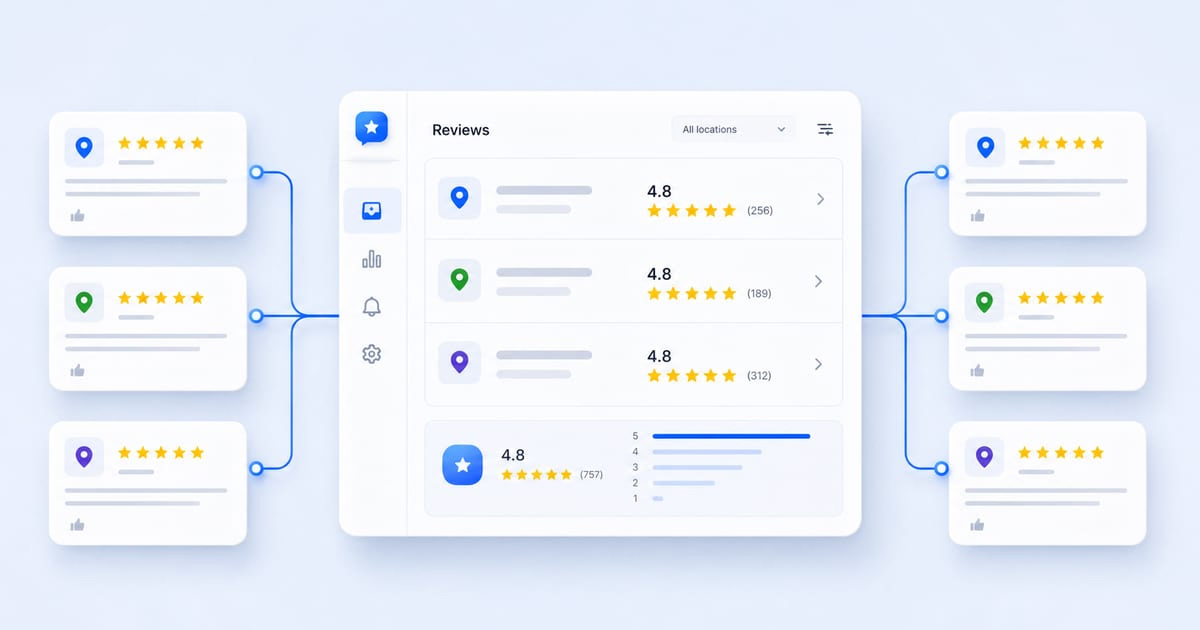
If you manage more than one location, the manual process gets old fast. That is where Localith’s multi-location review management workflow and listings management tools help you monitor, reply to, and organize reviews from one place.

Manage Google reviews for all your locations from one dashboard. Centralize replies, automate with AI, and track review trends across every branch.
Start free trialQuick Answer: Where Business Owners Can Find Google Reviews
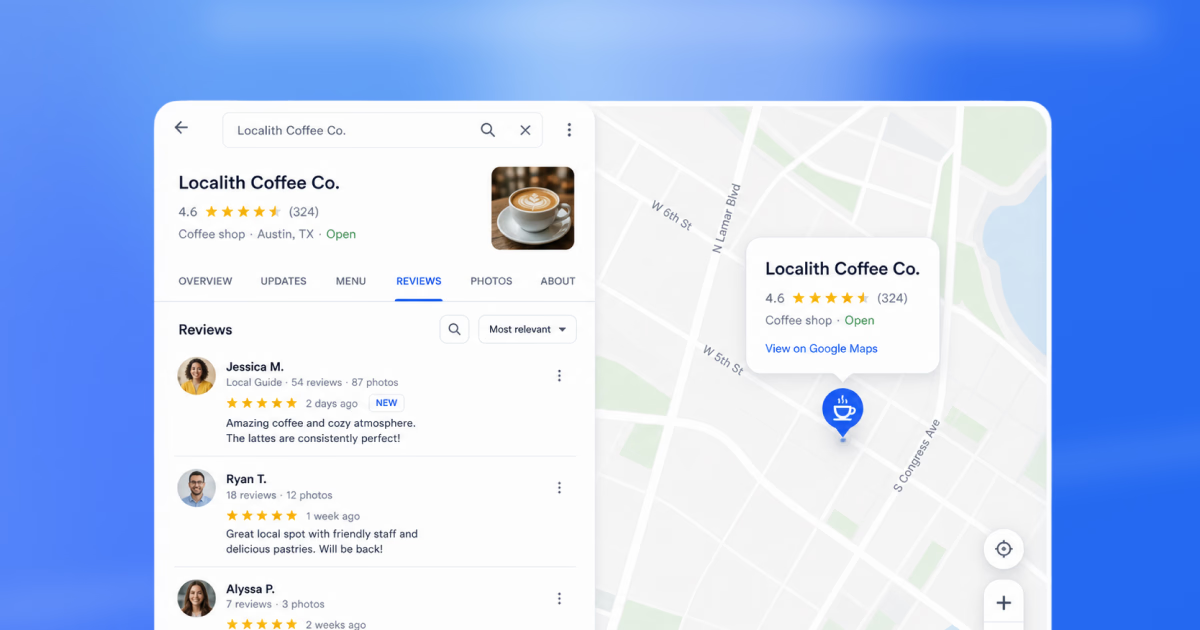
To see customer reviews on your Google Business Profile, sign in with the Google account that manages the business. Then search for your business on Google Search or Google Maps and open the reviews section.
On desktop, you can use one of three paths:
- Google Search: search your business name, open your Business Profile, then click the reviews count or Reviews section.
- Google Maps: search your business, open the listing, then click Reviews.
- Google Business Profile Manager: go to your business profile and open the reviews area from the profile controls.
On mobile, use the Google Maps app. Sign in with the right Google account, search your business, open the profile, and tap Reviews.
Google’s Business Profile Help documentation says verified businesses can reply to reviews on their Business Profile, and owner responses appear publicly below the customer’s review on Search and Maps. That means this is not just a place to read feedback. It is also where customers see how your business handles praise, complaints, and questions.
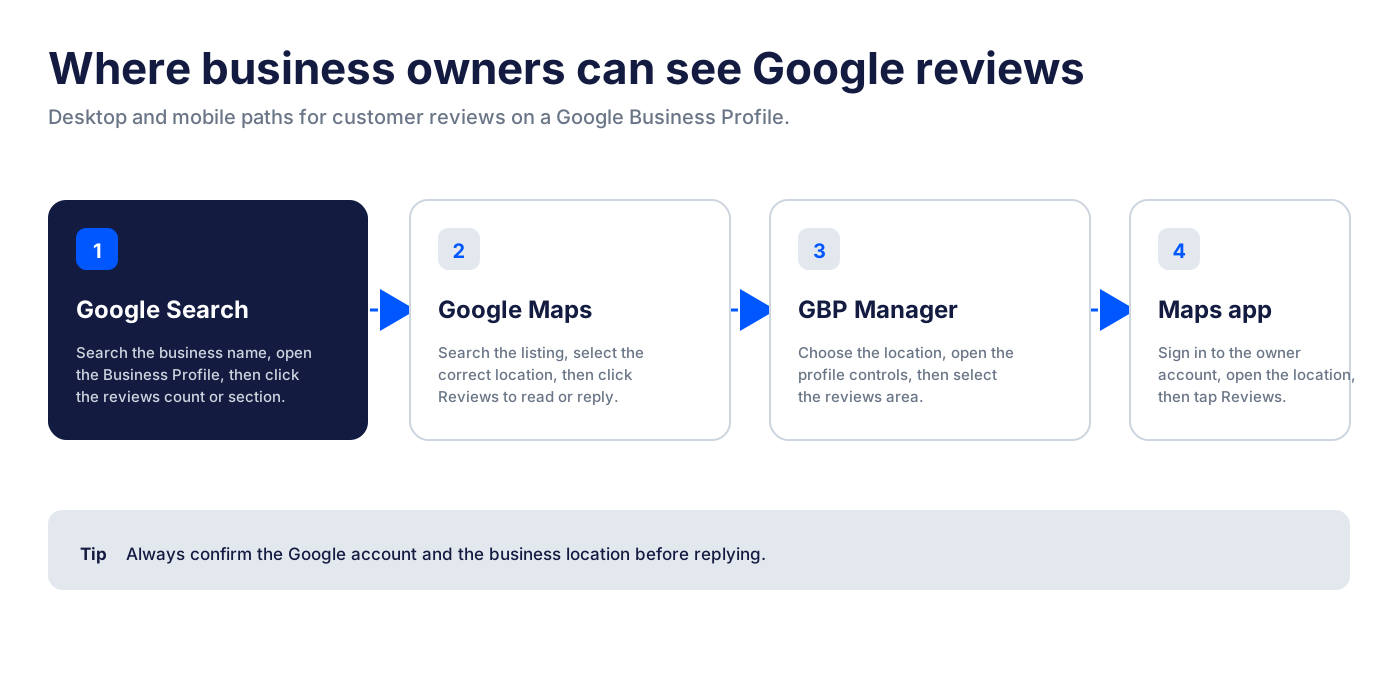
How to See Your Google Business Profile Reviews on Desktop
Desktop is usually the easiest way to check reviews, especially if you are replying, sorting, or handling multiple locations. You have three practical routes: Google Search, Google Maps, and Business Profile Manager.
Find your reviews from Google Search
Use this method when you want the fastest path from your browser.
- Open Google Search.
- Sign in with the Google account that owns or manages the Business Profile.
- Search for your exact business name.
- Look for your Business Profile panel in the search results.
- Click the star rating, review count, or Reviews section.
- Scroll through customer reviews and reply where needed.
If your business has a common name, add the city, neighborhood, or address to the search. For example, search business name + city instead of only the brand name.
If you manage several locations, confirm you opened the right one before replying. A response meant for the downtown location can look strange if it appears on the suburban profile.

Find your reviews in Google Maps
Google Maps is often better when you want to inspect the public listing exactly as customers see it.
- Open Google Maps on desktop.
- Sign in with the Google account that manages the profile.
- Search for your business name.
- Select the correct location.
- Click Reviews.
- Read, sort, or reply to individual reviews.

Google’s Maps Help documentation says users can click the number of reviews beside the rating to read reviews. Business owners who open their Business Profile in Maps can also reply to individual reviews when they have the right permissions.
Maps is also useful for checking whether a review appears publicly. If you can see a review in one management view but not on Maps, wait a bit and check from another browser or account before assuming it disappeared.
Find your reviews in Google Business Profile Manager
Business Profile Manager is useful when you manage a profile from the business side instead of the public listing side.
- Go to your Google Business Profile account.
- Choose the business location you want to review.
- Open the profile controls.
- Select the reviews area.
- Read and reply to reviews from there.

If you do not see the business, you are probably signed into the wrong Google account or you do not have owner or manager access. Ask the profile owner to add you, or switch accounts and check again.
For teams, I recommend keeping a short internal note with the right owner account, manager accounts, and each location name. It prevents people from replying from the wrong place or thinking reviews are missing when they are simply looking at the wrong profile.
How to See Your Google Business Profile Reviews on Mobile
On mobile, the Google Maps app is the main path. The old Google My Business app is gone, so business owners should use Search, Maps, or Business Profile Manager in the browser.
Find your reviews in the Google Maps app
Use this method when you are checking reviews from your phone.
- Open the Google Maps app.
- Tap your profile photo and confirm you are signed into the account that manages the business.
- Search for your business name.
- Tap the correct business location.
- Tap Reviews.
- Read recent reviews and reply where needed.

If you manage several profiles, do not rely only on the business name. Check the address before replying. Multi-location brands often have locations with similar names, and the Maps app makes it easy to open the wrong one if you are moving quickly.
Switch to the right Google account
Most “I can’t see my reviews” issues start with account confusion.
On mobile, tap your profile photo in Google Maps and switch to the Google account that owns or manages the Business Profile. Then search for the business again.
If the Reviews section appears publicly but you cannot reply, you may be using a personal account with no management permissions. If the business does not appear in your managed profiles, you need owner or manager access.
Open the right business location
For single-location businesses, this is simple. For multi-location brands, it is where mistakes happen.
Before replying to a review, check:
- Business name
- Street address
- City
- Store number, if your brand uses one
- Recent photos or profile details
This matters because reviews are location-specific. A one-star complaint about parking at one branch should not shape the response strategy for a different branch.
How Localith Helps Business Owners Manage Google Reviews
Seeing your reviews is only the first step. The real work starts after reviews arrive.
If you manage one small profile, Google Search and Maps may be enough. But if you manage multiple locations, reviews become an operations problem. You need to know which reviews are new, which ones need replies, which ones mention recurring issues, and which locations are falling behind. Our guide to managing Google reviews across multiple locations covers that operational side in detail.
Localith gives business owners and teams one dashboard for Google Business Profile management. You can track reviews across locations, see what needs attention, and use the AI Review Reply Agent to draft brand-consistent responses without writing each one from scratch.

That matters for three reasons.
First, speed. Customers notice when a business replies quickly. A late reply is better than silence, but a same-day or next-day response sends a stronger signal.
Second, consistency. Multi-location teams often have different managers replying in different tones. Localith helps keep the response style aligned while still letting each reply match the review.
Third, visibility. Reviews contain patterns. If five locations are getting complaints about wait times, or one location keeps getting praise for a staff member, that feedback should not disappear in a review feed. It should inform operations, local SEO, and training.
For teams managing reviews at scale, the goal is not just to “check reviews.” The goal is to build a repeatable review workflow.
How to Filter, Sort, and Search Your Google Business Reviews
Once you can see your reviews, the next question is usually: “How do I find the specific review I need?”
Google review feeds can get messy. You may need to find a recent one-star review, search for a customer’s name, check reviews that mention a service, or scan for repeated phrases like “parking,” “rude,” “wait time,” or “pricing.”
Start with the sorting and filtering options available in the Google interface you are using. Depending on where you are viewing reviews, you may be able to sort by newest, highest rating, lowest rating, or most relevant.
For deeper review research, read our guide to Google reviews search. It covers how to search Google reviews by keyword, find patterns in customer feedback, and use review search to spot reputation issues before they become bigger problems.
For business owners, this is where review management becomes useful. You are not only looking for individual reviews. You are looking for patterns:
- Repeated complaints by location
- Repeated praise by staff member or service
- Product or service mentions
- Negative reviews that need urgent replies
- Reviews that mention local keywords
- Reviews that reveal customer expectations
Those patterns can shape your response strategy, local SEO content, staff training, and profile updates.
Troubleshooting: Why You Can’t See Some Google Reviews
If a review is missing, delayed, or visible in one place but not another, do not panic first. Google reviews can behave differently depending on account access, profile status, moderation, and where you are checking.
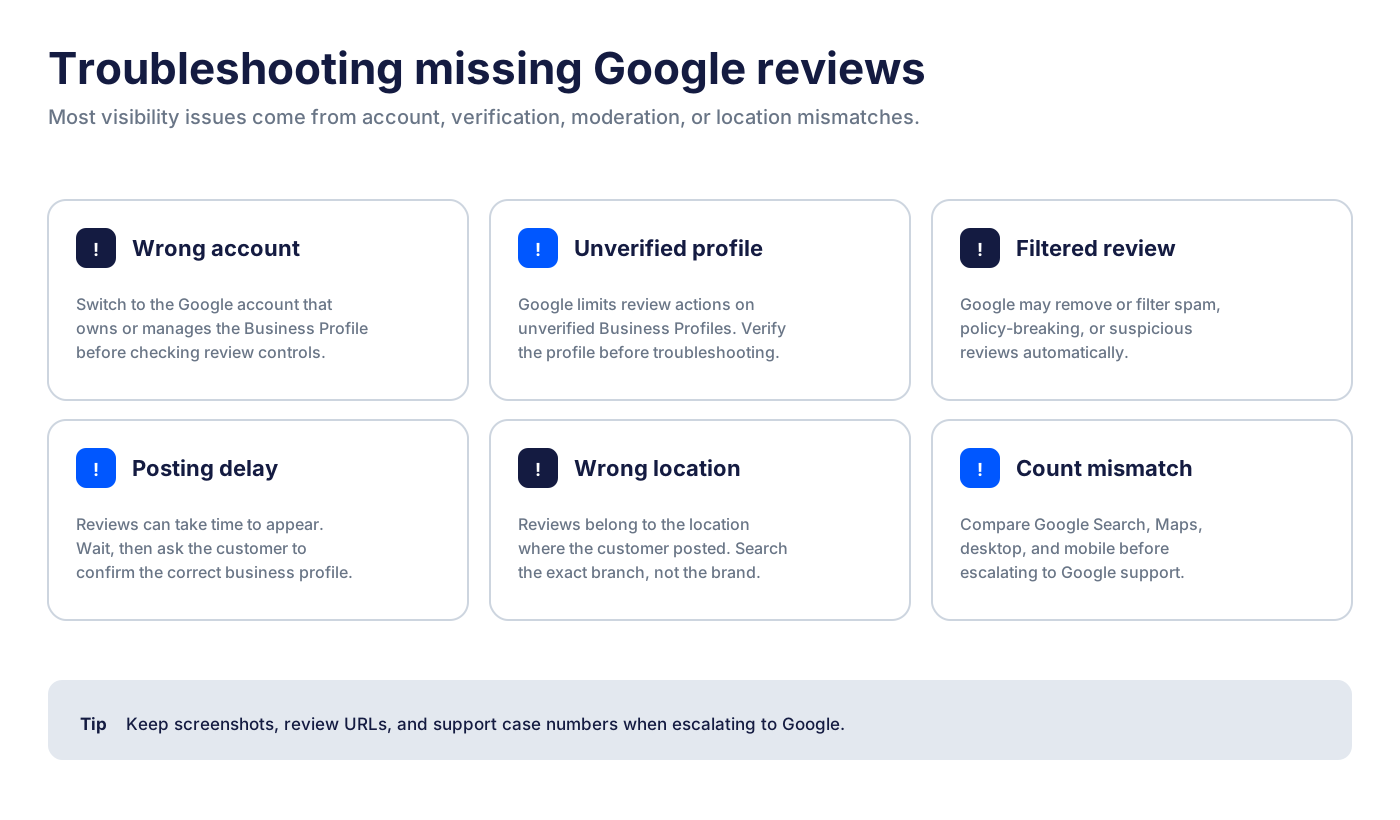
Here are the most common issues to check.
You are logged into the wrong Google account
This is the simplest and most common problem.
You may be able to see the public reviews, but not the owner controls. Or you may be managing one location but searching while signed into a different account.
Switch to the account that owns or manages the Business Profile. Then search again.
Your business profile is not verified
Google says businesses need verification to manage profile information and reply to reviews. If the profile is not verified, your access may be limited.
Check the profile status in your Google Business Profile account. If Google asks you to verify the business, complete that process before troubleshooting review controls.
Google removed or filtered the review
Google can remove reviews that violate its policies. It may also filter reviews that look suspicious, spammy, or policy-breaking.
This can happen even when the business owner thinks the review is legitimate. The reviewer may still see something different from what the business owner or the public sees. If the review matters, ask the customer to check whether it appears publicly from another device or account.
The review is delayed after being posted
Sometimes a customer says they left a review, but you cannot see it right away. Wait and check again.
Do not ask the customer to repost the same review multiple times. That can look unnatural and may make filtering worse. Instead, give it time, then ask them to confirm they posted it under the correct business profile.
You are checking the wrong business location
For multi-location businesses, reviews belong to the location where the customer posted them.
If you expected a review on the main brand profile but the customer reviewed a nearby branch, it will not appear where you are looking. Search the customer’s location, service area, or store name and check nearby profiles.
Your review count does not match the visible reviews
Sometimes the public review count and visible review list do not seem to match. This can happen because of filtering, sorting, deleted reviews, language settings, or interface delays.
Check from Google Search, Google Maps, desktop, and mobile before escalating. If the mismatch persists and affects your business, use Google’s Business Profile support flow.
Your owner replies are not showing
If you replied to reviews but cannot see the response publicly, first check whether you are viewing the profile as the owner or as a regular user. Then check in a private browser window or another Google account.
Owner replies may take time to appear. If replies remain missing across devices and accounts, document the review URL, screenshots, business profile, and reply date before contacting support.
Your profile was suspended or recently reinstated
Profile suspensions and reinstatements can affect what you see. Reviews may temporarily look missing, incomplete, or delayed.
If your profile was recently reinstated, give Google time to reprocess the listing. Keep screenshots and support case numbers in case you need to follow up.
What to Do After You Find Your Google Reviews
Finding reviews is the starting point. The value comes from what you do next.
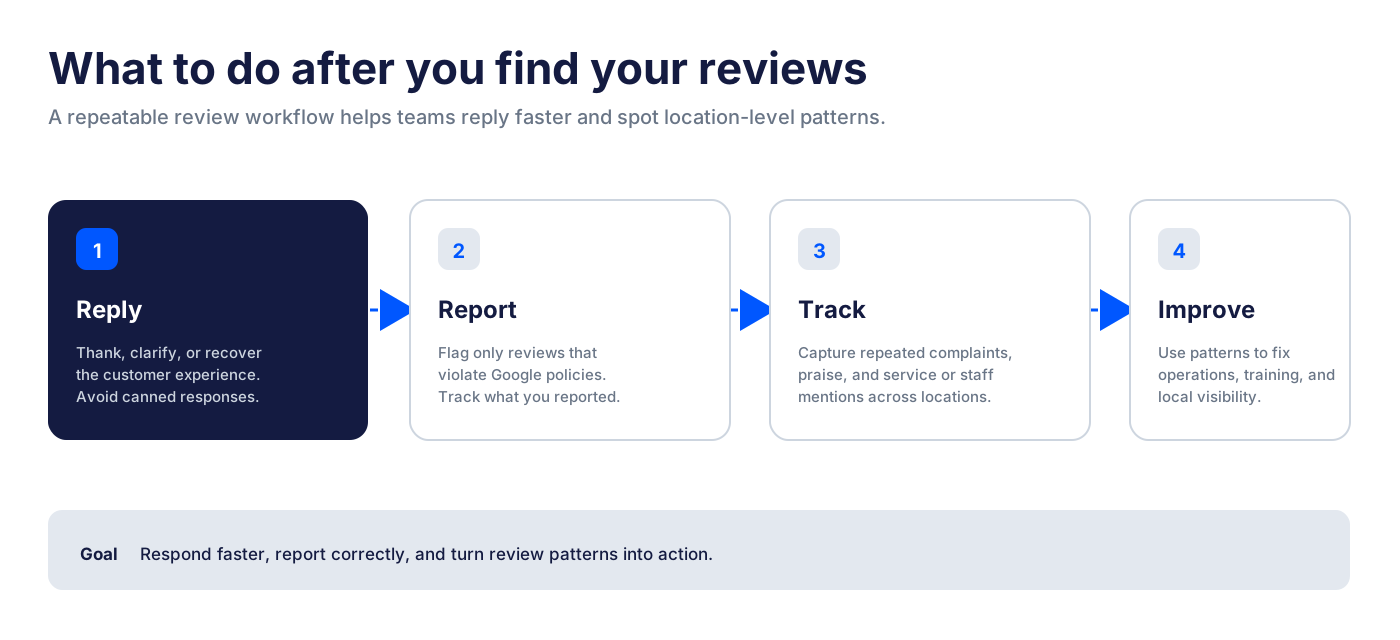
Reply to recent customer reviews
Reply to new reviews while the customer experience is still fresh. Thank happy customers, acknowledge specific details, and avoid canned responses.
For negative reviews, stay calm. Address the issue, apologize where appropriate, and move sensitive details offline. Never argue with the reviewer in public. For tone, structure, and template ideas, see our guide on how to respond to Google reviews.
If reply volume is high, Localith’s AI Review Reply Agent can draft responses that match each review’s tone and your brand voice.
Report reviews that violate Google’s policies
You cannot delete customer reviews just because you dislike them. But you can report reviews that violate Google’s policies, such as spam, fake content, conflicts of interest, harassment, or irrelevant content.
Use the report or flag option on the review. Then track what you reported, when you reported it, and whether Google took action.
Track recurring complaints or praise
Reviews are free customer research.
If customers keep mentioning slow service, confusing directions, parking issues, pricing surprises, or staff names, capture those patterns. They can tell you what to fix operationally and what to highlight in your Google Business Profile content.
Positive patterns matter too. If customers keep praising a service, staff member, or product, use that language in posts, photos, service descriptions, and local landing pages.
Monitor reviews across multiple locations
For multi-location businesses, review management needs a system.
Set a cadence for review checks. Decide who replies. Create escalation rules for serious complaints.
Track which locations have unanswered reviews. Use the same brand standards across every profile. Pulling this together into an ongoing program is what Google reputation management actually looks like in practice.
Without a system, the loudest reviews get attention and quiet patterns get missed.
How to See Google Reviews You Wrote as a Customer
This section is for the other meaning of “my Google reviews.” If you want to see reviews you personally wrote for other businesses, use Google Maps.
On desktop:
- Open Google Maps.
- Sign in with your Google account.
- Open the menu.
- Go to Your contributions.
- Open Reviews.
On mobile:
- Open the Google Maps app.
- Tap Contribute or your profile menu.
- Open your profile or contributions.
- Tap Reviews.
From there, you can usually view, edit, or delete reviews you wrote, depending on the Google interface and account settings. For the full walkthrough, see how to edit a Google review on desktop and mobile.
For this Localith guide, though, the main focus is business owners seeing reviews customers left on their Business Profile. If you manage a business, stay in the owner workflow, not the personal contributor workflow.
Can You Delete or Hide Reviews Customers Leave on Your Business Profile?
No, business owners cannot directly delete customer reviews from a Google Business Profile.
You can report a review if it violates Google’s policies. Google then decides whether to remove it. You can also reply publicly to add context, apologize, or explain how you are handling the issue.
Do not try to bury negative reviews with fake positive reviews. Do not ask employees to leave reviews. Do not offer incentives for reviews unless you understand the platform and legal risks. Those tactics can damage trust and create policy problems.
The better workflow is:
- Reply professionally.
- Report only policy-breaking reviews.
- Ask real customers for honest reviews.
- Track patterns by location.
- Fix the operational issues customers mention.
That approach is slower than deleting a bad review, but it is safer and better for long-term local visibility.
Conclusion: Turn Customer Reviews Into Action
To see reviews customers left on your Google Business Profile, start with the basics: sign into the right Google account, open your business on Google Search or Google Maps, and check the Reviews section. On mobile, use the Google Maps app and confirm you are viewing the right location.
Once you find the reviews, do not stop there. Reply to customers, report policy-breaking reviews, search for patterns, and create a review workflow your team can repeat.
If you manage multiple locations, Localith helps turn that workflow into a system. You can monitor reviews, draft replies with AI, and keep every Google Business Profile moving without checking each location one by one. Start a free Localith trial to set up that workflow across all your locations.

Turn Google review activity into reports your team can act on. Use Localith to compare locations, export review reports, track response activity, and surface the patterns behind rating changes.
Start free trial