

You open Google Business Profile, find a customer review, and the reply option is missing. Or you write the reply, click send, and the response never appears publicly. That is a different problem from not knowing what to say. You are trying to do the work, but Google is blocking, delaying, or hiding the action somewhere in the workflow.
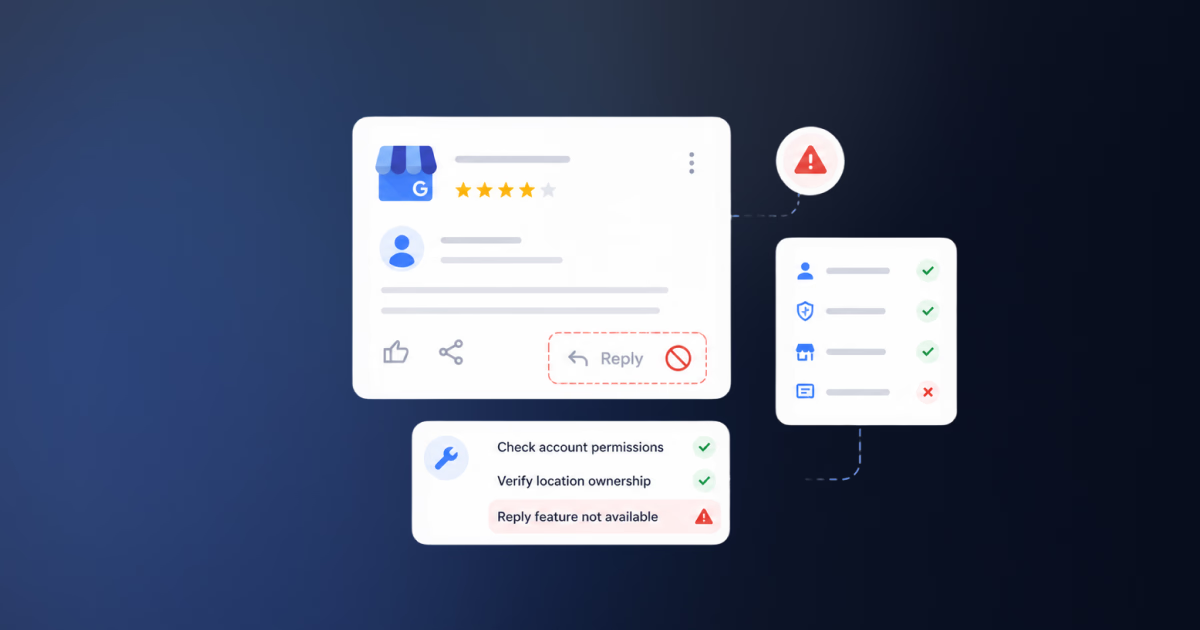
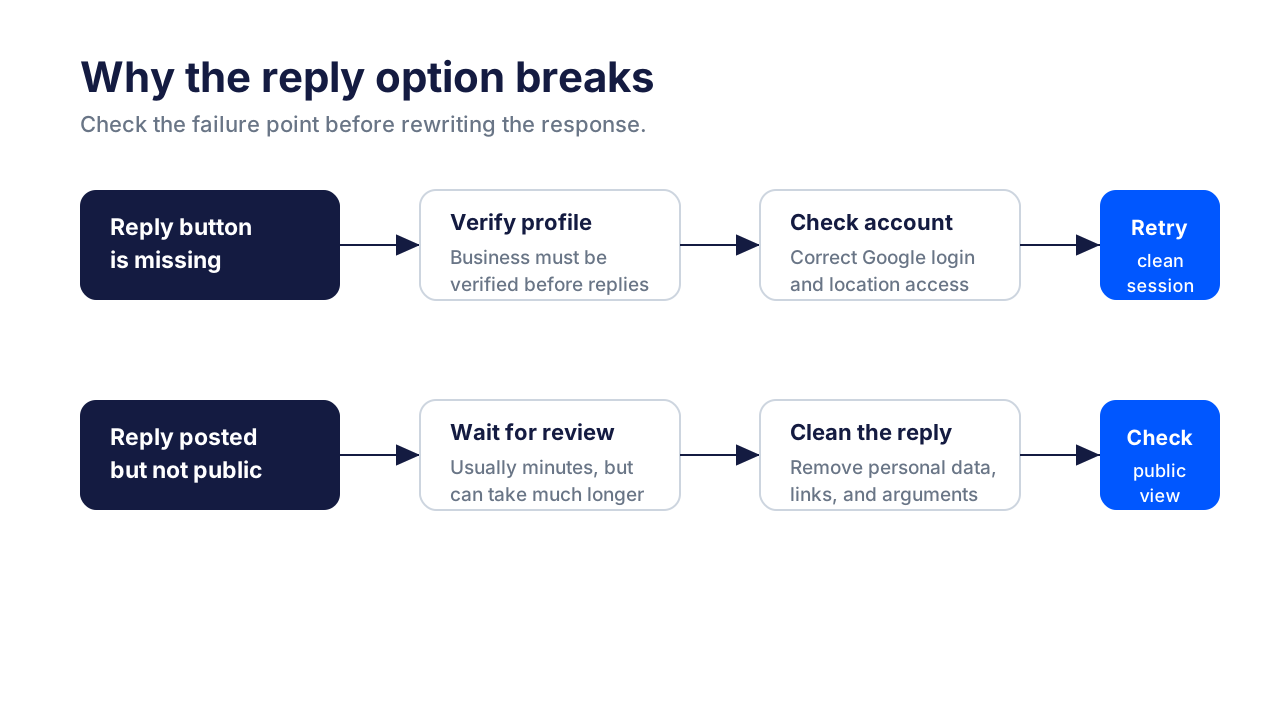
The short answer: you usually cannot reply to a Google review because the Business Profile is not verified, you are signed into the wrong Google account, your user role does not have the right access, the reply is still being reviewed by Google, the reply triggered a content policy, or the Google interface is having a browser, app, or session issue.
This guide shows you how to diagnose the failure point, fix the common Google review reply workflow issues, and prevent the same reply problem from repeating across multiple locations or team members.

Automate your Google review replies today. Set up AI-powered responses and brand voice controls for all your locations in minutes. 7-day trial with 100 AI credits. From $9/mo for 2 locations. 4.4 on G2.
Start free trialQuick diagnosis: why the reply option is missing or your reply is not showing
I always start with the symptom. It is faster than guessing.
| What you see | Likely cause | What to do first |
|---|---|---|
| There is no Reply button | Profile not verified, wrong account, or missing access | Confirm verification and account role |
| Reply button is greyed out | Temporary interface issue, permission issue, or profile restriction | Try another browser, then check GBP access |
| Reply posts but disappears | Google is reviewing the reply or did not approve it | Wait, then rewrite if Google prompts you |
| Reply appears to you but not publicly | Review delay, moderation, display lag, or owner-only view | Check in incognito or another account |
| “Could not post reply” or similar error | Browser session, app issue, Google bug, or account conflict | Clear cache, update app/browser, use one account |
| Teammate can see reviews but cannot reply | Wrong user role or wrong location access | Ask the owner/admin to check profile permissions |
| Some locations work and others do not | Multi-location access mismatch or profile-specific restriction | Compare verification, role, and profile status by location |
If one location works and another does not, treat it as a profile-level issue. If every location fails for every user, treat it as a Google-side, browser, app, or platform issue.
1. Your Google Business Profile is not verified
Google’s Manage customer reviews help page is clear: before you can reply to reviews, you must verify your business. After the Business Profile is verified, you can reply to reviews on the profile.
Check verification first because many teams inherit profiles, create new locations, merge listings, or regain access after a suspension and assume everything is fully active. A profile can be visible on Search or Maps before every management feature is available.
To fix it:
- Open the Business Profile while signed into the account that manages it.
- Check whether Google is asking for verification, reverification, or additional documentation.
- Complete the verification method Google offers.
- Wait for Google to finish processing before testing review replies again.
If you manage many locations, do not assume verification status is consistent across all of them. One location may be verified, while another newly added or recently edited location still needs action. A business listing management workflow that tracks verification state by location saves you from rediscovering this every quarter.
2. You are signed into the wrong Google account
This is the most common simple cause. You may be signed into the Google account you use for Gmail, YouTube, Ads, or Analytics, while the Business Profile is managed by a different account. If the reviews are not showing up at all when you search the business, start by confirming where they live for each profile. Our walkthrough on finding your Google Business Profile reviews covers the desktop, Maps, and Business Profile Manager paths.
It gets messier when several Google accounts are active in the same browser. The Business Profile interface may show the listing in Search, but the review management action may belong to a different signed-in account.
To fix it:
- Log out of extra Google accounts and sign into only the account with Business Profile access.
- Open the profile in an incognito window and sign in fresh.
- Use a dedicated Chrome profile for GBP work.
- If you are part of an agency or franchise team, confirm the exact email address that was invited to manage the location.
Do this before changing anything else. A clean login often resolves missing buttons, stale sessions, and confusing profile switching.
3. Your user role does not have the right access
If you can view the profile but cannot reply to reviews, your account may not have the right management access for that location.
This is especially common in multi-location teams. A franchise marketer may have access to some profiles but not all. An agency may be invited to a client account but not the specific location group. A store manager may use a personal email that was never added to the Business Profile.
To fix it:
- Ask the primary owner or account admin to check the profile’s people and access settings.
- Confirm your exact Google email is listed.
- Confirm the location you are trying to manage is included.
- Avoid shared logins where possible. They make auditing and troubleshooting harder.
If your team needs several people to respond to Google reviews, document who owns review replies, who approves sensitive responses, and which accounts have access. Otherwise, “why can’t I reply?” becomes a weekly support loop.
4. The review or profile is not eligible for replies
Google notes that reviews are available only in certain countries or regions and for certain business categories, and that availability can change over time. That means not every profile experience is identical.
Profile restrictions can also affect what you can do. If Google has restricted a profile or a piece of content because of a policy issue, you may see features behave differently until the issue is resolved.
To fix it:
- Check for warnings or restriction notices in Google Business Profile.
- Review whether the profile category, country, or business type supports reviews.
- Look for duplicate, suspended, or recently reinstated profiles that may be creating confusion.
- If Google shows a content or profile restriction, use Google’s appeal guidance rather than repeatedly trying to publish the same reply.
Do not troubleshoot this like a browser bug if Google is showing a profile-level warning. Resolve the restriction first.
5. Google is still reviewing your reply
If your reply submitted successfully but does not show immediately, it may not be broken.
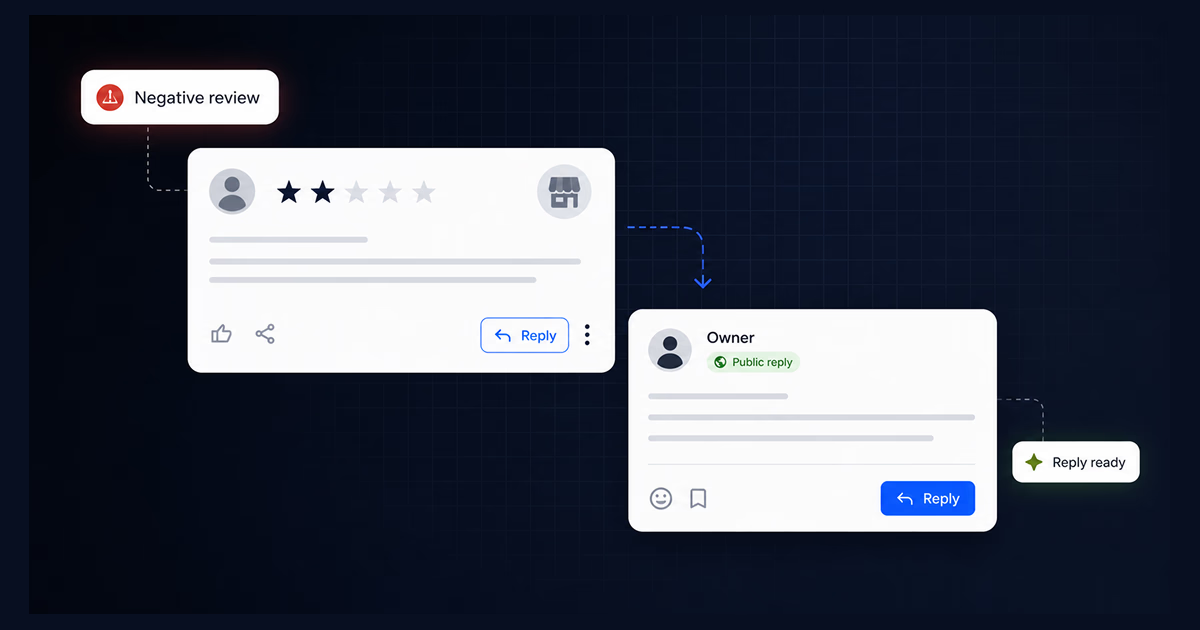
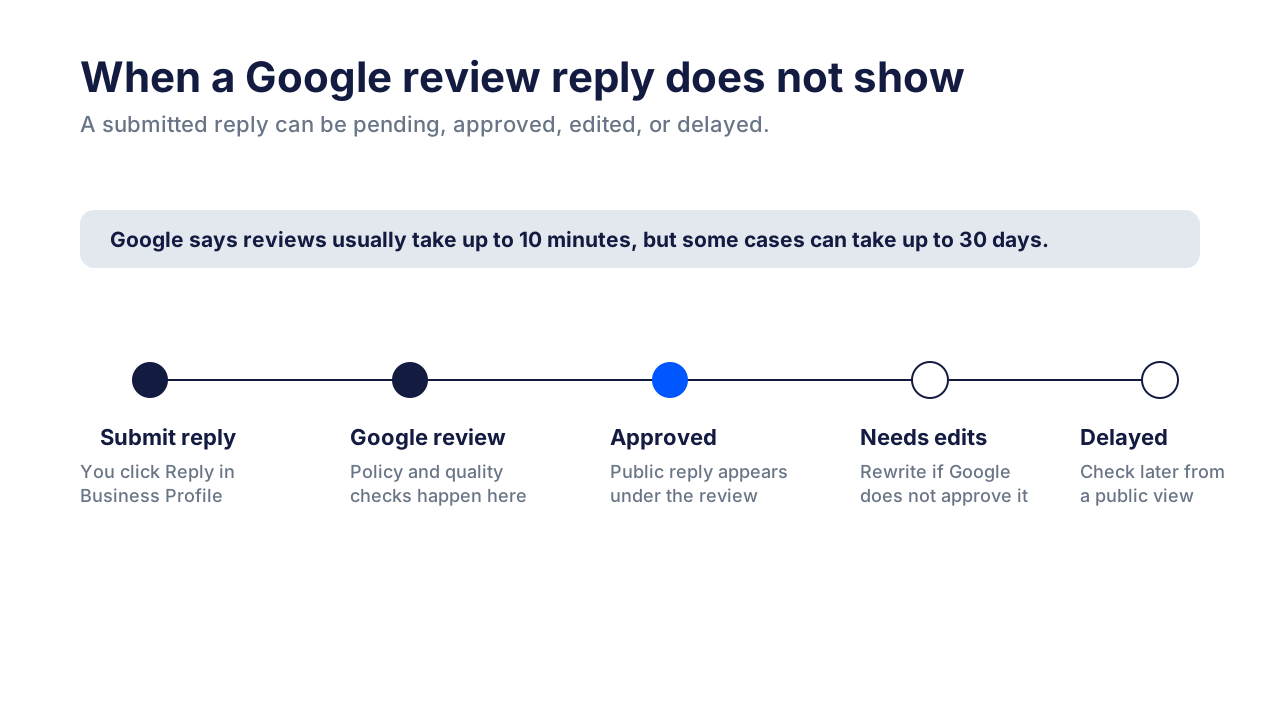
Google says it reviews replies to make sure they follow content policies. If a reply is approved, it appears publicly under the customer review as a business reply. If it is not approved, Google may ask you to edit it. Google’s Help page says replies usually take up to 10 minutes to review, but in some cases the review can take up to 30 days.
That matters because a reply can feel missing when it is really waiting for review.
To check:
- Wait at least 10 minutes before changing anything.
- View the review from an incognito window or another Google account.
- Check whether Google asked you to edit the reply.
- Avoid deleting and reposting the same reply repeatedly, which can create more confusion.
For urgent negative reviews, keep a clean replacement response ready in case Google asks for edits.
6. Your reply may trigger Google’s content policies
Google’s Prohibited and restricted content policies apply to Business Profile content. Review replies are not a private support channel. They are public contributions attached to the profile.
Replies can run into trouble when they include:
- Personal information about a customer, patient, employee, or case.
- Profanity, insults, harassment, or threats.
- Claims that are misleading or impossible to verify.
- Offers, incentives, or pressure around changing a review.
- Promotional calls to action for restricted goods or services.
- Long arguments that repeat sensitive details from the review.
The fix is not to make the response longer. It is usually to make it cleaner.
A safer structure:
- Thank the reviewer or acknowledge the feedback.
- Address the issue without exposing private details.
- State that the team wants to help.
- Move the conversation to an appropriate support channel if needed.
For example, avoid: “Your account was past due and your card failed three times.” Use: “We cannot discuss account details publicly, but our team can review this with you directly.”
7. Browser, app, cache, or session issues are blocking the reply
Sometimes the profile, access, and reply are fine. The interface is the problem.
Classic troubleshooting steps still matter here:
- Clear browser cache and cookies.
- Update your browser.
- Update the Google Maps app if you are replying from mobile.
- Try another browser.
- Try another device.
- Disable extensions that may interfere with Google interfaces.
- Sign out of extra Google accounts.
- Use an incognito window to test a clean session.
If the issue disappears in incognito or another browser, you likely have a session, cache, extension, or account-switching problem.
If the issue happens across devices, browsers, accounts, and locations, it is less likely to be your browser and more likely to be Google, permissions, or a profile restriction.
8. Google has a temporary bug or outage
Google Business Profile features occasionally behave inconsistently. A reply button may stop working, a review may appear delayed, or a response may show in one view but not another.
Before reporting it, gather evidence:
- Business Profile URL.
- Review link or screenshot.
- Exact Google account used.
- Location name and ID if available.
- Browser/app version.
- Time and timezone.
- Error message.
- Steps you already tried.
Then use Google Business Profile Help, support, or the community forum. A good report is specific. “Replies are broken” is hard to act on. “Verified profile, owner account, Chrome and Safari tested, reply returns X error on three reviews since April 28, 2026” is much more useful.
9. Your review workflow breaks across locations or teams
For one location, the fix may be as simple as logging into the right account. For 50 locations, that same problem becomes an operations issue.
Multi-location teams often struggle because:
- Store managers reply from different accounts.
- Agencies have access to some locations but not others.
- Reviews arrive faster than the team can triage them.
- No one knows which replies are pending, approved, delayed, or missed.
- Sensitive negative reviews need approval before publishing.
- Leadership wants reporting, but replies happen manually inside Google.
This is where a centralized workflow helps. Localith gives multi-location teams one place to manage Google Business Profile review workflows, with AI-assisted drafting, team review, and operational visibility across locations. Our deeper guide on managing Google reviews for multiple locations walks through how to structure that operation end-to-end, and once that operation is running you can search across Google reviews by keyword to spot recurring issues and track them via online review reporting.

Use the AI Review Reply Agent when your issue is not “I need one reply” but “I need a consistent process for every location.” Use the Google Business Profile API tool and listings management workflows when the review process connects to broader GBP operations like location data, publishing, analytics, and reporting.
Important caveat: Localith is not a bypass around Google verification, access rules, content policies, or reply review. If Google rejects a reply because it violates policy, the response still needs to be fixed. The value is workflow control: fewer missed reviews, clearer permissions, faster drafting, and better oversight across locations.
What to do if your Google review reply is not showing
If your Google review reply is not showing, separate these cases:
| Situation | What it means | Fix |
|---|---|---|
| Reply never submitted | Interface, browser, account, or permission issue | Try clean login, check access, retry |
| Reply submitted but not public yet | Google may still be reviewing it | Wait, then check in incognito |
| Google asks you to edit | Reply was not approved as written | Remove sensitive or policy-risk content |
| Reply visible only to owner/admin | Display lag or moderation state | Check from another account later |
| Review itself disappeared | Review may be filtered, removed, or delayed | Check Google’s missing/delayed review guidance, or read how to remove a Google review if you flagged it yourself |
| Only one location has the issue | Location-level verification, access, or restriction | Compare with a working location |
The most overlooked point is Google’s review process for replies. Business replies are not always instant. If the response is important, keep a clean copy of it in your team’s notes so you can edit and repost if Google asks.
When to contact Google Business Profile support
Contact Google when the basics are already ruled out:
- The profile is verified.
- You are signed into the correct Google account.
- Your account has the right access.
- The issue happens across browsers/devices.
- The reply follows Google’s content policies.
- The problem persists after waiting.
- Google shows a profile restriction, content restriction, or unclear error.
If you report the issue, include evidence. Screenshots, review links, profile URLs, timestamps, and exact error messages shorten the support loop.
If Google says content or access was restricted, use the official appeal path. Do not keep reposting the same reply without changing it. If the reply contains personal details, a harsh accusation, profanity, or a restricted-product CTA, rewrite it first.
How Localith helps teams avoid repeat reply problems
Native Google Business Profile works well when one person manages one location. It becomes harder when reviews, people, locations, approvals, and reporting all multiply.

Localith helps teams manage reviews from one workflow instead of jumping between profiles. A multi-location team can monitor reviews, generate AI-assisted replies, apply brand tone, review sensitive responses, and keep location-level work visible. That makes it easier to spot whether the problem is a single location, a permission issue, or a wider Google interface problem.
For agencies and local SEO teams, Localith also connects review management to broader local operations:
- The AI Review Reply Agent for faster, more consistent drafts.
- Google Business Profile API workflows for managed GBP operations.
- Listings management for location data control.
- Location reporting for review and performance visibility.
- Google Posts scheduling for coordinated Google Business Profile content.
If you need writing help rather than troubleshooting help, use the separate Google review response examples guide or try our free AI Review Response Generator to draft and test replies. This page is for fixing the reply workflow itself.

Manage Google reviews for all your locations from one dashboard. Centralize replies, automate with AI, and track review trends across every branch.
Start free trialKeep your replies easy for Google and customers to accept
Once the reply function works again, keep your responses simple and policy-safe.
Use this checklist:
- Reply promptly, but do not rush sensitive responses.
- Keep the tone calm and professional.
- Personalize the response without exposing private details.
- Thank the reviewer when appropriate.
- Address the issue directly.
- Move complex cases to a private support channel.
- Avoid incentives, arguments, personal data, profanity, and restricted-product promotions.
- Keep replies concise.
You do not need to write a perfect essay under every review. You need a clear, useful, public response that reassures the reviewer and future customers. The same principles apply at scale; see our guide to Google reputation management for how reply quality compounds into trust over time.
Conclusion: fix the access issue before rewriting the response
If you cannot reply to a Google review, diagnose the failure point first. Check verification, account, role, profile status, reply moderation, content policy, browser session, and temporary Google issues in that order.
For one profile, that usually solves the problem. For multi-location teams, the bigger win is preventing the problem from repeating. Localith gives teams one operational layer for Google reviews, replies, permissions, AI-assisted drafting, and reporting, so review management does not depend on one person manually jumping between profiles.
If you want one place to manage replies, permissions, and approvals across locations, start a free trial of Localith and see how the AI Review Reply Agent handles Google reviews at scale. For the technical path, review the managed Google Business Profile API guide.