

If you manage Google Business Profile posts for more than a few locations, manual publishing becomes a quiet tax on the whole marketing team.
The work is not hard once. It is hard because it repeats every week, across every location, with every campaign needing its own timing and local context.
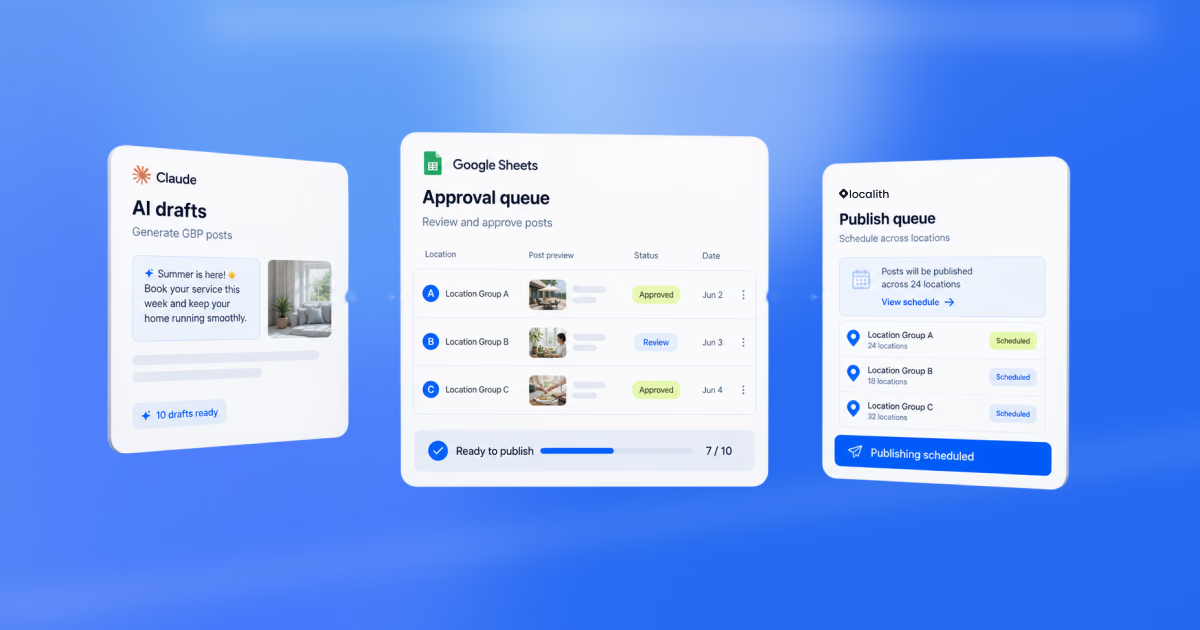
The workflow I recommend is simple: use Claude to draft the posts, use Google Sheets as the approval queue, use n8n to move approved rows, and use Localith to publish or schedule the posts across your connected Google Business Profiles from one publishing workflow.
That gives you the speed of AI without handing the final publishing decision to a black box.
In this guide, I will show how to automate Google Business Profile posts in a way that still gives your team control, review steps, and a clean fallback inside Localith.

Run every Google Business Profile from one operating dashboard. Localith centralizes listings, reviews, posts, and analytics so your team can manage every location without jumping profile to profile.
Start free trialWhy bulk GBP posting gets hard at scale
Google Business Profile posts are easy when you manage one location. You write an update, add a photo or CTA, and publish it.
But once you manage 10, 50, or 200 locations, the work changes. You need consistent campaign timing, local variations, approval notes, image URLs, CTA links, and a way to know what already went live.
I see teams hit the same wall: they do not need more post ideas as much as they need a publishing system. A Google Business Profile post scheduler helps, but multi-location teams also need a clean way to generate, review, and route content before anything goes live.
Before you start: set up the accounts and connections
Before you try to automate Google Business Profile posts, set up the tools first. This is one-time setup work. The workflow will only run end to end after Claude, Google Sheets, n8n, and Localith can all do their part.
- You manually create or log in to Claude. This is where you will generate the first batch of Google Business Profile post drafts.
- You manually create or log in to your Google account. You need access to Google Sheets because the Sheet will become the approval queue.
- You will have to create the Sheet yourself to paste Claude’s table into it or connect Claude to Google Sheets, then ask Claude to create and fill the Sheet for you.
- You manually create or log in to n8n. This is where you will build the automation that watches the Sheet for approved rows.
- You manually create or log in to Localith. Connect the Google Business Profile locations you want to publish to.
- You manually create a Localith API key if n8n will send approved posts into Localith through API or node authentication.
- Inside n8n, you manually connect Google Sheets and Localith.
- Use the Localith community node if it fits your setup, or use HTTP/API request steps if your technical team wants a custom workflow.
- Finally, you should test the workflow with one draft post and one location before you send a full monthly batch.
You can review the Localith API key setup before wiring n8n authentication.
This chain matters. Claude is not the publisher in this setup. n8n is not where marketers should review the final calendar. Claude is the content assistant, n8n is the workflow runner, and Localith is the GBP control layer where the posts should appear after the automation creates or schedules them.
How does the automated GBP posts workflow run after setup?
Once the accounts are created and the connections are tested, the typical GBP posts workflow repeats for each campaign or monthly content calendar:
- You give Claude the campaign brief, locations, offer, CTA, publish dates, and brand rules.
- Claude drafts the Google Business Profile posts and returns them as a structured table.
- You ask Claude to create or update the connected Google Sheet.
- You manually review the Sheet and mark only approved rows as Approved.
- n8n automatically checks the Sheet for approved rows that have not been published or scheduled yet.
- n8n automatically sends each approved row to Localith with the location, post content, CTA, image URL, and publish date.
- Localith publishes or schedules the posts across the selected Google Business Profile locations.
- n8n writes the result back to the Sheet as Scheduled, Published, or Failed, with notes if something needs a human fix.
Step 1: Ask Claude to generate Google Business Profile posts
Right at the start, you need a tight prompt for Claude.
This is a manual step unless you have built a separate automation that sends campaign briefs into Claude. Do not ask for generic local SEO content. Give Claude the campaign goal, location set, offer, date range, CTA, brand voice, and any compliance rules your team needs.
Here is an example prompt:
Write 10 Google Business Profile update posts for June for a multi-location service business. Keep each post under 250 words. Avoid phone numbers in the post text. Return the output in the Localith CSV import format with these exact columns: location_name, post_content, publish_date, publish_time (UTC), cta_type, cta_url, image_url. Use DD/MM/YYYY dates, 24-hour UTC times, and only valid CTA types such as LEARN_MORE, BOOK, ORDER, SHOP, CALL, or SIGN_UP.
If Claude is connected to Google Drive in your setup, it can read existing Sheets and save generated files to Drive. For this workflow, the clearest path is still to have Claude draft the table, then create the Sheet and paste or import the approved rows yourself.
Anthropic’s Google Workspace connectors guide explains how Claude works with Google Drive and reads Sheets from connected Drive files.
Step 2: Create or update the Google Sheet approval queue
The spreadsheet is the control point. It keeps the workflow visible to marketers, operators, and anyone who needs to approve local messaging before it goes live.
There are two ways to handle this step. In the simple version, you manually create a Google Sheet and paste Claude’s table into it. In the connected version, you ask Claude to create or update the Google Sheet, but only after Claude has permission to access Sheets.

For the working approval Sheet, use the Localith CSV template columns first:
location_namepost_contentpublish_datepublish_time (UTC)cta_typecta_urlimage_url
Then add approval columns that stay in your working Sheet but do not belong in the final CSV import:
approval_statuspublished_statuserror_notes
The final file you upload to Localith should match the template: location name, post content, publish date, UTC publish time for scheduled posts, CTA type, CTA URL, and image URL. The approval and status fields are useful for your team, but remove them or keep them outside the upload tab before importing the CSV.
Step 3: Build the n8n automation
This is a manual setup step. You or someone technical on your team builds the n8n workflow once. After that, n8n can run it automatically on a schedule or when the Sheet changes.
If you are using Localith’s n8n community node, you will need an active paid Localith account, permission to manage Localith API keys, an n8n workspace running version 0.187 or later, and at least one connected Google Business Profile account for live testing. The Localith n8n setup docs cover the connection requirements before you build the live workflow.

In n8n, the workflow usually looks like this:
- You manually add a Google Sheets trigger or scheduled check.
- n8n automatically reads rows where
approval_statusisApprovedandpublished_statusis blank. - Add a filter step that stops rows with missing location IDs, invalid dates, missing CTA URLs, missing image URLs, or any status other than Approved.
- Add the Localith publishing step. If the Localith node is available in your n8n workspace, select it and authenticate with your Localith API key. If you cannot find the Localith node, use an HTTP Request step instead and send the same fields to the Localith API.
- Map the Sheet fields into the Localith request: location or location group, post content, CTA type, CTA URL, image URL, publish date, and publish time.
- Test with one approved row and one location before turning on the recurring schedule.
- After Localith accepts the row, n8n updates the Google Sheet row as Scheduled, Published, or Failed, and writes the Localith response ID or error note back to the Sheet.
When routing your GBP publishing through Localith, you keep it close to the same system where teams manage locations, review publishing status, and use bulk GBP controls.
Step 4: Publish or schedule posts through Localith
For a bulk content plan, the cleanest Localith path is the CSV upload flow. Claude helps create the rows, your team approves them in the Sheet, and then you upload the finished CSV into Localith’s Publishing area.
Google’s Business Profile post help explains the post types, media, buttons, and review behavior that your automation still needs to respect.

Use this flow when the approved posts are ready:
- Open Localith and go to Publishing.
- Click Plan content.
- Click Upload CSV file.
- Choose the date format that matches your file. For the template shown here, use
DD/MM/YYYY. - Download the CSV template from Localith if you do not already have it.
- Fill the template with the Claude-generated and human-approved posts.
- Upload the completed CSV file.
- Let Localith sort the rows into the publishing plan by location, date, time, CTA, and image URL.
- Review the imported posts before publishing or scheduling the plan.

The downloaded template is the safest source of truth for Claude. Give Claude the same column names before it drafts the batch:
Use this Localith CSV template: location_name, post_content, publish_date, publish_time (UTC), cta_type, cta_url, image_url. Fill one row per Google Business Profile post. Use DD/MM/YYYY for publish_date and 24-hour UTC time for publish_time (UTC). Leave cta_type and cta_url blank when the post does not need a button.
If you use n8n in this phase, the node does not replace the Localith template. It should either prepare template-compatible rows from the approved Sheet or send the same fields through the Localith node/API path. In the practical n8n version:
- Google Sheets stores the approval queue.
- n8n reads only rows marked Approved.
- A filter stops incomplete rows before they reach Localith.
- The Localith node, when available, maps each row into the same publishing fields.
- If the Localith node is unavailable in your n8n workspace, use an HTTP Request step with the Localith API key instead.
- After Localith accepts the rows, n8n writes Scheduled, Published, or Failed back into the Sheet.
So, instead of building posts one by one, your Sheet becomes the queue. Claude drafts the posts in the Localith CSV structure, the team approves the rows, Localith imports the CSV, and your team reviews the publishing plan before the posts go live.

Publish Google posts across all your locations from one dashboard. Create, schedule, and manage Google Business Profile posts for every location. Use AI to generate content, publish with CSV, and keep your brand consistent.
Start free trialWhy use Localith instead of publishing directly from n8n?
Direct n8n-to-Google publishing can work. The n8n Google Business Profile node docs list post operations, and n8n also publishes a GBP automation workflow template that combines Google Sheets and AI steps.
But direct API workflows can get brittle fast. You have to manage OAuth, account IDs, location IDs, media handling, rejected posts, retry logic, and status tracking. For a technical operator, that may be fine. For a marketing team managing many locations, it is extra maintenance.
Localith gives you a more controlled layer:
- One dashboard for connected GBP locations
- Bulk publishing and scheduling from the product
- CSV scheduling for large update batches
- Smart Parameters in the visual composer for location personalization
- Live preview before dashboard publishing
- A fallback workflow if the automation fails
That is the expert pattern I trust most: automate the repetitive routing, but keep the publishing system grounded in a multi-location GBP management tool.
When to use the dashboard, CSV, n8n, or API
| Workflow | Best for | What to create or connect |
|---|---|---|
| Localith dashboard | Same post across many locations, previews, Smart Parameters, quick scheduling. | Localith account with GBP locations connected. |
| Localith CSV upload | Large batches of update posts with different content per location. | CSV file using Localith’s template columns. |
| Claude + Google Sheets + n8n | AI-assisted monthly calendars, approval queues, recurring automation. | Claude account, Google account, n8n workspace, Localith API key. |
| Custom API workflow | Technical teams that want complete control over logic and retries. | Localith API access or direct Google API credentials. |
Example: a monthly GBP content calendar workflow
Here is how I would run a June campaign for a 24-location brand:
- Write the campaign brief: offer, locations, target dates, CTA, landing page, and brand notes.
- Ask Claude to draft 10 Google Business Profile posts and return a structured table.
- Paste the table into Google Sheets and assign the exact Localith location names.
- Review the content manually. Mark only approved rows as Approved.
- Export only the approved rows into the Localith CSV template columns.
- In Localith, go to Publishing, click Plan content, then Upload CSV file.
- Download the template if needed, confirm the date format, and upload the completed CSV.
- Review the imported plan in Localith, then publish or schedule it.
- If n8n is part of your workflow, write the publish result back into the Sheet so the team can see what happened.
Remember: the important part is not the number of nodes. It is the control model. Humans approve. n8n moves. Localith publishes.
6 best practices for AI-generated GBP posts
- Review every AI-generated post before publishing. AI is fast, but local offers, regulated language, and store-specific details still need human judgment.
- Localize the content. If every location gets the same bland post, you are saving time but leaving relevance on the table.
- Avoid adding phone numbers inside the post description. Google warns that posts with phone numbers in the description may be rejected.
- Use clear CTAs. Map your CTA type and CTA URL before the row reaches n8n.
- Keep images accessible. If your workflow uses image URLs, make sure they are public and meet the image requirements of your publishing path.
- Track errors back in the Sheet. A failed post should create a visible row-level note, not disappear inside an automation log.
Conclusion: build a controlled GBP publishing workflow
The goal is not to let AI spray posts across every location. The goal is to remove the repetitive work while keeping control where it belongs.
Claude can help you create a stronger content batch. Google Sheets can hold the queue. n8n can move approved rows on a schedule. Localith can publish or schedule the posts across the Google Business Profiles your team already manages.
That gives multi-location teams the right balance: AI speed, automation discipline, and one GBP publishing layer built for scale. If you want the simplest starting point, review the Google Posts scheduler, compare the Localith entry plan, and build the automation around the approval steps your team already trusts.