

Reply to every review across all locations with AI that matches your brand voice. Drafts on-brand responses, routes replies for approval when you turn that on, and works across every location. 7-day trial with 100 AI credits. From $9/mo for 2 locations. 4.4 on G2.
Start free trialQuick answer: add user to Google Business Profile
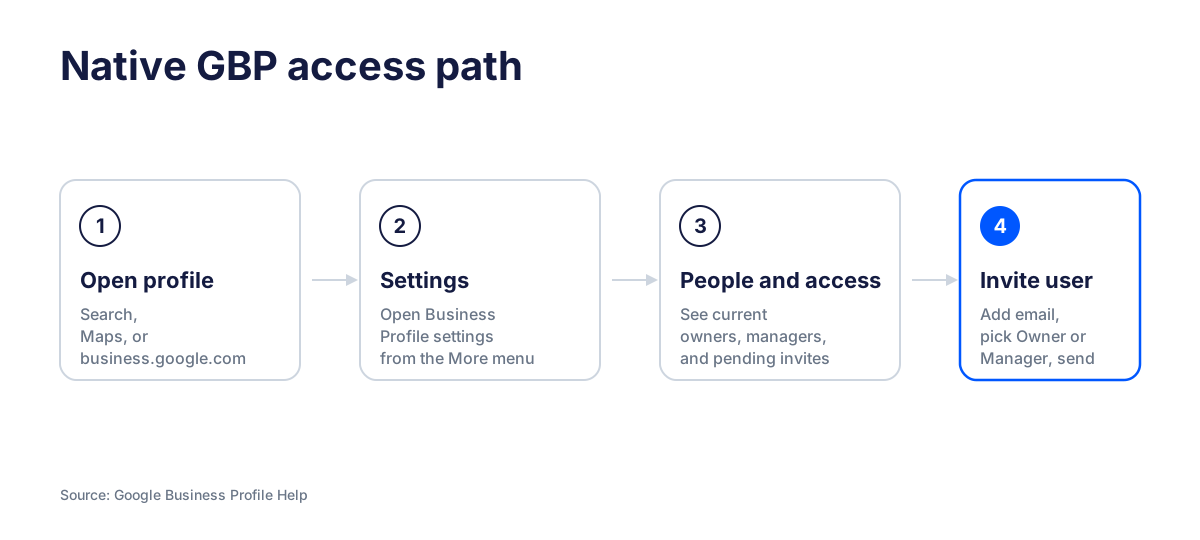
To add user to Google Business Profile access, open your Business Profile, choose More, go to Business Profile settings, open People and access, select Add, enter the person’s email, choose Owner or Manager, and send the invite. That is Google’s native method. It works, but it also gives that person direct Google Business Profile access.
I use a different rule when I am setting up teams for real businesses: give direct GBP access only to people who truly need it. Everyone else should work through a safer access layer, especially if they only need to reply to reviews, publish posts, update selected listings, or use AI credits for assigned locations. That is exactly what Localith’s listings management gives multi-location teams and agencies.
Google Business Profile roles explained: primary owner, owner, and manager
Before you invite anyone, decide what they should be allowed to control. Google Business Profile has three practical access levels: primary owner, owner, and manager. They sound similar, but the risk level is not the same.
Primary owner
The primary owner is the highest-control account on the profile. A Business Profile can have multiple owners, but only one primary owner. This role can transfer primary ownership to another eligible user and should stay with the actual business owner or the internal account that the business controls.
Owner
Owners have broad control. They can add or remove users, manage profile information, and remove the Business Profile. I only use owner access for trusted internal operators, co-owners, or a dedicated company-controlled Google account.
Manager
Managers can handle most daily profile work. They can edit business info, respond to reviews, publish posts, upload photos, manage products and services, answer Q&A, and download insights. The key restriction is that managers cannot add or remove users and cannot remove the profile.
Google also notes that Google Groups cannot be added as owners or managers. Use individual Google accounts, not shared inboxes or group aliases.
Role permissions
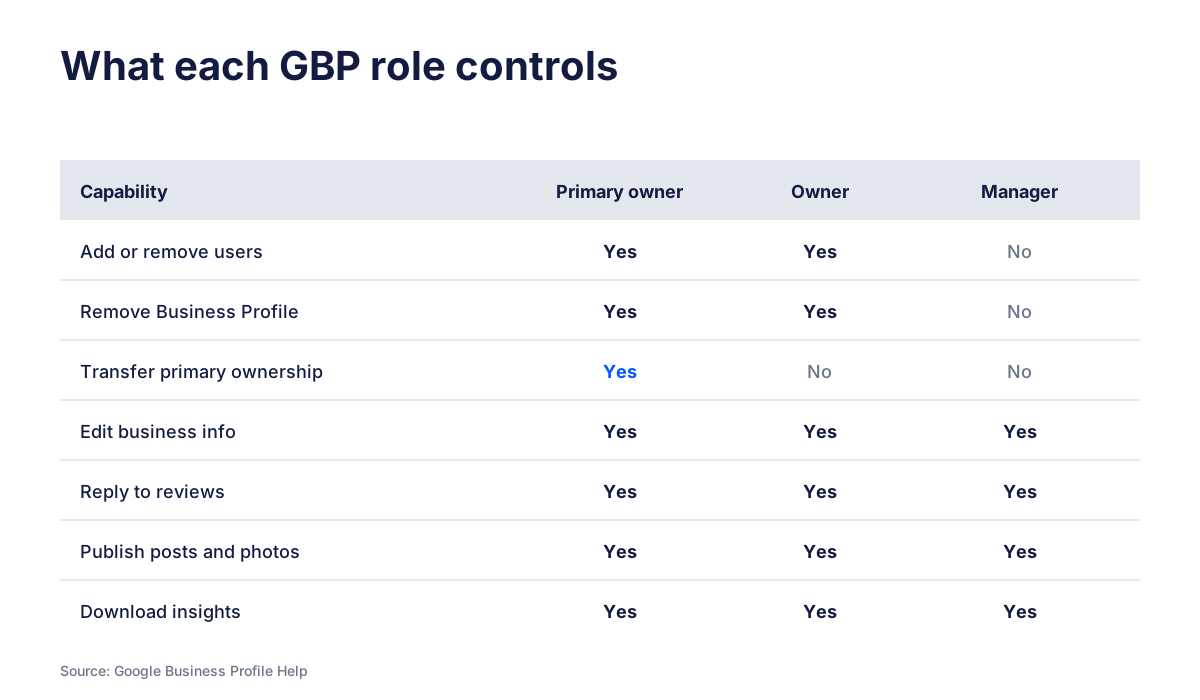
| Capability | Primary owner | Owner | Manager |
|---|---|---|---|
| Add or remove users | Yes | Yes | No |
| Remove Business Profile | Yes | Yes | No |
| Transfer primary ownership | Yes | No | No |
| Edit business information | Yes | Yes | Yes |
| Respond to reviews | Yes | Yes | Yes |
| Publish posts and photos | Yes | Yes | Yes |
| Download insights | Yes | Yes | Yes |
How to add owners and managers to your Google Business Profile
This is the native Google method for how to add manager to Google Business Profile access. You can use the same flow to add an owner, but be careful with owner access because owners can manage other users.
- Sign in with the Google account that owns or manages the Business Profile.
- Open the profile from Google Search, Google Maps, or business.google.com.
- Select More, then Business Profile settings.
- Open People and access.
- Select Add at the top left.
- Enter the user’s Google account email address.
- Choose Owner or Manager under Access.
- Select Invite.
The user becomes active after accepting the invitation. Until then, you can find the pending invitation inside People and access and cancel it if you sent it to the wrong email.
How to change a user’s Google Business Profile role
If you already added someone and need to change their role, go back to People and access, select the user, choose Edit next to Access, pick the new role, and save. Only owners can change access roles for owners and managers.
This matters when an agency or employee starts as a manager and later needs owner access. It also matters when you need to reduce a user’s permissions after a project ends.
How to remove an owner or manager from Google Business Profile
To remove manager from Google Business Profile access, open People and access, select the user, then choose Remove person. Google sends that user an email. After removal, they cannot change business info or complete admin tasks, but their previous replies, posts, comments, and similar actions stay on the Business Profile.
Why you may not see the remove option
The most common reason is simple: you are logged in as a manager. Managers cannot remove other owners or managers. You need owner access. Reddit threads on this topic show the same pattern again and again: teams think they are in the right account, but the active Google account is only a manager, or an old employee is still the primary owner.
How to remove yourself
If you are an owner or manager, you can remove yourself by selecting your own user entry and choosing Stop managing. If you are the primary owner, you must transfer primary ownership first.
How to transfer your Google Business Profile primary ownership
Transfer ownership of Google Business Profile access only when the actual business owner changes, a company account replaces a personal account, or an old agency or employee should no longer hold the top-level role.
- Sign in as the current primary owner.
- Go to Business Profile settings, then People and access.
- Select the user who should become the primary owner.
- Choose Edit next to Access.
- Select Primary owner.
- Save the change.
If the person is not already connected to the profile, add them first. Google says a profile must have at least one other owner or manager before primary ownership can be transferred.
New owner and manager limitations in Google Business Profile
New owners and managers do not get full power over every sensitive action right away. Google applies a 7-day waiting period before a new owner or manager can manage some profile features.
During the first 7 days, a new owner or manager may get an error if they try to delete or undelete a profile, remove other owners or managers, or transfer primary ownership. If they delete their account during those first 7 days, Google removes them from the profile and they must be added again.
This is one reason I prefer not to treat Google roles as the full team-management system. Native GBP roles are broad and slow to adjust when a team changes. They are useful for account ownership, but they are not granular enough for day-to-day operations. For teams running dozens of listings, that gap shows up fast.
A safer way: assign GBP roles in Localith without direct GBP access
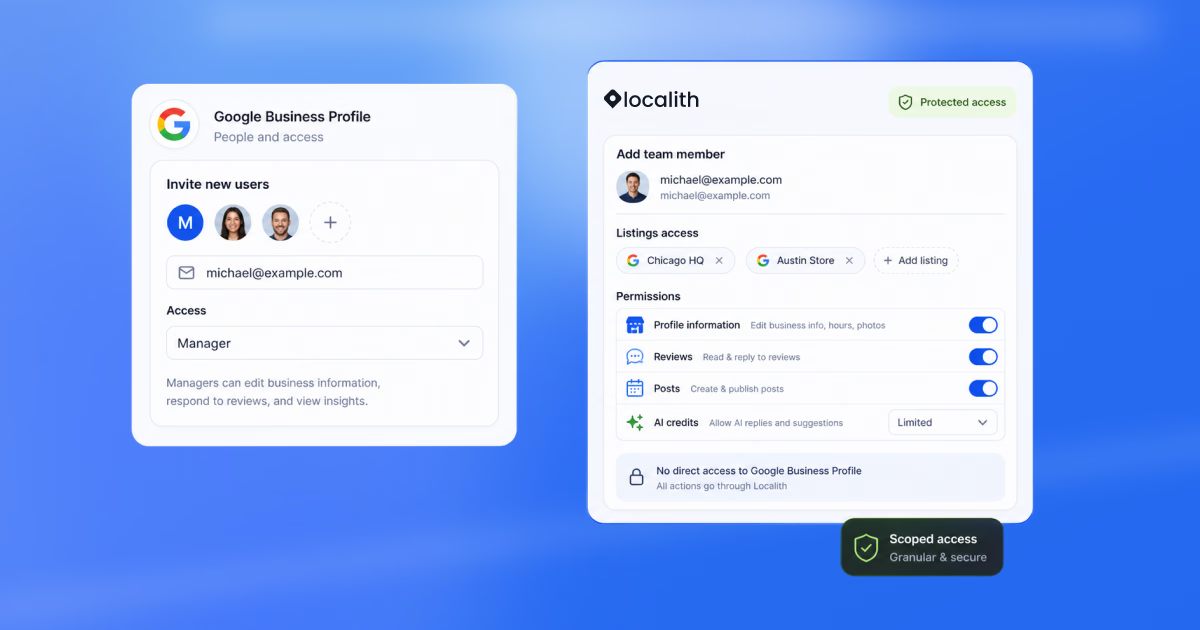
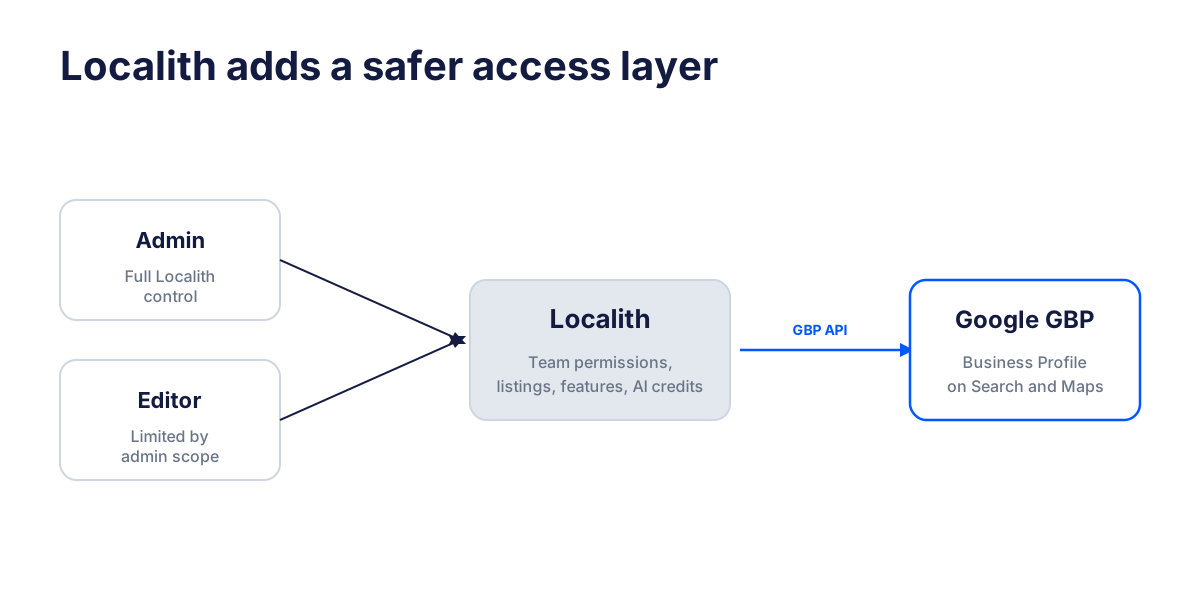
This is where Localith changes the workflow. In Google, a user is either an owner or a manager on the Business Profile itself. In Localith, team access sits on a separate layer. The platform connects to Google through the GBP API, and your team works inside Localith instead of logging into your GBP account directly.
That means an admin or editor can manage allowed GBP work through Localith without receiving your Google Business Profile credentials. They cannot go into the native GBP dashboard and make unmanaged changes outside the permissions you gave them. For multi-location teams, agencies, and franchise operators, that extra control matters.
Localith admin role
A Localith admin controls the account. Admins decide which team members can access which listings, which features they can use, and whether they can use AI credits. This is the role I would give to the person responsible for GBP operations across the business.
Localith editor role
A Localith editor gets only the access the admin chooses. Editors can be assigned to one or more Google listings, limited to specific Localith features, and allowed or blocked from using AI credits. That is much tighter than giving every employee or contractor direct manager access in GBP. The full scope sits inside team management, where the admin picks the listings, features, and AI-credit toggles for each editor.

What customized access looks like
- A store manager can manage only their own location.
- A marketing assistant can publish posts without changing core business details.
- A support teammate can use the review reply workflow without touching profile settings.
- An agency can work across selected client listings without becoming a GBP owner.
- An editor can use AI credits only when the admin allows it.
Why this protects the Business Profile
Direct GBP access is powerful, but it is also blunt. Once someone is inside the native profile, their permissions are tied to Google’s role model. Localith gives you a second control layer. You keep the GBP connection under the business account, then let people work through defined roles, selected listings, feature permissions, and AI credit rules.
The result is controlled access, stronger account protection, and a faster workflow for the people doing the actual work.
When to use native GBP roles vs. Localith team roles
Use native Google Business Profile roles for account ownership and trusted direct operators. Use Localith team roles for day-to-day work that needs control by listing, feature, or credit use.
Recommended access model
| Scenario | Best access choice | Reason |
|---|---|---|
| Business owner or company account | GBP primary owner | Keeps final ownership with the business |
| Trusted internal operator | GBP owner or Localith admin | Needs broad control |
| Location manager | Localith editor | Needs one or a few listings, not full GBP control |
| Review response teammate | Localith editor | Can reply without account-level access |
| Agency or contractor | Localith editor | Controlled access without credentials |
| Temporary marketing help | Localith editor | Easy to limit by feature and listing |
Troubleshooting Google Business Profile user access
The invite was not received
First, confirm the email is a Google account and check pending invitations in People and access. If owner invitations keep failing, some Reddit users report success by inviting the person as a manager first, then promoting them after the 7-day period. Treat that as a practical workaround, not a replacement for Google’s official instructions.
The old agency or employee is still the primary owner
Ask the current primary owner to transfer ownership to a business-controlled account. If you cannot reach them, use Google’s ownership request and support paths, and be ready to prove that you represent the business.
The edit icon does not work
If you are eligible to transfer ownership but the interface does not respond, wait and try again. Reddit users have reported temporary bugs where the role editor failed one day and worked later. If it keeps failing, contact Google Business Profile support with screenshots.
Conclusion: choose safer Google Business Profile access
Google’s native method is the right starting point when you need to add user to Google Business Profile access. It gives you owners, managers, and primary ownership transfer. But those roles are broad, and they work best for trusted account-level control.
For daily work, I would use Localith as the safer layer. Keep direct GBP access limited, connect the profile through the GBP API, and let admins assign editors to the exact listings, features, and AI credit access they need. You can start a free Localith trial to set up team access on your own listings before swapping out broad native roles.

Run every Google Business Profile from one operating dashboard. Localith centralizes listings, reviews, posts, and analytics so your team can manage every location without jumping profile to profile.
Start free trialSource notes
- Google Business Profile Help: Manage your Business Profile owners and managers
- Google Business Profile Help: Transfer primary ownership of a Business Profile
- Reddit: can’t remove previous manager
- Reddit: unable to transfer primary ownership