

If you want to know how to edit Google reviews, the first thing to get clear is ownership. You can edit a Google review only if you wrote it from your own Google account. A business cannot edit a review left by a customer, even if the review is unfair, outdated, or factually wrong.
I see this confusion all the time when working with local businesses and multi-location teams. Customers search for the edit button because they want to correct something they posted. Business owners search for the same phrase because they want to fix a public review that affects trust, local rankings, and conversion. Same keyword, two very different problems.
In this guide, I will show you how to edit a Google review on desktop and mobile, what to do when the edit option is missing, and what businesses can do to manage Google reviews when they cannot change customer reviews directly.

Automate your Google review replies today. Set up AI-powered responses and brand voice controls for all your locations in minutes. 7-day trial with 100 AI credits. From $9/mo for 2 locations. 4.4 on G2.
Start free trialWho can edit or delete Google reviews?
Only the person who posted a Google review can edit or delete it. That means you need to be signed into the same Google account you used when you wrote the original review.
If you are the reviewer, you can usually change:
- The star rating
- The written review text
- Photos attached to the review
- Videos attached to the review
Google’s own help documentation confirms that users can add, edit, or delete reviews and ratings from Google Maps. It also notes that when a review is edited, the visible review date changes to the date of the latest edit. That matters because an old review can suddenly look fresh again after the reviewer updates it.
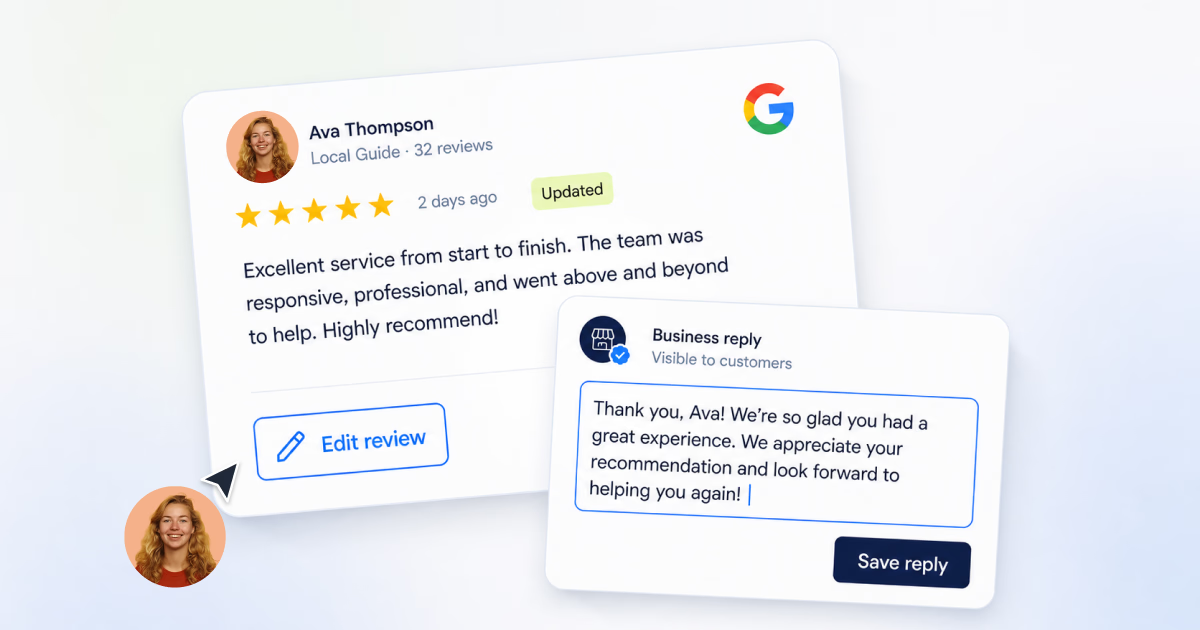
If you manage the business profile, the rules are different. You can reply to reviews, edit your own replies, delete your own replies, and flag reviews that violate Google’s policies. You cannot rewrite a customer’s review, change the star rating, or hide a valid review just because it hurts.
That rule is frustrating for business owners, but it protects the trust layer that makes Google reviews useful in the first place. If businesses could edit reviews, customers would stop trusting them.
How to edit Google reviews on desktop
There are two practical desktop paths. You can edit your Google review through Google Search, or you can open Google Maps and edit it from your contribution history.
The fastest path depends on how easily you can find the business. If you remember the exact business name, Google Search is often quicker. If you want to scan all reviews you have posted, Google Maps is better.
Edit your Google review via Google Search
Use this method when you know the business name and can pull up its business profile directly in search results.
- Sign into the Google account that posted the review.
- Search Google for the business name.
- Find the business profile box in the search results.
- Click the review rating or the review count to open the reviews panel.
- Look for your review.
- Click the three-dot menu next to your review.
- Choose Edit review.
- Change the star rating, text, photos, or videos.
- Click Post to save the edited review.

This route is useful because you do not need to scroll through your entire contribution history. The weak point is that it depends on Google showing the correct business profile in search. If the business has a common name or multiple locations, double-check the address before editing anything.
Edit your Google review via Google Maps
Use this method when you want to see all reviews posted from your account.
- Open Google Maps on desktop.
- Sign into the same Google account that posted the review.
- Click the menu icon.
- Click Your contributions.
- Open the Reviews tab.
- Find the review you want to edit.
- Click the three-dot menu beside that review.
- Select Edit review.
- Make your changes.
- Click Post.

This is the cleanest method if you cannot remember the business name exactly. It is also the method I recommend when someone says, “I know I left the review, but I cannot find it from Google Search.”
How to edit Google reviews on mobile
On mobile, the easiest way to edit Google reviews is through the Google Maps app.
-
Open the Google Maps app.
-
Tap your profile picture or initial.
-
Tap Your profile.
-
Scroll to your reviews, or tap See all reviews.
-
Find the review you want to change.
-
Tap the three-dot menu.
-
Tap Edit review.
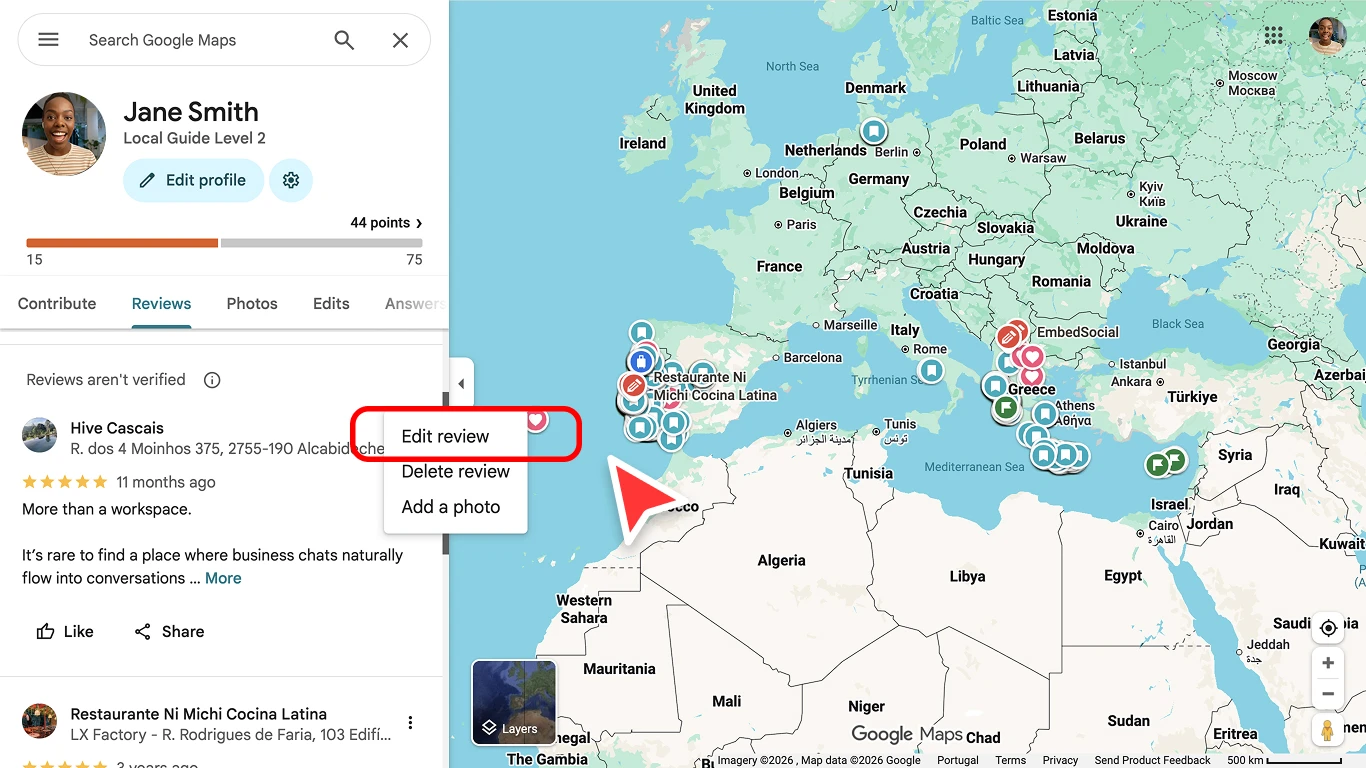
The Edit review option highlighted in the three-dot menu -
Update the rating, review text, photos, or videos.
-
Tap Post.

If you use more than one Google account on your phone, check the profile icon before you start. A lot of “missing review” problems are just account problems. You may be signed into your work Gmail while the review was posted from a personal Gmail, or the other way around.
Mobile is also where people most often edit reviews after an issue gets resolved. For example, a restaurant fixes a billing problem, a clinic follows up properly, or a store replaces a damaged order. In that case, editing the review can make the public record more accurate without deleting the original experience.
Why can’t businesses edit review entries on Google?
Businesses cannot edit customer reviews on Google because the review belongs to the customer, not the business. Google reviews are meant to represent independent customer feedback. If business owners could rewrite reviews, star ratings and review text would lose their value.
This applies even when the business owner is right. A review may be exaggerated, missing context, or written before the issue was resolved. The business still cannot edit it.
As a business owner, your control sits around the review, not inside the review. You can respond, document the issue, ask the reviewer to contact you, flag policy violations, and build a system so reviews do not sit unanswered.
I like to explain it this way: you cannot hold the pen for the customer, but you can control your side of the conversation.
What can businesses do instead of editing reviews?
When a business wants to edit Google reviews, the real task is usually review management. You need a repeatable way to respond, resolve, and track what happened.
Businesses can:
- Reply publicly to the review.
- Edit or delete their own review reply.
- Ask the customer to update their review after resolving the issue.
- Flag reviews that violate Google’s content policies.
- Track review trends across locations.
- Build a consistent review response workflow.
The best public replies are calm, specific, and short. They acknowledge the issue, invite the customer into a private support channel, and show future readers that the business is paying attention.
Do not pressure customers to change reviews. That can backfire and create a worse public record. Fix the problem first. Then, if the customer is happy with the outcome, it is fair to say: “If you feel the issue is resolved, you can update your review so it reflects the full experience.”
How businesses can manage Google reviews without editing them
This is where Localith fits naturally.
If you manage one location, you can probably check reviews manually. If you manage 10, 50, or 500 locations, manual review management breaks fast.
Someone misses a one-star review. A franchisee replies off-brand. A location with a rising complaint pattern gets noticed too late. A review gets edited and no one catches the change.
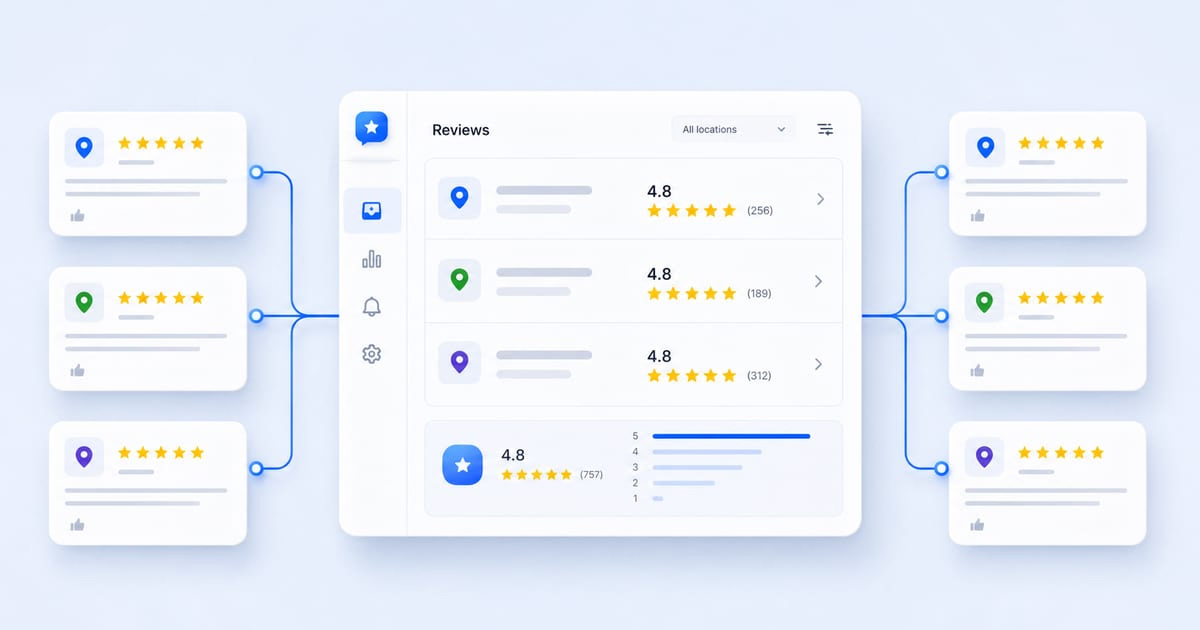
Localith helps businesses manage Google reviews without pretending they can edit what customers wrote. The platform gives teams a central place to monitor reviews, reply faster, keep responses consistent, and understand what reviews are saying across every Google Business Profile.
With Localith’s AI Review Reply Agent, teams can draft brand-consistent replies based on tone and sentiment. With role-based workflows, teams can approve sensitive replies before they go live. With analytics and review tracking, operators can spot problems by location instead of waiting until the star rating drops.
For multi-location businesses, this is the healthier way to handle reviews. You do not need control over the customer’s words. You need control over your response system, plus the Google Business Profile controls that sit inside a proper listings management workflow.


Manage Google reviews for all your locations from one dashboard. Centralize replies, automate with AI, and track review trends across every branch.
Start free trialEditing Google reviews: troubleshooting the most common issues
If you cannot edit a Google review, the cause is usually simple. Start with the basics before assuming the review is gone.
- You are signed into the wrong Google account.
- You are looking at the wrong business location.
- The review does not appear in your Google Maps contributions.
- The three-dot menu is hidden or hard to find on mobile.
- The review was removed or filtered by Google.
- The review is still processing after an edit.
- You are trying to edit someone else’s review.
- You are trying to edit a business reply instead of a customer review.
- Your internet connection or app version is causing a display issue.
- You posted the review under an older account you no longer use.
If the review is missing, switch accounts first. Then check Google Maps on desktop. Desktop often gives you a clearer view of your contribution history than the mobile app.
If the review was filtered or removed, editing may not bring it back. Google may remove reviews that violate content policies, look spammy, include restricted content, or trigger quality filters. In that case, rewriting the review in a more factual, specific, policy-safe way may help, but Google still decides whether it appears.
If you manage the business and cannot find a customer review after it was deleted, there may be nothing to recover from your Google Business Profile dashboard. That question appears often in Reddit threads because business owners want a record of deleted reviews. The practical answer is to screenshot important reviews and use a review management workflow that logs review activity over time.
Why care about editing your Google reviews
Editing a Google review is not just a cleanup task. It can change how other people judge a business.
If you are a customer, editing your review can make it fairer. Maybe the business fixed the issue. Maybe you wrote the review while angry and want to add context. Maybe the star rating no longer matches what happened after support followed up.
If you are a business, edited reviews can change the public story around your brand. A one-star review can become a four-star review after a good recovery. A vague complaint can become a detailed warning. A happy customer can add photos that make the listing more persuasive.
This is why review management matters for local SEO. Reviews influence trust, click behavior, and the way customers compare nearby businesses. Google also says review count and review score can factor into local ranking. You cannot script customer feedback, but you can build the kind of operation that earns better updates over time.
For multi-location brands, the stakes are higher. One location’s review pattern can signal a staffing issue. Another location’s replies may be late or inconsistent. Another may have reviews mentioning a competitor, pricing problem, or recurring service gap. When you manage reviews across locations from one place, you see those patterns sooner.
Conclusion: edit your review or manage the response
If you wrote the review, you can edit your Google review through Google Search, Google Maps on desktop, or the Google Maps mobile app. Make sure you are using the same Google account, find the review, open the three-dot menu, and choose Edit review.
If you manage the business, you cannot edit a customer’s Google review. Your job is to manage the response around it. Reply clearly, resolve the issue, flag reviews that break Google’s rules, and ask satisfied customers to update their review when it is appropriate.
That is the more durable play. You do not need to control customer reviews to protect your reputation. You need a system that helps your team see every review, respond well, and learn from the patterns customers are already giving you. If you want one place to run that across every location, start a free trial and connect your profiles.