---
title: "Online Review Reporting: 2026 Guide for Multi-Location Brands and Agencies"
date: "2026-05-06"
canonical_id: online-review-reporting
author: "Katerina Bojkov"
category:
- analytics
- review-management
- google-business-profile
tags:
- "online-review-reporting"
- "review-analytics"
- "google-review-analytics"
- "review-reports"
- "multi-location"
summary: "Learn how online review reporting helps businesses track Google reviews, build clearer review reports, analyze feedback, and improve local SEO across locations."
draft: false
template: "blog"
image: "blog/online-review-reporting/online-review-reporting.jpg"
faq:
- question: "What is online review reporting?"
answer: "Online review reporting is the process of collecting, organizing, and analyzing review data from platforms like Google Business Profile. A good report shows review volume, average rating, sentiment, response activity, and location-level patterns."
- question: "What should an online review report include?"
answer: "A useful review report should include review volume, average rating, rating distribution, sentiment, response rate, unanswered reviews, recurring topics, and location-level comparisons. For multi-location teams, it should also show which branches need attention first."
- question: "How do I generate online review reports?"
answer: "The easiest way is to connect your Google Business Profile locations to a reporting platform, choose the date range and locations you want to review, then export or schedule the report. Localith helps teams turn that workflow into repeatable reporting instead of manual spreadsheet work."
- question: "How can I see online reviews in one place?"
answer: "You can see online reviews in one place by using a centralized review workflow that pulls reviews from your connected Google Business Profiles into one dashboard. That makes it easier to monitor trends, compare locations, and generate reports."
- question: "What is the difference between review analytics and review reporting?"
answer: "Review analytics is the interpretation layer. It helps you understand trends, sentiment, and recurring issues. Review reporting is the packaged output you share with managers, clients, or stakeholders. Most teams need both."
- question: "Why is review reporting important for multi-location businesses?"
answer: "Multi-location businesses need review reporting because brand-wide averages hide local issues. Location-level reports make it easier to spot weak branches, recurring complaints, unanswered reviews, and reputation gaps before they grow."
- question: "Can Localith help with Google review analytics?"
answer: "Yes. Localith helps teams monitor Google reviews, compare locations, export review reports, track response activity, and surface patterns that inform customer experience and local SEO work."
- question: "How often should businesses generate review reports?"
answer: "Monthly reporting is a good default for most businesses. Weekly reporting is useful for agencies, regional operators, and high-volume brands that need faster visibility into review changes and response gaps."
- question: "What is a review management report?"
answer: "A review management report summarizes review performance, response activity, sentiment, and customer feedback trends across one or more locations. Agencies use it as a client deliverable, and multi-location brands use it as an internal reputation snapshot."
seo:
title: "Online Review Reporting: 2026 Guide for Multi-Location Brands and Agencies"
description: "Learn how online review reporting helps businesses track Google reviews, create review reports, analyze feedback, and improve local SEO with Localith."
og_image: "blog/online-review-reporting/online-review-reporting.jpg"
structured_data: "article"
---
If your team is already using [Localith analytics](/analytics/) to track Google Business Profile performance, online review reporting is the next layer that turns review activity into something managers, clients, and regional teams can actually use.
Instead of opening each profile one by one, you can pull review data into one workflow, compare locations, export reports, and spot the issues that deserve action first.
{{product-cta:review-reporting}}
## What is online review reporting
> **Online review reporting** is the process of collecting, organizing, analyzing, and sharing customer review data from platforms like Google Business Profile.
At the simplest level, a review report tells you how many reviews came in, what the average rating looks like, and whether teams are replying on time.
At a more useful level, it tells you what changed, why it changed, and which locations or teams need attention next.
For single-location businesses, that can be enough to keep customer feedback visible. For agencies and multi-location brands, the same workflow becomes a reputation and operations system.
## Why online review reporting matters
Reviews are not only public feedback. They are also trust signals, customer language, local SEO inputs, and operational clues.
Without reporting, most teams react to whatever review feels loudest. With reporting, they can compare patterns over time and make better decisions.
- Centralize Google reviews from multiple locations
- Track whether ratings and review volume are improving or slipping
- Compare branch performance without relying on brand-wide averages
- See which reviews still need replies
- Identify recurring complaints and recurring strengths
- Give managers or clients a report they can understand quickly
**Key takeaway:** A review report should not end with a chart. It should end with a clearer next action for the team.
## What should an online review report include
A useful review report should answer three questions: what changed, why it changed, and what the team should do next.
Here is the core structure most businesses need.
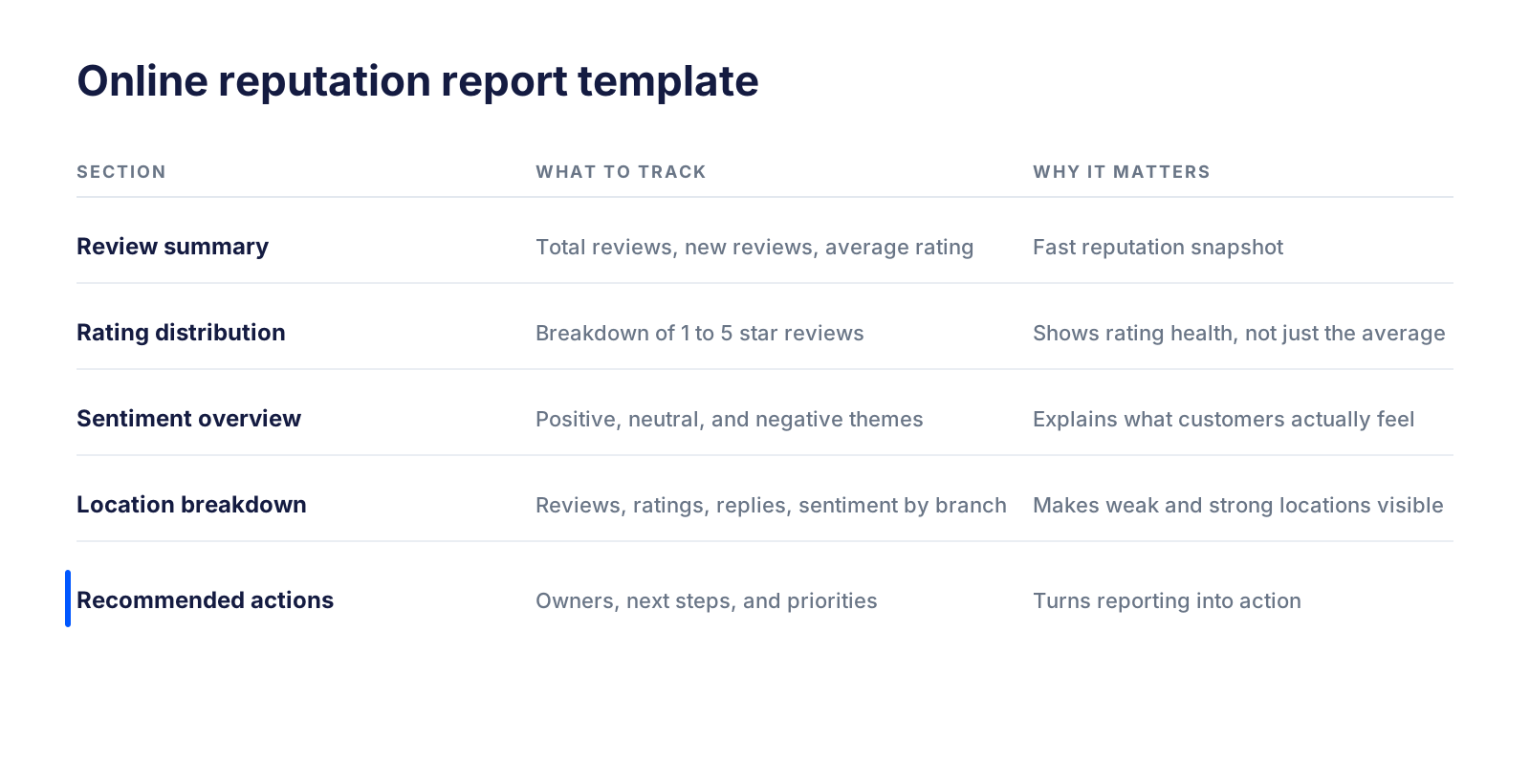
| Report section | What to track | Why it matters |
|---|---|---|
| Review summary | Total reviews, new reviews, average rating | Gives a quick reputation snapshot |
| Rating distribution | Number of 1 to 5 star reviews | Shows whether the profile is healthy or uneven |
| Sentiment overview | Positive, neutral, and negative patterns | Explains what customers actually feel |
| Response activity | Response rate, unanswered reviews, reply speed | Shows whether the team is engaging consistently |
| Topic analysis | Repeated themes in review text | Turns comments into operational signals |
| Location breakdown | Reviews, ratings, replies, sentiment by location | Helps compare branches fairly |
| Recommended actions | Next steps for owners, managers, or clients | Converts reporting into work |
## How to generate online review reports with Localith
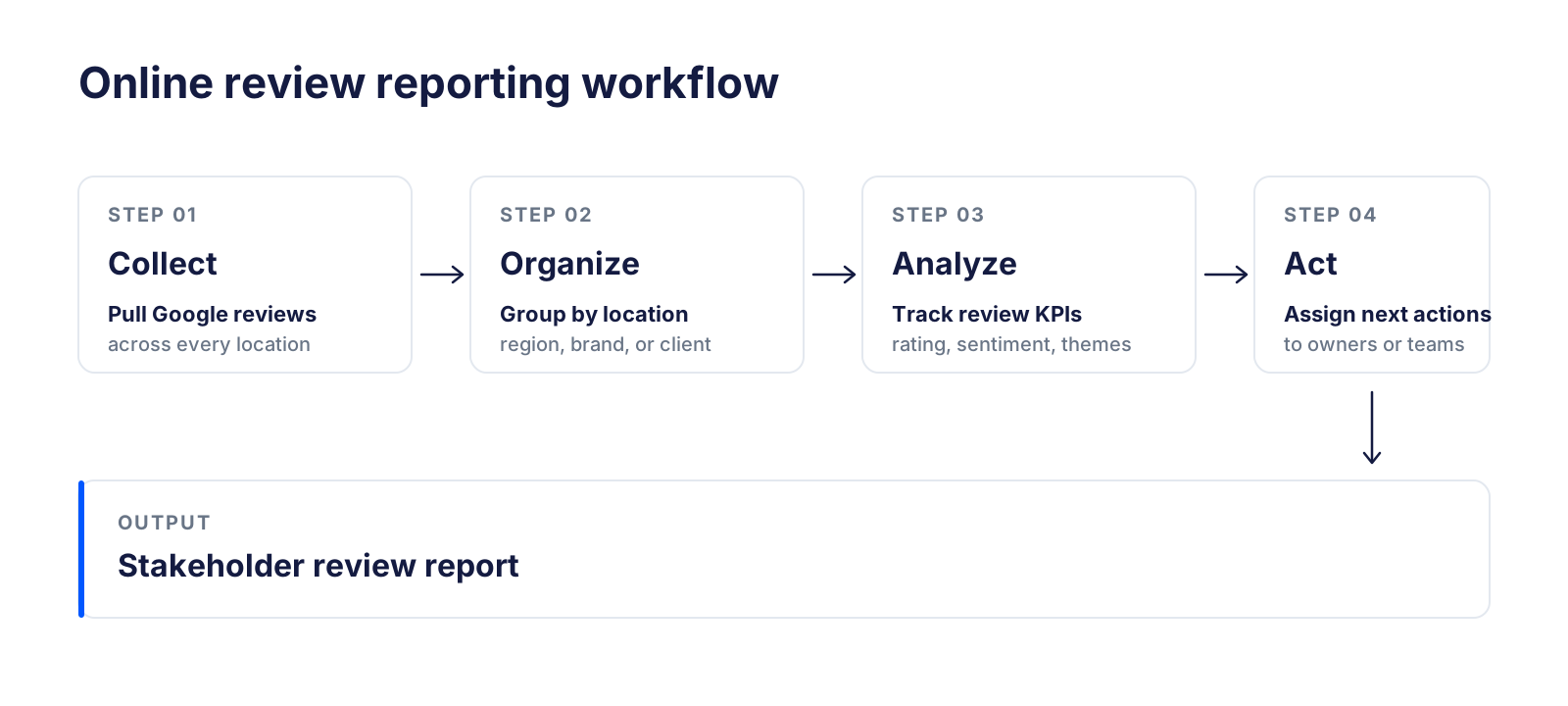
The easiest way to generate review reports is to use a system that already has access to the Google Business Profile locations you manage.
Localith is built around that workflow, so teams can [see reviews in one place](/ai-reviews-reply-agent/), compare locations, and export a report without rebuilding the same spreadsheet every month.
### Step 1: Connect your Google Business Profile locations
Start by connecting the Google account that manages your listings.

Once your locations are connected, Localith can pull their reviews into one dashboard and keep the reporting workflow tied to the real location set.
### Step 2: Open the reporting view and choose your scope
Open the [Reports section in Localith](https://embedsocial.com/app/reports/generate) and stay on the **Generate report** tab. From the left sidebar you can also switch to **Scheduled reports**, **Reports history**, or the **Weekly digest email** later in the workflow.

From the generator, set the four scope controls:
- **Report type**: pick *GBP performance*, *Reviews metrics*, or *Export reviews* depending on what stakeholders need.
- **Report format**: *PDF (Visual report)* for presentations and quick overviews, or *CSV (Raw data)* for analysis in spreadsheets.
- **Date range**: choose the period you want to report on, and optionally a **Compare date range** to show period-over-period change.
- **Sources**: limit the report to one location, several selected locations, a region, a client account, or your full managed network.
Once the scope is set, you can generate a one-off report or schedule it to repeat (covered in Step 6).
### Step 3: Select the review metrics that matter
Good review reporting is selective. If every metric is included every time, the report becomes noisy.
For most teams, the most useful Google review analytics include:
- Total reviews
- New reviews in the selected period
- Average rating
- Rating distribution
- Sentiment distribution
- Review trend over time
- Last review date
- Reply count and unanswered reviews
### Step 4: Export or schedule the report
Once the data is ready, export the report in the format your stakeholders need.
Some teams need a visual PDF. Others need raw CSV exports for deeper analysis or client deliverables.

### Step 5: Share the report with the right people
Review reports are useful only when they reach the people who can act on them.
That often includes business owners, location managers, regional operators, franchise teams, local SEO teams, customer support leads, and agency clients.
### Step 6: Repeat on a fixed schedule
Monthly reporting works for most businesses because it shows trend movement without creating daily noise.
Weekly reporting makes more sense for agencies, larger brands, and higher-volume review programs.
In Localith, open **Scheduled reports** from the Reports view, give the report a name, choose the report type and format, then pick a frequency: *Daily*, *Weekly (every Monday)*, or *Monthly (1st of month)*. Set the time and the email channels that should receive it.

## How to analyze online reviews and turn them into action
Reporting is the packaging layer. Analysis is what makes the report valuable.
The goal is not to admire the metrics. The goal is to find patterns and turn them into decisions.
### Categorize feedback into repeated themes
Start by grouping review text into operational themes such as service quality, staff behavior, wait times, pricing, product quality, cleanliness, location experience, appointment process, or delivery experience.
That gives the report more meaning than a rating trend alone.
### Compare positive and negative reviews
Negative reviews show what needs fixing. Positive reviews show what should be protected.
If many five-star reviews mention fast service, friendly staff, or easy appointment booking, those are strengths the business can reinforce across other locations — not just a feel-good footnote.
### Compare locations, not just brand averages
Brand-wide averages can hide branch-level problems.
One location may be carrying the average while another quietly collects two-star reviews about the same issue every week.
### Track the same KPIs every time
Consistency matters more than metric volume.
When the same KPIs appear in every report, teams can compare month over month without changing the interpretation rules.
- Average rating
- New review count
- Review velocity
- Rating distribution
- Response rate
- Unanswered reviews
- Sentiment trend
### Convert patterns into assignments
Recurring complaints should lead to operational follow-up, not just commentary.
**Examples of useful actions:** assign unanswered reviews to location managers, escalate repeated cleanliness complaints to operations, trigger a review request campaign for low-volume branches, and use repeated customer wording to improve GBP messaging and local SEO copy.
## Online reputation management report template
If you need a simple monthly template, use this structure.
1. Executive summary
2. Review volume and rating snapshot
3. Rating distribution and sentiment trends
4. Top positive themes
5. Top negative themes
6. Response activity and unanswered reviews
7. Location-level winners and weak spots
8. Recommended actions for the next reporting period
This works well for in-house teams, franchise operators, and agencies that need a repeatable review management report format.
## Review reporting for multi-location businesses
Multi-location businesses do not just need more review data. They need location-level clarity — see [how to manage Google reviews for multiple locations](/blog/google-reviews-multiple-locations-how-to-manage/) for the workflow that feeds these reports.
A 4.5 average across 80 locations can still hide one branch with a service issue, one branch with no recent reviews, and another with a backlog of unanswered complaints.
That is why review reporting for multi-location businesses should compare:
- Review count by location
- Average rating by location
- Review recency by location
- Response activity by location
- Repeated complaint themes by location
- Sentiment trends by location
If you are already managing the profiles themselves, our guide on [how to manage multiple Google Business Profiles](/blog/how-to-manage-multiple-google-business-profiles/) covers the wider operational side.
## Review reporting for agencies
Agencies use review reports differently. They need to show progress, justify ongoing work, and explain what changed across client locations in plain language.
A strong agency review report should make the work visible without forcing the client to decode raw exports.
- New reviews gained
- Rating movement
- Unanswered reviews
- Response activity
- Positive and negative themes
- Location-level outliers
- Recommended next steps
That is where online review reporting becomes more than reporting. It becomes client communication.
## Generate review reports with Claude using the Localith MCP
If you manage many locations or many client accounts, building each report by hand still adds up. The Localith [Claude MCP connector](/blog/claude-mcp-google-business-profile-locations/) removes that ceiling.
Once your Localith workspace is [connected to Claude through MCP](/docs/integrations/claude-mcp-setup/), you can ask for review reports in plain language and let Claude pull the data, group by location, and format the output.
For example, an agency lead can type a single prompt like *"Generate the Q1 review report for McCann across all 18 locations, grouped by city, and flag the locations with the lowest response rate"* and get a structured report back without opening the dashboard.

See the full flow below: connecting Localith to Claude, asking for a custom Google reviews report, and refining the output.
This works well for:
- Agencies generating monthly client deliverables across 10+ accounts
- Brand teams asking ad-hoc questions like "which 3 locations dropped below 4.0 this month?"
- Operations leads turning review trends into next-step assignments without leaving the chat
The UI workflow in Steps 1–6 is still the right starting point. The MCP layer is what scales it once the rhythm is set.
## Best practices for online review reporting
Good reports are clear, repeatable, and tied to action.
- Report on a fixed schedule so trends are comparable
- Separate location views from brand-wide averages
- Include review text themes, not just star ratings
- Track unanswered reviews and reply consistency
- Keep the KPI set stable from month to month
- Use the report to assign owners and next steps
- Save raw exports for analysis, but present summaries for stakeholders
- Do not ignore positive feedback because it reveals what customers want repeated
## Turn online review reporting into action
Online review reporting helps businesses move from passive monitoring to active [reputation management](/blog/google-reputation-management/).
It makes it easier to track review trends, compare locations, spot recurring issues, monitor replies, and connect customer language to local SEO and service improvements.
For agencies, it gives clients a clearer story. For multi-location brands, it reveals which branches need support before the reputation gap becomes a performance gap.
If the reporting process still depends on manual exports and scattered spreadsheets, Localith can centralize the workflow and turn Google review analytics into something your team can actually use.
{{product-cta:review-reporting}}